
TrainingPeaks MCP Server
Connect TrainingPeaks to Claude and other AI assistants via the Model Context Protocol (MCP). Query workouts, build structured intervals, manage your calendar, track fitness trends, and control your training through natural conversation.
No API approval required. The official Training Peaks API is approval-gated, but this server uses secure cookie authentication that any user can set up in minutes. Your cookie is stored in your system keyring, never transmitted anywhere except to TrainingPeaks.
What You Can Do
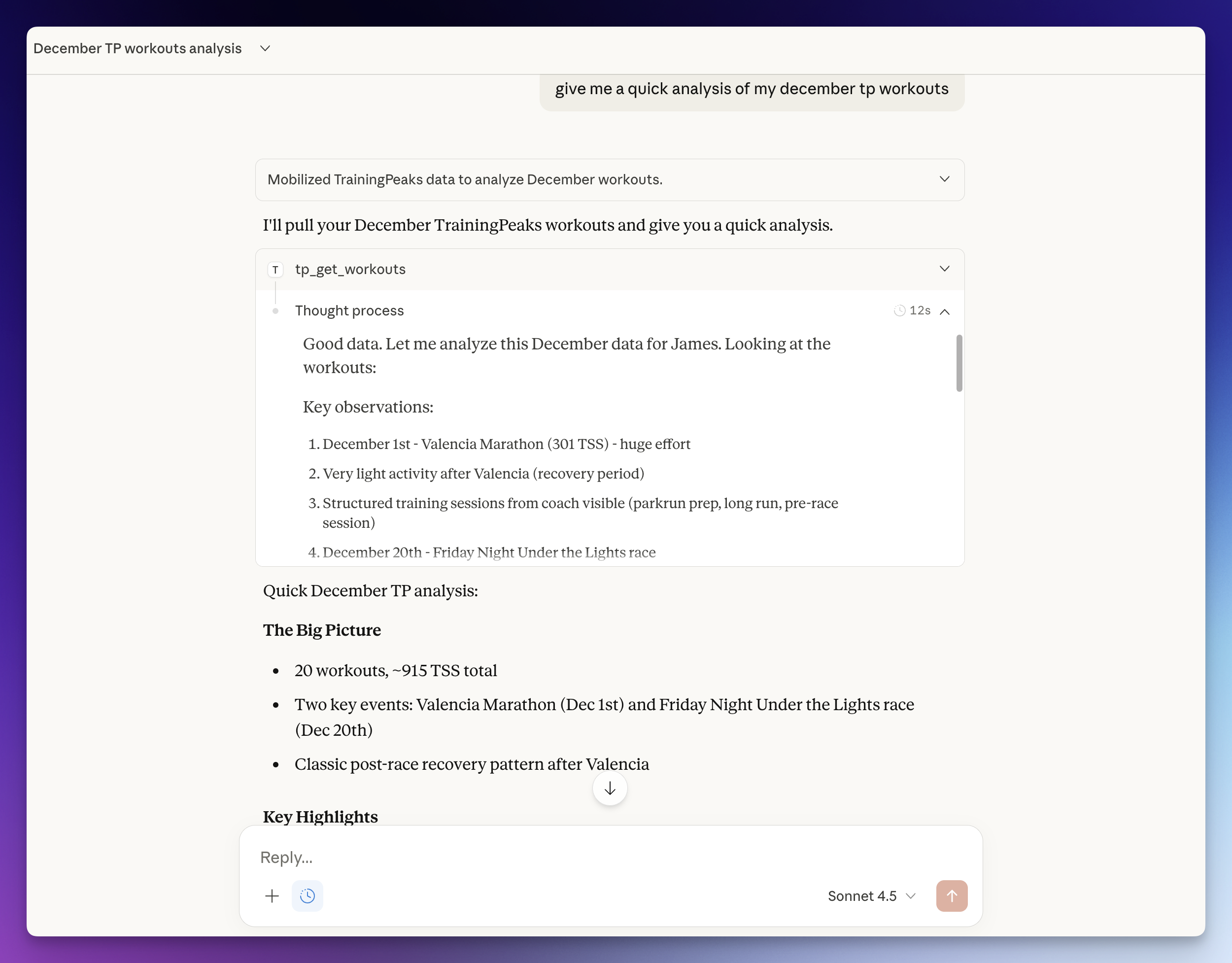
Ask your AI assistant things like:
- "Build me a 4x8min threshold session for Tuesday with warm-up and cool-down"
- "Schedule my mobility session for April 14, 2026 at 16:45"
- "Compare my FTP progression this year vs last year"
- "Copy last week's long ride to this Saturday"
- "Log my weight at 74.5kg and sleep at 7.5 hours"
- "What's my weekly TSS so far? Am I on track for my ATP target?"
- "Show my race calendar and how many weeks until my A race"
- "Set my FTP to 310 and update my power zones"
- "Add a calendar note for next Monday: rest day, travel"
Tools (84)
Workouts
| Tool | Description |
|---|---|
tp_get_workouts |
List workouts in a date range (max 90 days) |
tp_get_workout |
Get full details for a single workout |
tp_create_workout |
Create a workout with optional interval structure, auto-computed IF/TSS, and optional planned start time |
tp_update_workout |
Update any field of an existing workout, including structured intervals and planned start time |
tp_delete_workout |
Delete a workout |
tp_copy_workout |
Copy a workout to a new date (preserves structure and planned fields) |
tp_reorder_workouts |
Reorder workouts on a given day |
tp_pair_workout |
Pair a completed workout with a planned workout (merges into one) |
tp_unpair_workout |
Unpair a workout (splits into separate completed and planned workouts) |
tp_validate_structure |
Validate interval structure without creating a workout |
tp_get_workout_comments |
Get comments on a workout |
tp_add_workout_comment |
Add a comment to a workout |
tp_get_workout_note |
Get the private workout note for a workout |
tp_set_workout_note |
Set or update the private workout note |
tp_upload_workout_file |
Upload a FIT/TCX/GPX file to a workout |
tp_download_workout_file |
Download a workout's device file |
tp_delete_workout_file |
Delete an attached file from a workout |
Analysis & Performance
| Tool | Description |
|---|---|
tp_analyze_workout |
Detailed analysis with time-series data, zones, and laps |
tp_get_peaks |
Power PRs (5s-90min) and running PRs (400m-marathon) |
tp_get_workout_prs |
PRs set during a specific session |
tp_get_fitness |
CTL, ATL, and TSB trend (fitness, fatigue, form) |
tp_get_weekly_summary |
Combined workouts + fitness for a week with totals |
tp_get_atp |
Annual Training Plan - weekly TSS targets, periods, races |
Athlete Settings
| Tool | Description |
|---|---|
tp_get_athlete_settings |
Get FTP, thresholds, zones, profile |
tp_update_ftp |
Update FTP for a sport's power set (bike default; preserves the set's calculation method) |
tp_update_hr_zones |
Update HR threshold/max/resting for a sport (general/bike/run/swim), preserving the method |
tp_update_speed_zones |
Update run/swim threshold pace, preserving the method |
tp_create_zones |
Create a NEW per-sport zone set from scratch (choose the calculation method); errors if one already exists |
tp_get_zone_methods |
List available zone-calculation methods per metric (power/HR/pace) with each method's zone count and labels |
tp_update_nutrition |
Update daily planned calories |
tp_get_pool_length_settings |
Get pool length options |
Zone updates — how they work & one limitation. The zone setters target the
right per-sport zone set (by workoutTypeId) and recompute the bands with
TrainingPeaks' own zone calculator (the same call the web UI's Calculate
makes), so the athlete's calculation method (%LTHR, Karvonen, Andy Coggan, …) is
honoured exactly. They update a threshold (FTP / LTHR / threshold pace).
Limitation — test-based (Distance/Time) methods. A zone set whose method derives its threshold from a test result (Speed/Pace Distance / Time) cannot have a threshold set directly — there is no stable value to set. These tools detect that case and return
TEST_BASED_METHOD(writing nothing) rather than storing a wrong threshold; configure such a set via a test in the TrainingPeaks UI. This is deliberate: the connector owns threshold-anchored zones; test-protocol setup stays in the UI.
Health Metrics
| Tool | Description |
|---|---|
tp_log_metrics |
Log weight, HRV, sleep, steps, SpO2, pulse, RMR, injury |
tp_get_metrics |
Get health metrics for a date range |
tp_get_nutrition |
Get nutrition data for a date range |
Equipment
| Tool | Description |
|---|---|
tp_get_equipment |
List bikes and shoes with distances |
tp_create_equipment |
Add a bike or shoe |
tp_update_equipment |
Update equipment details, retire |
tp_delete_equipment |
Delete equipment |
Events & Calendar
| Tool | Description |
|---|---|
tp_get_focus_event |
Get A-priority focus event with goals |
tp_get_next_event |
Get nearest future event |
tp_get_events |
List events in a date range |
tp_create_event |
Add a race/event with priority (A/B/C) and CTL target |
tp_update_event |
Update event details, attach workouts as legs (multisport) |
tp_delete_event |
Delete an event |
tp_create_note |
Create a calendar note |
tp_list_notes |
List calendar notes for a date range |
tp_get_note |
Get a calendar note by ID |
tp_update_note |
Update title, description, date or visibility of a note |
tp_delete_note |
Delete a calendar note |
tp_get_note_comments |
List all comments on a note |
tp_add_note_comment |
Add a comment to a note |
tp_get_availability |
List unavailable/limited periods |
tp_create_availability |
Mark dates as unavailable or limited |
tp_delete_availability |
Remove availability entry |
Workout Library
| Tool | Description |
|---|---|
tp_get_libraries |
List workout library folders |
tp_get_library_items |
List templates in a library |
tp_get_library_item |
Get full template details including structure |
tp_create_library |
Create a library folder |
tp_delete_library |
Delete a library folder |
tp_create_library_item |
Save a workout template |
tp_update_library_item |
Edit a template |
tp_schedule_library_workout |
Schedule a template to a calendar date, for one athlete or (coach accounts) several at once via athletes |
Strength Workouts
| Tool | Description |
|---|---|
tp_search_exercises |
Search the built-in strength exercise library by name (offline) |
tp_create_strength_workout |
Create a structured strength/gym workout (blocks of exercises with sets and parameters) |
tp_get_strength_summary |
Get a strength workout's compliance summary (blocks/prescriptions/sets completed) |
tp_get_strength_workouts |
List strength/gym workouts in a date range (they don't appear in tp_get_workouts) |
tp_get_strength_workout |
Get a strength workout's full detail: blocks, exercises, sets, prescribed vs executed weights |
tp_update_strength_workout |
Update a strength workout in place (replace/append blocks, retitle, mark complete) - preserves Garmin TSS and FIT files, so use this rather than delete-and-recreate on device-synced workouts |
tp_delete_strength_workout |
Delete a strength workout by ID |
Athlete Groups (coach accounts)
| Tool | Description |
|---|---|
tp_list_groups |
List the coach's athlete groups (TP tags) |
tp_list_athletes_in_group |
List the athletes in one group, with names resolved from the roster |
tp_create_group |
Create a new athlete group |
tp_rename_group |
Rename an athlete group (default group cannot be renamed) |
tp_delete_group |
Delete a group - the grouping only, athletes are not deleted |
tp_add_athletes_to_group |
Add one or more athletes to a group |
tp_remove_athletes_from_group |
Remove one or more athletes from a group |
Training Plans (multi-week)
| Tool | Description |
|---|---|
tp_list_training_plans |
List the coach's authored multi-week training plans |
tp_get_training_plan |
Summary of one plan: weeks, per-week duration/distance, sport breakdown |
tp_get_training_plan_workouts |
All workouts of a plan laid out by week/day |
tp_apply_training_plan |
Apply a plan to an athlete's calendar from a start date (safe synthetic copy) |
Reference & Auth
| Tool | Description |
|---|---|
tp_get_workout_types |
List all sport types and subtypes with IDs |
tp_get_profile |
Get athlete profile |
tp_auth_status |
Check authentication status |
tp_list_athletes |
List athletes (coach accounts) |
tp_refresh_auth |
Re-authenticate from browser cookie |
MCP Apps (inline charts)
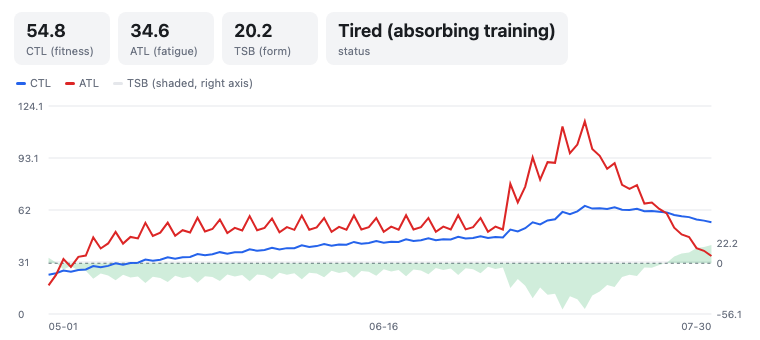
On clients that support the MCP Apps extension (spec 2026-07-28), some tools render an interactive UI inline in the conversation as well as returning their normal text payload. On every other client the tools behave exactly as before - the text answer is always complete on its own.
| Tool | App |
|---|---|
tp_get_fitness |
Interactive CTL/ATL/TSB performance-management chart |
tp_get_weekly_summary |
Week card: per-day load bars, planned vs completed, totals |
tp_get_workout |
Interval-profile viewer for structured workouts (summary fallback otherwise) |
(Note: as of July 2026, Claude clients still connect to local stdio servers over the pre-2026 protocol, so the apps ship ready but won't render until client support rolls out. The tools' text output is unaffected either way.)
Setup Options
Option A: Auto-Setup with Claude Code
If you have Claude Code, paste this prompt:
Set up the TrainingPeaks MCP server from https://github.com/JamsusMaximus/trainingpeaks-mcp - clone it, create a venv, install it, then walk me through getting my TrainingPeaks cookie from my browser and run tp-mcp auth. Finally, add it to my Claude Desktop config.
Claude will handle the installation and guide you through authentication step-by-step.
Option B: Manual Setup
Step 1: Install
git clone https://github.com/JamsusMaximus/trainingpeaks-mcp.git
cd trainingpeaks-mcp
python3 -m venv .venv
source .venv/bin/activate  # Windows: .venv\Scripts\activate
pip install -e .
Step 2: Authenticate
Option A: Auto-extract from browser (easiest)
If you're logged into TrainingPeaks in your browser:
pip install -e ".[browser]"  # One-time: install browser support
tp-mcp auth --from-browser chrome  # Or: firefox, safari, edge, auto
macOS note: You may see security prompts for Keychain or Full Disk Access. This is normal - browser cookies are encrypted and require permission to read.
Option B: Manual cookie entry
- Log into app.trainingpeaks.com
- Open DevTools (
F12) -> Application tab -> Cookies - Find
Production_tpAuthand copy its value - Run
tp-mcp authand paste when prompted
Option C: Environment variable (headless servers, containers, CI)
Set the TP_AUTH_COOKIE environment variable to your Production_tpAuth cookie value (obtained as in Option B):
export TP_AUTH_COOKIE="<Production_tpAuth value>"
tp-mcp serve
Or in your MCP client config, add it under the server's env block. This is a supported, first-class auth method, not a testing-only override - it is the recommended path wherever the keyring and encrypted-file backends don't work: headless Linux boxes without Secret Service, containers that are rebuilt (the encrypted file's key is derived from a machine-specific salt, so it doesn't survive a rebuild), and CI.
Precedence: TP_AUTH_COOKIE is always checked first, before the system keyring, then the encrypted file, so setting it overrides any stored credential.
Security note: the cookie grants full access to your TrainingPeaks account, so treat
TP_AUTH_COOKIElike a password. Inject it from a secrets manager or your orchestrator's secret mechanism - never hard-code it in Dockerfiles, compose files, or anything committed to git. Be aware that environment variables are readable by any process running as the same user, and viadocker inspect. On desktop setups, the keyring/encrypted-file storage (Options A and B) remains the recommended default;TP_AUTH_COOKIEis for headless and container use.
Other auth commands:
tp-mcp auth-status  # Check if authenticated
tp-mcp auth-clear   # Remove stored cookie
Step 3: Add to Claude Desktop
Run this to get your config snippet:
tp-mcp config
Edit ~/Library/Application Support/Claude/claude_desktop_config.json (macOS) or %APPDATA%\Claude\claude_desktop_config.json (Windows) and paste it inside mcpServers. Example with multiple servers:
{
  "mcpServers": {
    "some-other-server": {
      "command": "npx",
      "args": ["some-other-mcp"]
    },
    "trainingpeaks": {
      "command": "/Users/you/trainingpeaks-mcp/.venv/bin/tp-mcp",
      "args": ["serve"]
    }
  }
}
Restart Claude Desktop. You're ready to go!
Structured Workouts
Create workouts with full interval structure. The server auto-computes duration, IF, and TSS from the structure:
{
  "date": "2026-03-01",
  "sport": "Bike",
  "title": "Sweet Spot Intervals",
  "structure": {
    "primaryIntensityMetric": "percentOfFtp",
    "steps": [
      {"name": "Warm Up", "duration_seconds": 600, "intensity_min": 40, "intensity_max": 55, "intensityClass": "warmUp"},
      {"type": "repetition", "reps": 4, "steps": [
        {"name": "Sweet Spot", "duration_seconds": 480, "intensity_min": 88, "intensity_max": 93, "intensityClass": "active"},
        {"name": "Recovery", "duration_seconds": 120, "intensity_min": 50, "intensity_max": 60, "intensityClass": "rest"}
      ]},
      {"name": "Cool Down", "duration_seconds": 600, "intensity_min": 40, "intensity_max": 55, "intensityClass": "coolDown"}
    ]
  }
}
The LLM builds this JSON naturally from conversation - just say "build me 4x8min sweet spot with 2min rest".
You can use the same simplified structure object with tp_update_workout:
{
  "workout_id": "3658666303",
  "duration_minutes": 57,
  "tss_planned": 62.3,
  "structure": {
    "primaryIntensityMetric": "percentOfThresholdHr",
    "steps": [
      {"name": "Warm-up", "duration_seconds": 900, "intensity_min": 65, "intensity_max": 80, "intensityClass": "warmUp"},
      {"type": "repetition", "name": "4x5min controlled tempo", "reps": 4, "steps": [
        {"name": "Interval", "duration_seconds": 300, "intensity_min": 89, "intensity_max": 94, "intensityClass": "active"},
        {"name": "Jog recovery", "duration_seconds": 180, "intensity_min": 65, "intensity_max": 83, "intensityClass": "rest"}
      ]},
      {"name": "Cool-down", "duration_seconds": 600, "intensity_min": 65, "intensity_max": 80, "intensityClass": "coolDown"}
    ]
  }
}
If duration_minutes and tss_planned are omitted, they are derived from the structure. If you pass them explicitly, they override the derived values.
For advanced round-trip use cases, tp_create_workout and tp_update_workout also accept a native structured_workout payload in TrainingPeaks builder format. When a workout already has a native structure, tp_get_workout returns it as structured_workout.
Workout comments are exposed via tp_get_workout()["workout_comments"] or tp_get_workout_comments(). The older top-level coach_comments and athlete_comments fields are no longer returned by tp_get_workout.
{
  "workout_id": "3658666303",
  "structured_workout": {
    "structure": [],
    "polyline": [],
    "primaryLengthMetric": "duration",
    "primaryIntensityMetric": "percentOfFtp",
    "primaryIntensityTargetOrRange": "range"
  }
}
Use either structure or structured_workout in a single create/update call, not both.
For planned workout scheduling, tp_create_workout and tp_update_workout accept:
YYYY-MM-DDfor all-day planning on a calendar dateYYYY-MM-DDTHH:MM:SSfor a planned start time on that date
TrainingPeaks stores planned workout times separately from the calendar day. Internally this means:
workoutDaystays at midnight for the selected datestartTimePlannedstores the planned start time- planned end time is derived from
startTimePlanned + totalTimePlanned
Example with a planned start time:
{
  "date": "2026-04-14T16:45:00",
  "sport": "Strength",
  "title": "Core & Mobility",
  "duration_minutes": 60,
  "description": "Core stabilisation and stretching."
}
What is MCP?
Model Context Protocol is an open standard for connecting AI assistants to external data sources. MCP servers expose tools that AI models can call to fetch real-time data, enabling assistants like Claude to access your Training Peaks account through natural language.
Security
TL;DR: Your cookie is encrypted on disk, exchanged for short-lived OAuth tokens, never shown to Claude, and only ever sent to TrainingPeaks. The server has no network ports.
This server is designed with defence-in-depth. Your TrainingPeaks session cookie is sensitive - it grants access to your training data - so we treat it accordingly.
Write access: v2.0 adds full calendar management (create, update, delete workouts, events, notes, equipment, settings). All mutations go through Pydantic validation. The server cannot access billing or payment info.
Cookie Storage
| Platform | Primary Storage | Fallback |
|---|---|---|
| macOS | System Keychain | Encrypted file |
| Windows | Windows Credential Manager | Encrypted file |
| Linux | Secret Service (GNOME/KDE) | Encrypted file |
Your cookie is never stored in plaintext. The encrypted file fallback uses AES-256-GCM authenticated encryption with a PBKDF2-derived key (600,000 iterations) and a machine-specific salt.
Cookie Never Leaks to AI
The AI assistant (Claude) never sees your cookie value. Multiple layers ensure this:
- Return value sanitisation: Tool results are scrubbed for any keys containing
cookie,token,auth,credential,password, orsecretbefore being sent to Claude - Masked repr(): The
BrowserCookieResultandCredentialResultclasses override__repr__to showcookie=<present>instead of the actual value - Sanitised exceptions: Error messages use only exception type names, never full messages that could contain data
- No logging: Cookie values are never written to any log
Domain Hardcoding (Cannot Be Changed)
The browser cookie extraction only accesses .trainingpeaks.com:
# From src/tp_mcp/auth/browser.py - HARDCODED, not a parameter
cj = func(domain_name=".trainingpeaks.com")
Claude cannot modify this via tool parameters. The only parameter is browser (chrome/firefox/etc), not the domain. To change the domain would require modifying the source code.
No Network Exposure
The MCP server uses stdio transport only - it communicates with Claude Desktop via stdin/stdout, not over the network. There is no HTTP server, no open ports, no remote access.
Open Source
This server is fully open source. You can audit every line of code before running it. Key security files:
src/tp_mcp/auth/browser.py- Cookie extraction with hardcoded domainsrc/tp_mcp/auth/encrypted.py- AES-256-GCM credential encryptionsrc/tp_mcp/tools/_validation.py- Pydantic input validationsrc/tp_mcp/tools/refresh_auth.py- Result sanitisationtests/test_tools/test_refresh_auth_security.py- Security tests
Authentication Flow
The server uses a two-step authentication process:
- Cookie to OAuth Token: Your stored cookie is exchanged for a short-lived OAuth access token (expires in 1 hour)
- Automatic Refresh: Tokens are cached in memory and automatically refreshed before expiry
This means:
- You only need to authenticate once with
tp-mcp auth - API calls use proper Bearer token auth, not cookies
- If your session cookie expires (typically after several weeks), use
tp_refresh_authin Claude or runtp-mcp authagain
Development
pip install -e ".[dev]"
pytest tests/ -v
mypy src/
ruff check src/
Adding a tool
Every tool automatically gets a display title and behaviour annotations
(readOnlyHint / destructiveHint / idempotentHint / openWorldHint),
derived from its name by the metadata block at the bottom of
src/tp_mcp/server.py. Name your tool by the conventions
(tp_get_*/tp_list_* for reads, tp_delete_* for destructive removals,
tp_create_*/tp_add_* for creates) and it needs nothing extra; if it
doesn't fit the conventions, add it to the exception sets next to that block
(_DESTRUCTIVE_TOOLS, _NON_IDEMPOTENT_WRITES, _READ_ONLY_EXTRA,
_TITLE_OVERRIDES). tests/test_tool_metadata.py fails with instructions if
a tool is misclassified, and the README tool tables above should gain a row.
Licence
MIT
No comments yet
Be the first to share your take.