

StoreScreens
Every App Store Connect API call. Granular, agentic screenshot rendering.
StoreScreens is a brew-installed Swift MCP/CLI (and MD Skill) that drives the entire App Store Connect pipeline from one config file: XCUITest screenshots, framed renders with markdown captions (optionally unique per device/locale), bring-your-own-DeepL metadata translation, metadata and binary upload via Apple's official API. Beautiful, modern bezels, no Ruby version hell.
Captures run your UI tests on multiple simulators in parallel (or natively on macOS), organize the output by device and locale, and auto-detect which App Store size each simulator maps to. Supports iPhone, iPad, Apple Watch, and Mac App Store screenshots.
Three pieces, one workflow
StoreScreens ships as three complementary pieces. Most users only need the CLI; the other two exist to make AI coding assistants first-class operators.
| Piece | What it is | When you want it |
|---|---|---|
storescreens (CLI) |
The core binary. Runs UI tests across simulators, captures screenshots, builds the HTML preview gallery. | Always - this is the engine. Use it from your terminal, CI, or scripts. |
storescreens-mcp (MCP server) |
A structured wrapper that exposes the CLI's operations as Model Context Protocol tools with inline progress streaming. | When your AI coding assistant (Claude Code, Cursor, etc.) should drive captures directly instead of parsing CLI output from a Bash call. |
| storescreens-skill | An agent skill - instructions and templates that teach an assistant how to detect your Xcode project, generate config, scaffold UI tests, and run a capture. | When you want an assistant to do the full setup for you, from zero to first screenshots, with no manual steps. Works with any assistant that supports skills. |
Both the CLI and MCP server are installed by brew install storescreens.
How this compares to other Xcode MCP servers
StoreScreens is purpose-built for one job: generating the complete set of App Store Connect screenshots. It is not a general Xcode control surface, and it is not competing with the general-purpose Xcode MCP servers, it complements them.
| Tool | Scope | Best for | App Store screenshot output |
|---|---|---|---|
storescreens |
Narrow. App Store screenshot capture, device-size routing, locale and appearance matrix, HTML preview gallery. | Producing the final screenshot set for App Store Connect in one command. | Yes. Named, organized by device and locale, ready to upload. |
| Apple Xcode MCP (built into Xcode 26.3+) | Xcode-resident tools. Most notably RenderPreview for a single SwiftUI #Preview. |
Checking one view's layout without spinning up a simulator. | No. |
| XcodeBuildMCP | General iOS/macOS build, test, and device interaction driven by xcodebuild. |
Letting an agent compile, test, and debug iOS/macOS projects through a unified MCP interface. | No. |
| xc-mcp | 29 tools covering build, simulator lifecycle, and accessibility-first UI automation. Optimized for low-context agent interactions. | Agents that need to drive the simulator via semantic accessibility queries (fast, token-cheap) instead of parsing screenshots. | No, its screenshot tool is for a single capture, not a full App Store matrix. |
If you are shipping an app, you will likely use StoreScreens alongside one of the general servers: the general server handles build and run, StoreScreens handles the screenshot matrix at the end.
Each run produces a browsable HTML preview with per-device galleries:
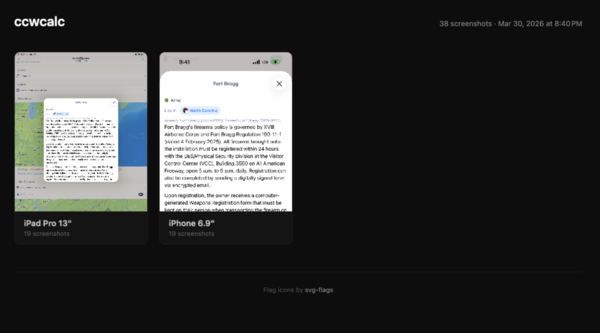
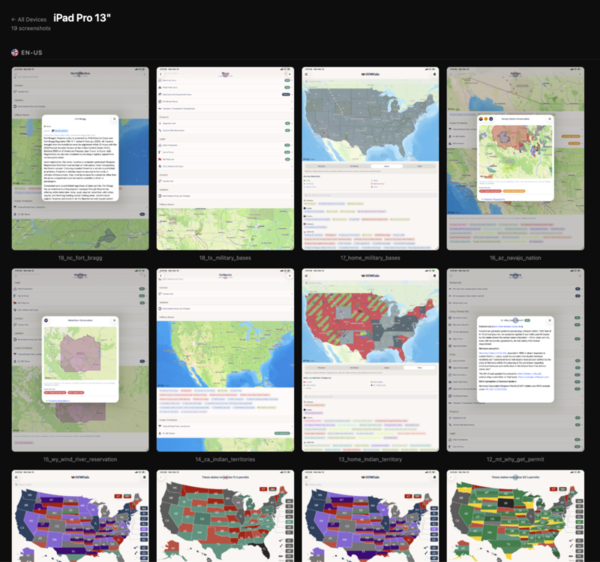
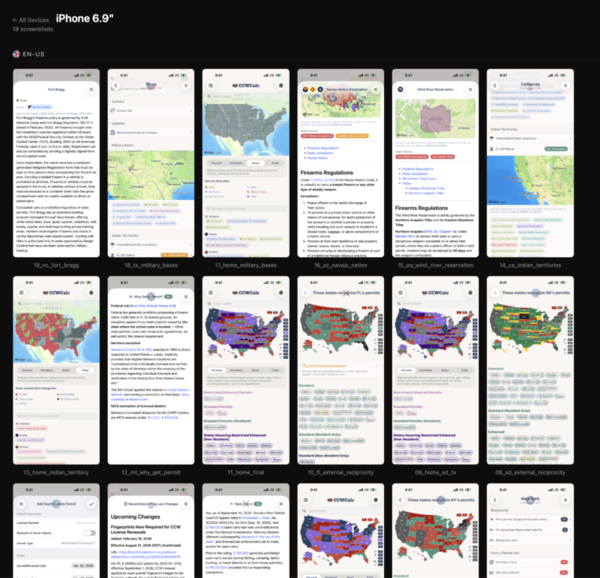
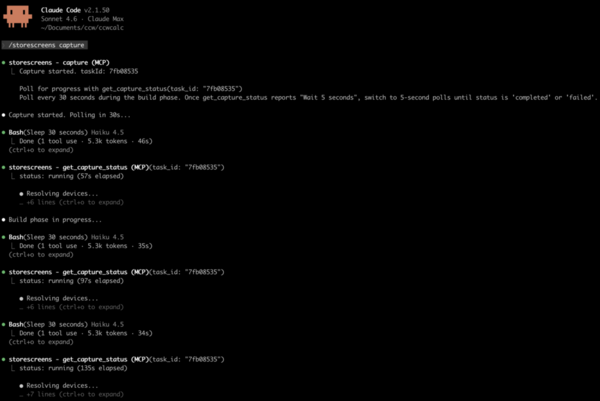
When the MCP server is configured, the agent streams per-screenshot progress inline as each device captures:
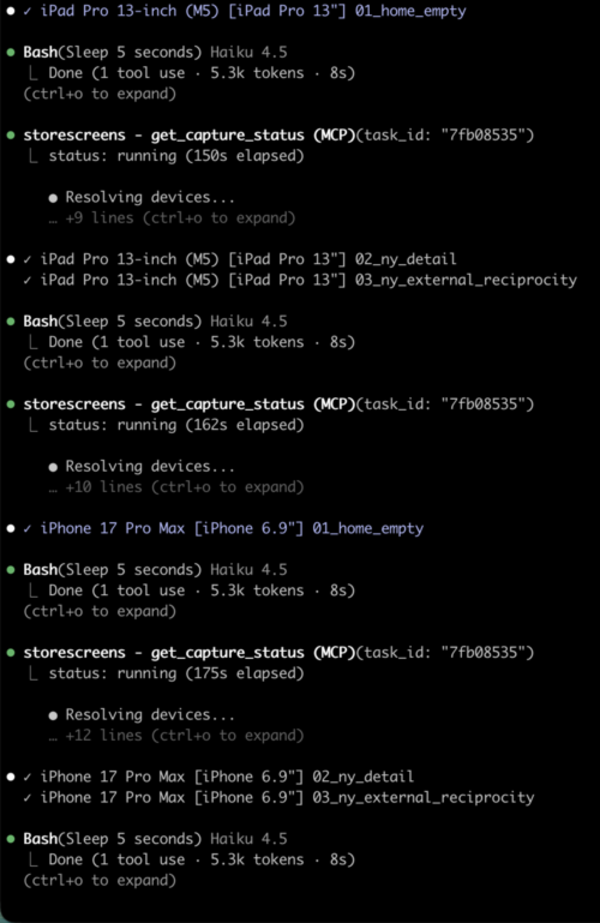
Install
Requires macOS 14+ (Sonoma or later) on Apple Silicon (arm64). Intel Macs are not supported.
Homebrew
brew tap ciscoriordan/tap
brew trust ciscoriordan/tap   # one-time: Homebrew gates third-party taps
brew install storescreens
Newer Homebrew refuses to load formulae from untrusted third-party taps ("Refusing to load formula ... from untrusted tap"). brew trust ciscoriordan/tap clears that once per machine. To upgrade later: brew update && brew upgrade storescreens.
Script
curl -fsSL https://raw.githubusercontent.com/ciscoriordan/storescreens-cli/main/install.sh | sh
From source
Requires Xcode 16+.
git clone https://github.com/ciscoriordan/storescreens-cli.git
cd storescreens-cli
swift build -c release
sudo cp .build/release/storescreens /usr/local/bin/storescreens
sudo cp .build/release/storescreens-mcp /usr/local/bin/storescreens-mcp   # optional: MCP server
mise
mise installs the prebuilt release binaries (no Swift toolchain needed) and puts both storescreens and storescreens-mcp on your PATH:
mise use -g github:ciscoriordan/storescreens-cli            # latest
mise use -g github:ciscoriordan/[email protected]      # pin a version (no leading v)
Or pin it per-project in mise.toml:
[tools]
"github:ciscoriordan/storescreens-cli" = "3.8.0"
To build from source instead of downloading the binary, use the spm backend (needs a Swift toolchain). Note the pin keeps the leading v here: mise use -g spm:ciscoriordan/[email protected]. The older ubi: backend also works but mise has deprecated it.
Mint
Mint builds Swift command-line tools from source, so it needs a Swift toolchain (Xcode 15+). The package ships two executables, so name the one you want:
brew install mint
mint install ciscoriordan/storescreens-cli storescreens           # the CLI
mint install ciscoriordan/storescreens-cli storescreens-mcp       # the MCP server
mint install ciscoriordan/[email protected] storescreens    # pin a version (leading v required)
Mint links binaries into ~/.mint/bin, so make sure that directory is on your PATH:
export PATH="$HOME/.mint/bin:$PATH"
mise (spm backend) and Mint both build from source and need v3.8.0 or later, the first release that declares the executable products they install. The prebuilt paths (Homebrew, the install script, mise's github/ubi backends) have no such requirement.
Verify the install worked:
storescreens --help
Quick Start
cd /path/to/your/xcode-project

# 1. Generate a config file
storescreens init

# 2. Generate screenshot UI tests
storescreens setup

# 3. Open the generated test file and add your app navigation (see below)
open MyAppUITests/ScreenshotTests.swift

# 4. Capture screenshots on all devices (--verbose for live output)
storescreens capture --verbose
How it works
The CLI uses XCUITest - Apple's built-in UI testing framework - to drive your app and capture screenshots. A UI test launches your app in a simulator, taps through screens programmatically, and saves screenshots at each step. The CLI then runs that test across every device size in your config.
Do I need a UI test target?
Yes. If your project doesn't have one yet, add it in Xcode:
- File > New > Target
- Select UI Testing Bundle
- Name it something like
MyAppUITests - Make sure it's targeting your app
storescreens setup will detect the target automatically. If none exists, it prints these steps for you.
Using a manually written test file
If you wrote your ScreenshotTests.swift by hand (rather than generating it with storescreens setup), the target setup requires one extra step because Xcode auto-creates a placeholder test file when you add the target:
- File → New → Target → UI Testing Bundle
- Name it to match your
test_targetinstorescreens.yml(e.g.ExampleUITests) - Set Target to be Tested to your app
- Click Finish - Xcode creates the target with a default
ExampleUITestsLaunchTests.swiftplaceholder - Delete the placeholder file Xcode generated (move to Trash)
- Right-click your UI test group in the Project Navigator → Add Files to "[project]"
- Select your
ScreenshotTests.swiftand confirm it is added to theExampleUITeststarget - In
storescreens.yml, settest_targetandtest_classto match:
test_target: ExampleUITests
test_class: ScreenshotTests
Then verify everything builds before running the full capture. Pipe the output to a log file so you can inspect errors:
# Confirm the test target builds and the test is discoverable
xcodebuild build-for-testing \
  -workspace Example.xcworkspace \
  -scheme Example \
  -destination 'platform=iOS Simulator,name=iPhone 17 Pro' \
  2>&1 | tee build.log

# Then capture (--verbose for live terminal output; logs are always saved)
storescreens capture --verbose
The generated test file
storescreens setup asks you to name the screens you want to capture, then generates a test file:
// MyAppUITests/ScreenshotTests.swift

import XCTest

class ScreenshotTests: XCTestCase {
    func testScreenshots() {
        let app = XCUIApplication()
        app.launch()

        takeScreenshot(named: "Home")

        // TODO: Navigate to Search Results
        takeScreenshot(named: "SearchResults")

        // TODO: Navigate to Detail
        takeScreenshot(named: "Detail")

        // TODO: Navigate to Settings
        takeScreenshot(named: "Settings")
    }

    func takeScreenshot(named name: String) {
        let screenshot = XCUIScreen.main.screenshot()
        let attachment = XCTAttachment(screenshot: screenshot)
        attachment.name = name
        attachment.lifetime = .keepAlways
        add(attachment)
    }
}
The first screenshot captures whatever's on screen right after launch. Each // TODO is where you add code to navigate to the next screen.
Name screenshots with meaningful identifiers (Home, Search, Detail) and let the screenshots: list in storescreens.yml drive display order. After capture, storescreens stamps each output PNG's mtime and creationDate in that order, so ls -t and Finder's "Date Created" sort match the order you configured. No numeric prefixes needed.
Adding navigation
Replace each TODO with XCUITest calls that interact with your app's UI. Common patterns:
// Tap a tab bar button
app.tabBars.buttons["Search"].tap()

// Tap a navigation link or button
app.buttons["Settings"].tap()

// Tap a list row
app.cells["My Profile"].tap()

// Type into a search field
app.searchFields.firstMatch.tap()
app.typeText("recipes")

// Scroll down
app.swipeUp()

// Wait for content to load
let element = app.staticTexts["Welcome"]
_ = element.waitForExistence(timeout: 5)
A complete example:
func testScreenshots() {
    let app = XCUIApplication()
    app.launch()

    // Home screen - shown right after launch
    takeScreenshot(named: "Home")

    // Search - tap the search tab, enter a query
    app.tabBars.buttons["Search"].tap()
    app.searchFields.firstMatch.tap()
    app.typeText("recipes")
    takeScreenshot(named: "Search")

    // Detail - tap a result
    app.cells.firstMatch.tap()
    takeScreenshot(named: "Detail")

    // Settings - go back, open settings
    app.navigationBars.buttons.firstMatch.tap()
    app.tabBars.buttons["Settings"].tap()
    takeScreenshot(named: "Settings")
}
You can test your navigation works before running the full capture - just run the test in Xcode with Cmd+U or click the diamond next to the test function.
Accessibility identifiers
UI tests find elements by accessibility identifier, text label, or type. Always prefer .accessibilityIdentifier() over matching by text, since text labels can appear in multiple places (e.g. your app name on both the launch screen and the main toolbar), causing tests to match the wrong element or pass prematurely.
Add identifiers to your SwiftUI views:
// Buttons and interactive elements
Button("Save") { ... }
  .accessibilityIdentifier("saveButton")

// Loading indicators - so tests can wait for loading to finish
ProgressView()
  .accessibilityIdentifier("loadingIndicator")

// Content containers - so tests can wait for content to appear
ScrollView { ... }
  .accessibilityIdentifier("mainContent")

// Toolbar items
ToolbarItem(placement: .topBarLeading) {
  Button { ... } label: { Image(systemName: "gear") }
    .accessibilityIdentifier("settingsButton")
}

// Search fields
TextField("Search", text: $query)
  .accessibilityIdentifier("searchField")
Then in your test, wait for elements by identifier instead of using sleep():
// Bad: fragile timing, screenshots may capture loading spinners
sleep(5)
takeScreenshot(named: "Home")

// Good: waits for actual content to load
waitForElement(id: "mainContent", timeout: 15)
takeScreenshot(named: "Home")
The generated waitForElement() helper searches all element types by accessibility identifier, so it works for buttons, text, scroll views, or any other element.
Common pitfall: If your app name (e.g. "MyApp") appears as Text("MyApp") in both LaunchScreen.swift and your main view's toolbar, a test like app.staticTexts["MyApp"].waitForExistence(timeout: 10) will match the launch screen text and proceed before your main content loads. Use a unique identifier instead:
// In your main view:
Text("MyApp")
  .accessibilityIdentifier("mainTitle")

// In your test:
app.staticTexts["mainTitle"].waitForExistence(timeout: 10)
How screenshots are saved
By default, screenshots are collected from the filesystem. Your test code writes PNGs directly to a cache directory, and the CLI copies them to the output folder after the test finishes.
The generated takeScreenshot() helper does two things:
- Creates an
XCTAttachment(stored in the.xcresultbundle as a backup) - Writes a PNG file to the StoreScreens cache directory on the host filesystem
The CLI reads the cache directory from a breadcrumb file at ~/.storescreens-cache-dir, which it writes before each capture run. Your test code discovers this path using SIMULATOR_HOST_HOME:
let hostHome = ProcessInfo.processInfo.environment["SIMULATOR_HOST_HOME"]
    ?? ProcessInfo.processInfo.environment["HOME"]
    ?? NSHomeDirectory()
let breadcrumb = (hostHome as NSString).appendingPathComponent(".storescreens-cache-dir")
let cacheDir = try? String(contentsOfFile: breadcrumb, encoding: .utf8)
    .trimmingCharacters(in: .whitespacesAndNewlines)
Intermediate screenshots and named pipes for real-time logging are stored in .storescreens-cache/ in your project directory. Add it to .gitignore:
.storescreens-cache
Why filesystem over xcresult?
Filesystem capture is the primary path because it gives you things xcresult export can't:
- Streaming progress - PNGs land one-by-one as the test runs, so the MCP server streams per-screenshot updates to your AI assistant.
xcresulttool exportonly runs after the entire test finishes, so progress is all-or-nothing. - Incremental safety - if the test crashes partway through, you still get every screenshot captured before the crash.
- Deterministic filenames - you pick the name.
xcresulttoolappends_N_UUID.pngto every attachment, which has to be regex-stripped back to the original name. - No silent skip rules -
xcresulttoolsilently drops attachments whose names start withScreenshot,UI Snapshot,Synthesized Event,Screen Recording, and several others. Filesystem writes are always kept, no matter what you name them. - Faster - no post-processing step after the test finishes.
The tradeoff: filesystem capture only works on simulators, because it relies on SIMULATOR_HOST_HOME to cross the sandbox boundary back to your Mac. App Store screenshots are simulator-only anyway, so this rarely matters.
If you need to capture on real devices, or you want attachments visible in Xcode's built-in test report UI, pass --xcresult instead:
storescreens capture --xcresult
Screenshot mode in your app
Your app can detect when it's being run by StoreScreens and adjust its behavior accordingly. The generated test file launches your app with --screenshotMode as a launch argument:
app.launchArguments = ["--screenshotMode"]
Check for this in your app to set up the ideal state for screenshots:
// In your root view or app entry point
.task {
    if ProcessInfo.processInfo.arguments.contains("--screenshotMode") {
        // Grant pro/premium access so screenshots show full features
        settings.isProUser = true

        // Disable animations for faster, deterministic screenshots
        UIView.setAnimationsEnabled(false)

        // Reset any persisted UI state (e.g., expansion toggles, onboarding)
        UserDefaults.standard.set("", forKey: "expandedSections")
    }
}
Common things to configure in screenshot mode:
- Simulate pro/premium access - show the full app without paywalls. Make sure your entitlement checks don't override this (skip StoreKit verification in screenshot mode).
- Disable animations - makes UI interactions instant and screenshots deterministic.
- Reset UI state - clear persisted toggles, expansion states, or onboarding flags so tests always start from a known state.
- Seed sample data - pre-populate the app with good-looking content if it would otherwise be empty on first launch.
Simple mode (no tests needed)
If you don't want to write UI tests, use simple mode instead:
storescreens capture --mode simple
This boots each simulator, installs and launches your app, and takes a single screenshot of whatever's on screen. Good for capturing your launch screen or a static state.
Commands
| Command | Description |
|---|---|
storescreens init |
Generate a storescreens.yml config file |
storescreens setup |
Set up screenshot UI tests (interactive wizard) |
storescreens capture |
Capture screenshots on all configured devices |
storescreens check |
Scan source for iPad-unsafe patterns and device assumptions |
storescreens precheck |
Scan metadata for App Review guideline problems before submitting |
storescreens list |
Show available simulators and App Store size mappings |
storescreens screenshot |
Take a quick screenshot of a running simulator |
storescreens render |
Render captioned/framed screenshots from an existing capture |
storescreens search-preview |
Render an iPhone App Store search-result preview (icon + name + subtitle + stars + 3 screenshots) in light/dark |
storescreens templates |
List the built-in render templates (curated background + type + chrome presets) |
storescreens themes suggest |
Suggest render themes derived from the app's own screenshot colors |
storescreens bezels |
Import / inspect Apple device bezel assets used by render |
storescreens auth |
Manage App Store Connect API credentials |
storescreens metadata init |
Scaffold metadata/<locale>/*.txt files + README |
storescreens translate ... |
Translate per-locale metadata with your own DeepL key (run, status, auth) |
storescreens submit |
Upload rendered screenshots + metadata to App Store Connect |
storescreens upload-build |
Archive, export, and upload the .ipa to App Store Connect / TestFlight |
storescreens status |
Show current ASC state: versions and any in-flight review submission |
storescreens pricing ... |
App price schedule: get, set (free / paid / per-territory), and price-point discovery |
storescreens testflight ... |
TestFlight: beta groups, testers, builds, beta-app/build-localizations, beta-review, license-agreement, tester-metrics |
storescreens iap ... |
In-App Purchases (V2): products, localizations, pricing, submissions, content-hosting, images, promoted purchases |
storescreens subscriptions ... |
Auto-renewing subscriptions: groups, products, prices, offer codes, promotional offers, availability, submissions |
storescreens reviews ... |
Customer reviews: list with filters, get, respond (create/update/delete) |
storescreens reports ... |
Sales (TSV), finance (CSV), analytics report requests/instances/segments, perf-power metrics, diagnostic signatures |
storescreens users ... |
Team users, invitations, user-visible-apps |
storescreens devportal ... |
Developer Portal: certificates, profiles, devices, bundle IDs + capabilities |
storescreens previews / app-clips / cpp / events / experiments / encryption-decl / routing-coverage |
App Previews, App Clips, Custom Product Pages, in-app App Events, A/B Version Experiments, App Encryption Declarations, Routing App Coverage |
storescreens game-center ... |
Game Center: achievements, leaderboards (+ sets + members), matchmaking, app versions, groups |
storescreens xcode-cloud ... |
Xcode Cloud (CI/CD): products, workflows, build runs (start/cancel/retry), actions, artifacts, issues, test results, SCM repositories |
storescreens alt-dist ... |
Alternative Distribution (EU DMA): keys, packages, package versions/deltas/variants, domains, marketplace search + webhooks |
storescreens apple-pay ... |
Apple Pay: pass type IDs + certificates (from CSR), merchant domains |
storescreens sandbox / resource-limits / diagnostic-sessions |
Sandbox testers, team resource quotas, Xcode Instruments diagnostic sessions |
storescreens webhooks ... |
General-purpose ASC webhooks: subscribe to build/review/availability events, list deliveries, resend, health-ping |
storescreens build-uploads ... |
API-native .ipa upload (alternative to altool): buildUploads + buildUploadFiles, chunked PUT, high-level upload-ipa convenience |
storescreens accessibility ... |
Accessibility Nutrition Labels: per-device-family declaration of VoiceOver / captions / contrast / motion / etc. support |
storescreens background-assets ... |
Background Assets: large post-install asset download (200GB/app); upload chunks, version + state per build channel |
storescreens version-release ... |
Version release control: phased releases, promo carousels, manual release requests, end-of-pre-order, release scheduling |
storescreens game-center-v2 ... |
Game Center Activities + Challenges (+ images + localizations + versions), V2 versioning for achievements / leaderboards / sets, sandbox-only score and achievement submissions |
storescreens beta-feedback / beta-recruitment / beta-app-clip ... |
Modern TestFlight: feedback crash + screenshot submissions, beta crash logs, automatic-recruitment criteria, App Clip invocation configs |
storescreens iap-offer-codes ... |
One-time-IAP offer codes (custom + one-time-use variants); distinct from subscription offer codes covered by subscriptions |
storescreens subs-extras / review-extras / asc-extras |
Subscription intro / win-back offers / grace periods / group submissions, review summarizations + attachments, plus merchant IDs / nominations / app tags / EULAs / Android→iOS mapping / actors / app price points V3 / etc. |
storescreens wall submit |
Submit your app to the storescreens.app Wall of Apps |
storescreens --help |
Show help and available commands |
storescreens init
Generates a storescreens.yml config file by auto-detecting your project:
- Finds your
.xcodeprojor.xcworkspace - Detects your scheme and deployment target
- Picks simulators that match required App Store sizes and are compatible with your deployment target
- Warns if any required sizes are missing
storescreens init              # generate config
storescreens init --force      # overwrite existing config
storescreens setup
Interactive wizard that generates a screenshot test file and wires it into your config. It scans your Swift source to auto-discover screens from TabView, NavigationLink, .sheet, .fullScreenCover, and Navigator route patterns.
$ storescreens setup

Project Detection
  ✓ Found project: MyApp.xcodeproj
  ✓ Detected scheme: MyApp

UI Test Target
  ✓ Found UI test target: MyAppUITests

Screenshot Screens
  Found 4 screens in your source code:
    1. Home (TabView)
    2. Search (TabView)
    3. Settings (NavigationLink)
    4. Profile (sheet)

  Press Enter to use these, or type your own (comma-separated)
  >
  ✓ Using discovered screens.

  ✓ Wrote MyAppUITests/ScreenshotTests.swift (4 screenshots)
  ✓ Updated storescreens.yml
If no screens are found in your source, it falls back to asking you to type them manually. If no UI test target exists, it prints step-by-step instructions to create one in Xcode.
Use --non-interactive to skip prompts and use auto-discovered screens (or defaults if none found).
storescreens capture
Captures screenshots using one of two modes.
XCTest mode (default) - runs your UI tests, collects screenshots written to the filesystem by your test code. Use --verbose to see full xcodebuild output in the terminal (logs are always saved to the output directory either way):
storescreens capture --verbose
How it works:
- Runs
xcodebuild teston each target simulator - Your test code writes screenshots as PNGs to a shared cache directory
- The CLI collects PNGs from the cache and organizes them into folders by device size
Simple mode - boots each simulator, installs your app, and takes a raw screenshot of whatever's on screen:
storescreens capture --mode simple
Useful if you don't have UI tests and just want a quick capture of your launch screen.
Options:
| Flag | Description |
|---|---|
--mode xctest|simple |
Capture mode (default: xctest) |
--config PATH |
Config file path (default: storescreens.yml) |
--output DIR |
Override output directory |
--locale LOCALE |
Override locales (repeatable) |
--retries N |
Retry failed test runs per device (default: 1) |
--keep-alive |
Keep simulators running after capture |
--xcresult |
Extract screenshots from .xcresult bundle instead of filesystem |
--only PREFIXES |
Only capture screenshots matching these prefixes (comma-separated) |
--skip-check |
Skip preflight source code check |
--no-render |
Skip the post-capture render pass even if render.enabled: true is set in config |
--verbose |
Stream full xcodebuild output to terminal (logs are always saved to logs/) |
storescreens check
Scans your Swift source files for patterns that can crash or break on iPad and other device-specific assumptions. Runs automatically before every storescreens capture unless disabled.
$ storescreens check

Preflight Check
  iPad detected in config - running iPad-specific checks
✗ Views/ContentView.swift:47  [toolbar-tabbar-hidden]
    .toolbarVisibility(.hidden, for: .tabBar) without iPad guard - may crash on iPad
! Views/CardView.swift:89  [hardcoded-screen-dimensions]
    Possible hardcoded iPhone screen dimension (390) - use GeometryReader instead

1 error, 1 warning found
Errors block capture. Use --skip-check to bypass.
Detection rules:
| Rule | Severity | What it catches |
|---|---|---|
toolbar-tabbar-hidden |
Error | .toolbarVisibility(.hidden, for: .tabBar) without an iPad device check - can crash on iPad |
unguarded-cloudkit |
Error | CKContainer/CKDatabase usage without an accountStatus check, error handling, or UI-testing guard - crashes in simulator without iCloud account |
uiscreen-main-bounds |
Warning | UIScreen.main.bounds - deprecated, doesn't handle iPad split view or multiple scenes |
hardcoded-screen-dimensions |
Warning | Literal iPhone screen sizes (390, 844, etc.) used in layout context |
navigation-view-stack |
Warning | .navigationViewStyle(.stack) forces stack navigation on iPad |
iPad-specific rules only fire when an iPad is in your configured device list. The scanner is guard-aware - it won't flag .toolbarVisibility(.hidden, for: .tabBar) if it finds a UIDevice / userInterfaceIdiom check in the surrounding lines, and it won't flag CloudKit usage if the file contains an isUITesting guard, accountStatus check, try/catch, or screenshotMode launch argument check.
| Flag | Description |
|---|---|
--config PATH |
Config file path (default: storescreens.yml) |
--directory DIR |
Directory to scan (default: .) |
--verbose |
Show verbose output |
storescreens precheck
Scans your metadata/<locale>/*.txt files for what App Review rejects listings over, before the upload rather than after. Nothing here talks to App Store Connect, so it needs no credentials. check reads Swift source; precheck reads metadata - they don't overlap.
$ storescreens precheck

Precheck
  metadata: /path/to/metadata
  locales:  2

  en-US
✗ description.txt:1  [other-platform]
      mentions Android. App Review rejects listings that reference other platforms (guideline 2.3.10).
      > …reek. Also available on Android and Google Play. Cloud…
! keywords.txt  [keyword-format]
      repeats "greek". Duplicates spend the budget without adding reach.
✗ name.txt  [field-length]
      48 characters, over Apple's 30-character limit for this field

✗ 2 error(s), 1 warning(s)
Rules:
| Rule | Severity | What it catches |
|---|---|---|
other-platform |
Error | Android, Google Play, BlackBerry, Windows Phone, Kindle Fire (guideline 2.3.10) |
placeholder-text |
Error | Lorem ipsum, TODO, FIXME, TBD shipped in copy |
profanity |
Error | Obviously objectionable language (guideline 1.1.1) |
field-length |
Error | Over Apple's hard limits - name/subtitle 30, keywords 100, promotional text 170, description and release notes 4000 |
url-format |
Error | Support / marketing / privacy URLs that aren't absolute http(s) |
url-unreachable |
Error | Links that don't answer (only with --check-urls) |
future-functionality |
Warning | "Coming soon", "in a future update" (guideline 2.1) |
test-word |
Warning | "Beta", "trial version", "pre-release" framing |
apple-sentiment |
Warning | Disparaging Apple in metadata (guideline 3.2.2) |
keyword-format |
Warning | Spaces after commas, duplicates, empty entries - all waste the 100-char budget |
empty-file |
Warning | An empty file blanks the live App Store field instead of leaving it alone |
Matching is word-bounded against Latin letters rather than regex \b, so androgynous doesn't match but Androidにもあります does - unspaced scripts would otherwise slip through. Each phrase reports once per file, not once per occurrence.
submit --dry-run runs these same rules automatically and fails on errors. Use the standalone command when you want the detail or the URL check.
| Flag | Description |
|---|---|
--config PATH |
Config file path (default: storescreens.yml; optional here) |
--metadata-dir DIR |
Override the metadata directory |
--check-urls |
Also request every support / marketing / privacy URL to confirm it resolves |
--strict |
Exit non-zero on warnings as well as errors |
--json |
Emit findings as JSON |
storescreens list
Shows available simulators and which App Store size they map to. By default, only shows devices that match a known App Store size (excludes Apple Watch).
$ storescreens list

Available Simulators
  Name                    State     App Store Size
  ──────────────────────────────────────────────────
  iPad Pro 13-inch (M5)   Shutdown  iPad Pro 13"
  iPhone 17 Pro Max       Shutdown  iPhone 6.9"
  iPhone 17 Pro           Shutdown  iPhone 6.3"
  iPhone 16 Plus          Shutdown  iPhone 6.7"
  ...
| Flag | Description |
|---|---|
--all |
Show all simulators, including non-App Store sizes |
--include-watch |
Include Apple Watch simulators |
--include-mac |
Show Mac App Store screenshot sizes |
--json |
Machine-readable output |
storescreens screenshot
Takes a quick screenshot of a running simulator's current screen. No build, no tests - just captures whatever is on screen and saves it to a file. Intended for quick visual checks during UI development.
# Screenshot the first booted simulator
storescreens screenshot

# Screenshot a specific simulator
storescreens screenshot --simulator "iPhone 17 Pro" --output screenshot.png

# Boot the simulator if it's not running
storescreens screenshot --simulator "iPhone 17 Pro" --boot
| Flag | Description |
|---|---|
--simulator NAME |
Simulator name (default: first booted simulator) |
--udid UDID |
Simulator UDID (alternative to --simulator) |
--output PATH |
Output file path (default: screenshot.png) |
--boot |
Boot the simulator if it's not already running |
--verbose |
Show verbose output |
Translating metadata (DeepL)
storescreens translate seeds your non-base metadata locales from a base locale using DeepL. Bring your own key (a free tier exists): set DEEPL_API_KEY or run storescreens translate auth login. Free-tier keys carry a :fx suffix and route to api-free.deepl.com automatically.
storescreens translate auth login            # store + verify your DeepL key
storescreens translate run --dry-run         # preview what would change
storescreens translate run                    # translate en-US -> every other locale folder
storescreens translate run --to de-DE ja      # only specific targets
storescreens translate status                 # per-locale, per-field state
By default it translates name, subtitle, description, promotional_text, release_notes, and keywords. URLs and App Review contact fields are never translated. Override with --fields, the base locale with --from (default en-US), and targets with --to.
Overwrite policy is tracked in metadata/.translations.json (commit it):
- A field with no translation yet gets translated.
- A machine translation whose base text changed is re-translated. This is the point: edit
en-US, re-run, and only the stale locales refresh. - A translation you (or a coding agent) edited is left alone. Editing a file is the "reviewed" signal;
--forceoverrides it. - A hand-authored locale with no manifest entry is never clobbered.
DeepL output is a starting point, not ship-ready. Have a coding agent QA-pass each locale (brand names, tone, ASO keywords, length limits) before submit. translate status lists what is still raw machine output.
Configuration
storescreens.yml:
project: "MyApp.xcodeproj"
scheme: "MyApp"

devices:
  - simulator: "iPhone 17 Pro Max"
  - simulator: "iPhone 17 Pro"
  - simulator: "iPad Pro 13-inch (M5)"
  # macOS devices run tests natively (no simulator)
  # - simulator: "Mac 2560x1600"
  #   platform: macOS

# Multiple locales (optional) - runs the full capture once per locale
# locales:
#   - en-US
#   - ja
#   - de-DE

output_dir: "./storescreens-output"

# XCTest mode: which tests to run
test_target: MyAppUITests
test_class: ScreenshotTests

# Preflight source code check (default: true)
# preflight: false
All values can be overridden via CLI flags.
# Project or workspace (one required)
project: "MyApp.xcodeproj"
# workspace: "MyApp.xcworkspace"

scheme: "MyApp"

devices:
  - simulator: "iPhone 17 Pro Max"
  - simulator: "iPhone 17 Pro"
  - simulator: "iPad Pro 13-inch (M5)"
  # macOS: tests run natively, no simulator needed
  # - simulator: "Mac 2560x1600"
  #   platform: macOS
  # Per-device test selection: restrict a device to specific test methods,
  # overriding the top-level test_class. Useful for iPad-only or iPhone-only
  # screenshots that render poorly on the other form factor.
  #   - simulator: "iPad Pro 13-inch (M5)"
  #     tests:
  #       - testLandscapePolytonic   # shorthand, expanded to test_target/test_class/method
  #       - LandscapeTests/testFoo   # class-qualified, expanded to test_target/LandscapeTests/testFoo
  #       - MyAppUITests/Other/testBar  # fully qualified, passed through verbatim

# Locales - runs full capture once per locale
locales:
  - en-US
  - ja
  - de-DE

# Custom flags for the HTML preview gallery (optional).
# Keys are Xcode locale codes. Values are either:
#   - A filename (without .svg) from ciscoriordan/svg-flags/circle/languages/
#   - A full https:// URL, used as-is
# Merged with built-in defaults; your values win on collisions.
# locale_flags:
#   en-IN: in-en
#   hi: in-hi
#   custom: https://example.com/my-flag.svg

# Display order for App Store Connect. Drives render order, HTML preview
# gallery order, and the mtime stamp on captured PNGs so `ls -t` / Finder
# "Date Created" sort matches this list. Also acts as a filter: only
# screenshots whose name appears here are kept.
# screenshots:
#   - "Home"
#   - "Search"
#   - "Detail"

output_dir: "./storescreens-output"

# Run history: 1 = overwrite (default), 0 = keep all, N = keep last N
# keep_runs: 1

# XCTest mode
test_target: MyAppUITests
test_class: ScreenshotTests

# Simple mode: launch arguments (not supported for macOS devices)
# launch_arguments:
#   - "--uitesting"
#   - "--reset-state"

# Preflight source code check before capture (default: true)
# Scans for iPad-unsafe patterns. Use --skip-check to bypass per-run.
# preflight: true

# Upload after capture (default: false)
# upload: true

# Advanced: run the test suite twice per device (discard first, capture
# second). Useful when the app needs one full launch to finish seeding
# data (CloudKit, ODR, etc.). Default: false.
# warmup_run: true

# Advanced: override the simulator status bar (9:41 AM, full signal, full
# battery) for clean screenshots. Default: true. Set to false to leave
# the live status bar alone. In xctest mode the override is applied to the
# clone xcodebuild runs the tests on, not just the base device - a clone
# does not inherit it, since it is runtime state rather than device data.
# status_bar: false

# Advanced: custom args passed to `xcrun simctl status_bar override` when
# status_bar is true. Default covers time, cellular mode, battery, and
# operator; override when a specific screenshot needs different values.
# status_bar_arguments: "--time 9:41 --batteryLevel 100"

# Advanced: auto-dismiss system alerts (App Store review prompts, etc.)
# during tests. Default: true.
# dismiss_system_alerts: false

# Advanced: log verbosity. "quiet" (errors/warnings only), "normal"
# (default), or "verbose" (full xcodebuild output).
# log_level: verbose

# Advanced: persistent DerivedData directory for faster incremental
# builds. When unset, a per-run temp dir is used and cleaned up after.
# derived_data_path: .derivedData

# Advan
No comments yet
Be the first to share your take.