
A VS Code extension that enables spec-driven development by providing a visual workspace to review, refine, and track AI-generated specifications through structured phases before implementation. It supports eight AI providers and custom workflows, allowing developers to catch vague requirements early with inline comments that persist to version control.
VS Code extension for spec-driven development — manage specs, workflows, and steering docs for AI CLI tools (Claude Code, Gemini CLI, Copilot CLI)
75Stars
19Forks
3Open issues
TypeScript MIT speckit-ext-v0.19.0 Updated 1 month ago
At a glance
Node.js Actively maintained Commercial OK
README
SpecKit Companion: review AI specs before they ship as broken code




The spec workspace for developers running AI agents through Spec-Driven Development. Catch bad specs before they become bad code.
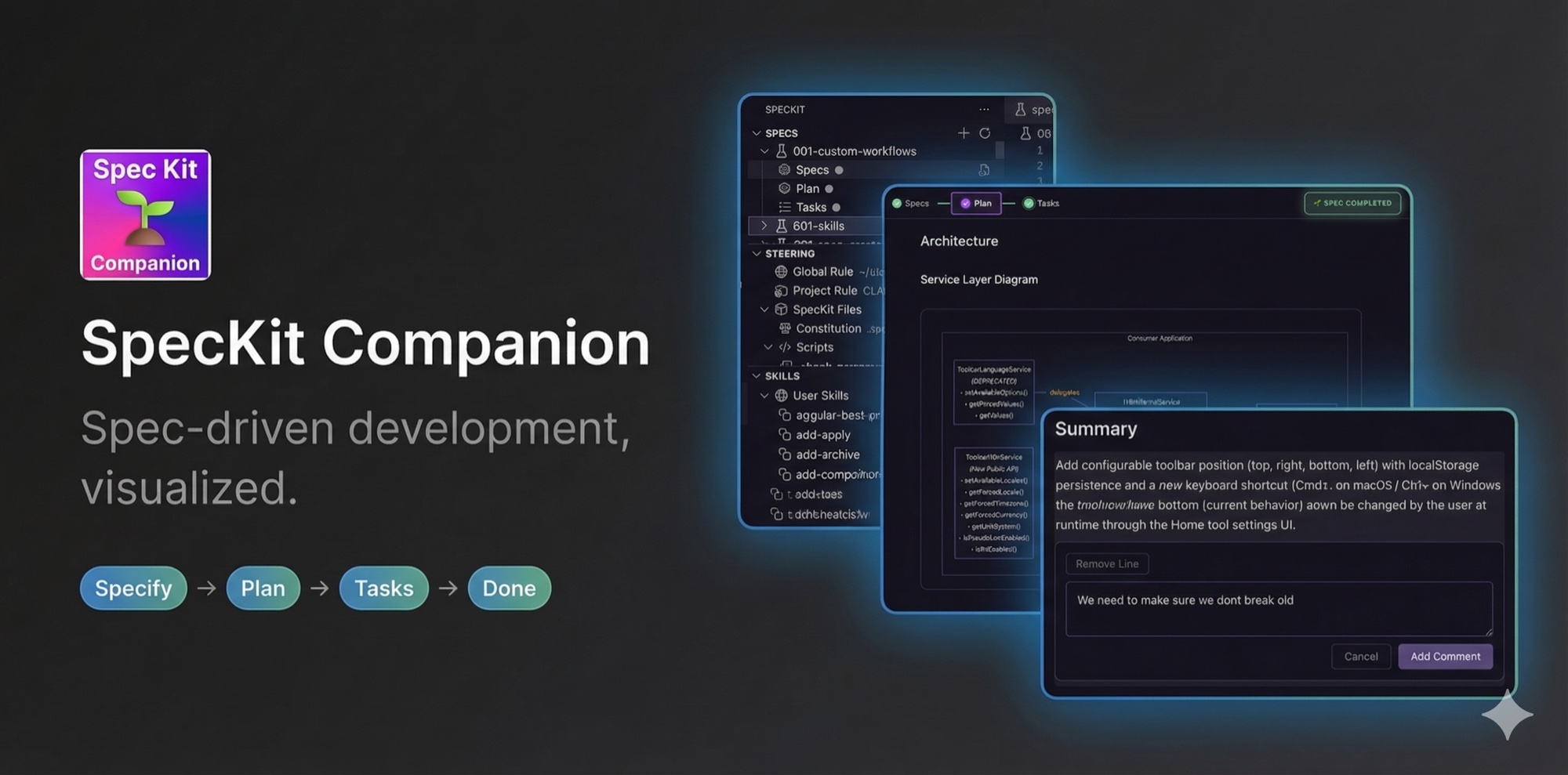
See it in motion: a 38-second walkthrough of the spec viewer — one spec, every phase, rendered and navigable. ▶ Watch the walkthrough
What you get
A spec workspace that turns AI-assisted, spec-driven development into something you can actually see and steer — without leaving VS Code:
- Catch bad specs before they become bad code. Review AI-generated specs the way you review pull requests: inline comments on specific lines, refine in place, and kill a vague requirement before it turns into 200 lines of wrong implementation.
- Watch every feature flow through its phases. Specify → Plan → Tasks → Done, each a one-click action, with live progress, a phase timeline, and an Activity overview of everything the spec tracks.
- Pick one pipeline, run it end to end. Choose stock SpecKit or the leaner SpecKit Companion workflow once — smaller specs, files-and-dependencies tasks, built-in right-sizing for small changes — and every step of the run dispatches that choice.
- Bring your own AI and your own workflow. Eleven providers, custom phases, custom commands. Drop in your own SDD process; the sidebar and viewer adapt.
Recently Shipped
- v0.31.1 The path to Companion reaches everyone — opening a spec-kit project without the extension now shows a one-time, provider-agnostic Install prompt (not just terminal-CLI users) · Companion is the default workflow once its extension is installed, unless you've set one · a spec run entirely from the CLI now shows its real 4/4 timing instead of "0 of 4" · the viewer's narrow-width step strip no longer overlaps, hides empty coverage, and renders acronyms in spec names
- v0.31.0 Antigravity joins the providers — its
agyCLI runs your SpecKit commands in an interactive terminal · the path to SpecKit Companion is now visible where you look — a nudge across Create New Spec and the sidebar that vanishes the moment it's installed · a step's artifact files nest under it in the viewer's rail instead of repeating in separate groups · fast-tracked phases read "folded into Specify" instead of a misleading "<1s" · a phase no longer flips to untrusted timing when a spec advances - v0.30.0 Every finished spec shows its real timing — per-phase durations and a total elapsed, and even a small fast-tracked change measures them now · living specs come alive: a spec opens pre-briefed with the capabilities it touches, and finishing it folds your changes back into them · the run-timing summary shows once, not twice · anonymous adoption metrics — install rate, install-prompt conversion, and which specs actually get opened — to steer what ships next · the sidebar rail lists documents only
- v0.29.0 One coherent sidebar — four views, one icon language, a four-button toolbar, and specs that open calm instead of flooded · the spec viewer redesign lands: a spec opens on its Overview (why it exists, what constrained it, what was verified, the decisions, requirement→test traceability), documents on a left rail, one header instead of two · review comments annotate a line rather than interrupting it, and can be edited, not just deleted · Companion commands finally reach Codex · a completed spec stops spinning at 97%
- v0.28.1 Wibey dispatch actually works on macOS: SpecKit commands now go to an interactive
wibeysession (no more "Invalid command format"), the same terminal is reused across actions instead of opening a new one each time, and the session stays alive after each task - v0.28.0 Hands-off Auto runs now carry a spec all the way to completed with no final click · custom workflow steps can pick their own Claude Code model and effort (cheap fast steps, heavy hard ones) · workflows can point at reference-doc folders that show up under Steering instead of posing as phantom specs · a recovery affordance when a running step goes quiet
- v0.27.0 Wibey joins the provider list (CLI + VS Code panel) · living specs open in the rendered viewer with their tiers as tabs · bring-your-own workflows (GSD, Matt Pocock skills) finally advance step after step — Companion reconstructs their position from the files they write · runnable demo projects under
examples/ - Full changelog →
Why it exists
Review AI-generated specs the way you review code. Add inline comments on specific lines, refine requirements, and catch a vague requirement before the AI turns it into 200 lines of wrong code. Every comment persists to the spec's .spec-context.json the moment you add it, so an in-progress review is durable across sessions and committable to source control.
Plug any AI assistant into any spec-driven workflow. Eleven providers ship today (Claude Code, Gemini, GitHub Copilot, Codex, Qwen, OpenCode, IDE Chat, Claude in VS Code, Wibey CLI, Wibey in VS Code, Antigravity), and the workflow engine accepts custom phases, commands, and sub-documents. Drop in Agent Teams Lite, your own SDD process, or anything that takes commands and produces markdown.
Spec-driven phases without leaving VS Code. Each feature flows through Specify, Plan, Tasks, Done, with progress tracking, sticky headers, and a structured viewer built for long specs.
Features
Visual Spec Viewer
Guide your features through structured phases with a dedicated viewer that renders specs as rich, structured pages — requirements as labeled rows, acceptance scenarios as clean Given/When/Then sentences, key entities and research decisions as cards, and tasks grouped under their phases — shows phase progress, and provides one-click actions for each step. Mermaid diagrams render inline with zoom controls for navigating complex diagrams. After each action, a toast confirms the result and the viewer auto-advances to the next phase.
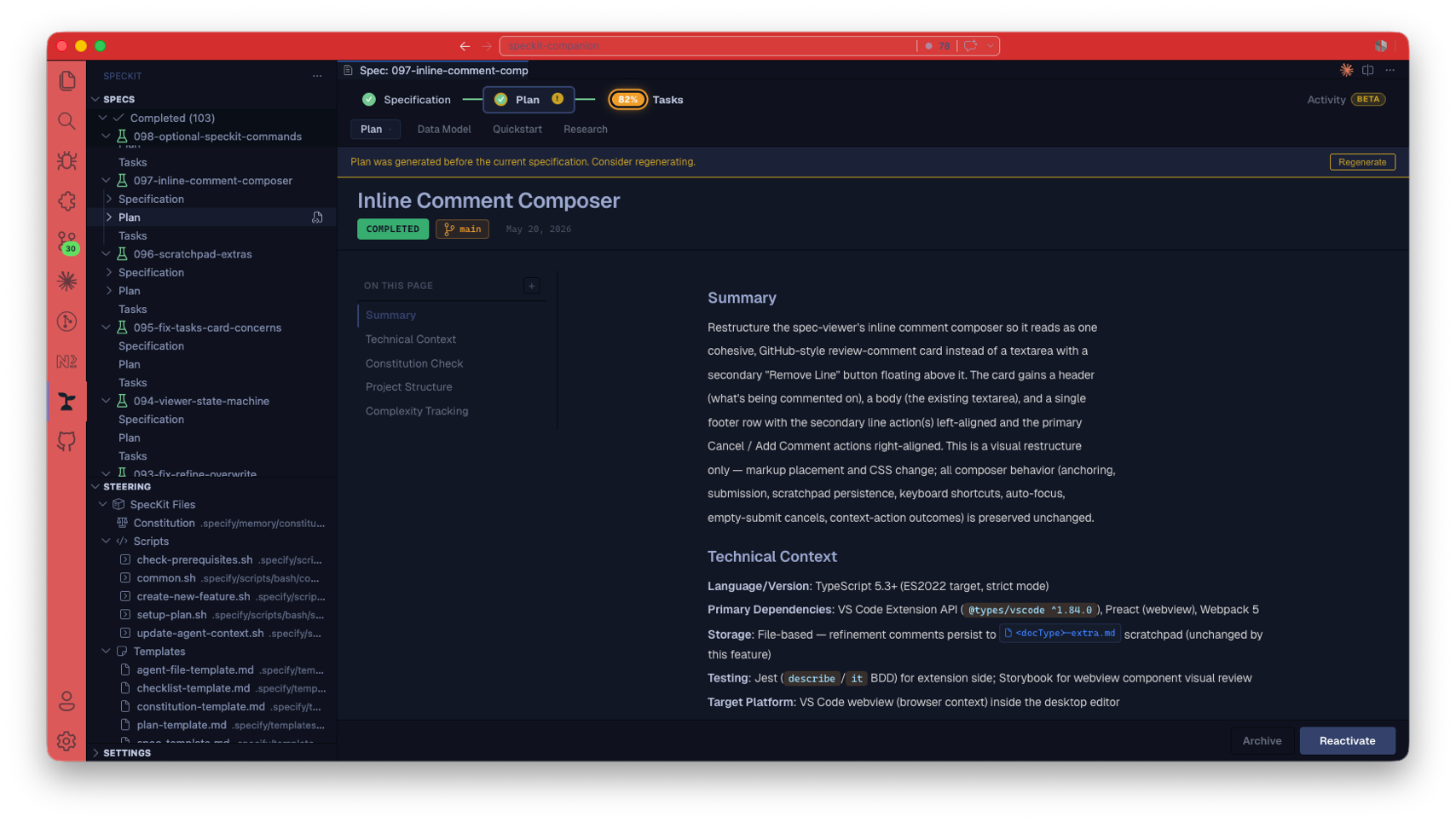 The spec viewer. Step tabs, sub-document chips, an inline diagram, and a footer button that advances Specify → Plan → Tasks → Done. Markdown stays in your repo, never on a server.
Inline Review Comments
Review spec documents with inline comments. Add feedback directly on specific lines, refine requirements, and collaborate on specs before implementation begins. Each comment is persisted to the spec's .spec-context.json the moment you add or remove it — not only when you refine — so an in-progress review survives closing the tab, is committable, and can be picked up later (next session, another machine, or another reviewer after a pull). When you click the Refine button, that document's pending comments are dispatched to the AI for a direct, in-place edit of the source and then marked applied (kept as history — no separate files).
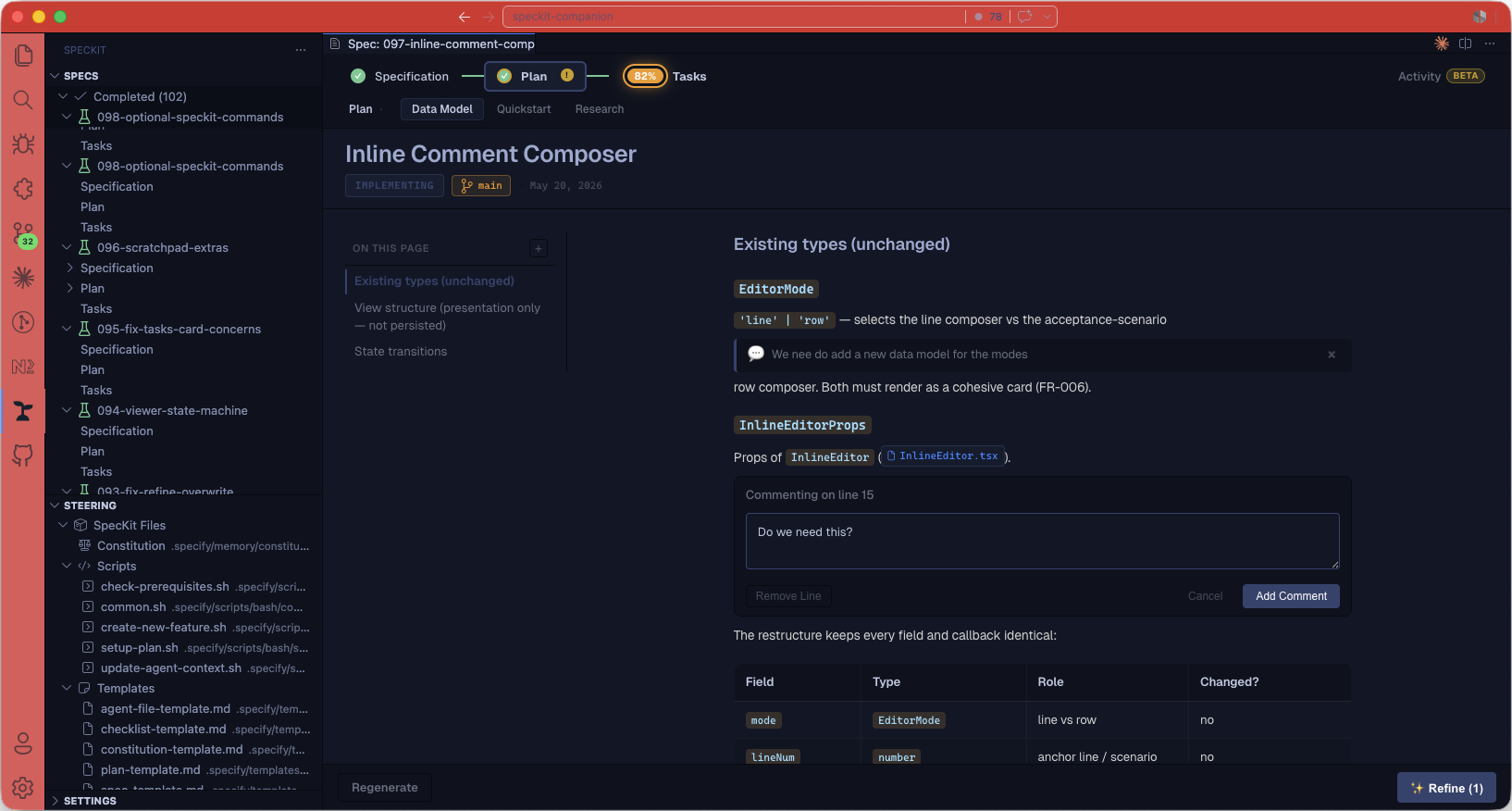 Inline review comments. Catch a vague requirement on line 12 before the AI turns it into 200 lines of wrong code.
Persistent, Resumable Comments
Reopen a spec and every pending comment is restored inline, anchored to its source location. Restore is resilient: a comment remembers its nearest heading and surrounding block, so if the source drifted (a line moved or was edited) it best-effort re-anchors to the nearest matching heading rather than being dropped — a comment is never silently lost.
Comments live entirely in .spec-context.json; the old per-document <doc>-extra.md scratchpad files and the read-only "Notes" sub-tab have been removed. There is one storage surface (the committed context file) and one overview surface (the Overview's Review comments card — a consolidated list across spec/plan/tasks with per-comment status, jump-to-line, and a per-document Run refinement action). The inline surface stays the always-on primary path; the Activity list is the power-user overview (with the Overview unavailable — setting off or no activity — inline comments still work and still persist).
Create Specs Visually
Create new specs with a dedicated dialog. Write a detailed description, select your workflow, and attach screenshots or mockups for context. The form is a centered, readable-width column with persistent writing guidance below the field, and the Create Spec button stays disabled until you've written something. When the SpecKit Companion workflow is selected, an Auto button appears next to it that builds the whole spec hands-off — it walks specify, plan, tasks, implement, and completion on its own, with no approval pauses in between — for when you want to describe what you need and walk away. Pick Create Spec for the normal step-by-step flow, or Auto to run the whole pipeline. (Auto needs the companion spec-kit extension; without it the button warns, and with stock SpecKit selected only Create Spec appears — the step-by-step flow always stays available.) The dialog is built for keyboard and screen-reader use: errors, in-progress submission, and image attach/remove are announced, every control has a visible focus ring and a meaningful name, the character limit is conveyed beyond color (and over-limit content can't be submitted), and pressing Esc with typed content asks before discarding.
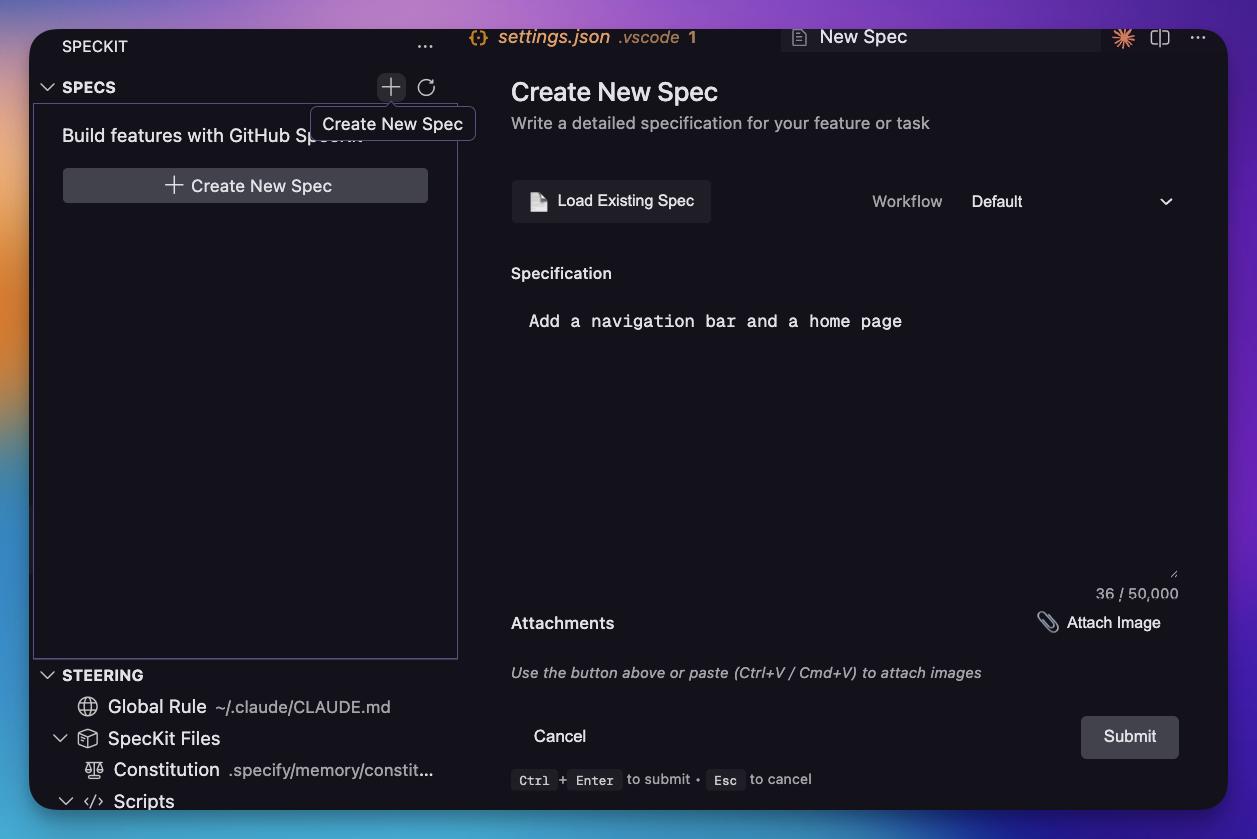 Create-spec dialog. Write a detailed description, pick a workflow, attach a screenshot. The AI never sees a one-liner.
Spec-Driven Phases
Each feature flows through four phases, each a one-click footer action in the viewer above:
- Specify — define requirements with user stories and acceptance scenarios before any code is written.
- Plan — create the technical design: architecture, data models, and research, grouped under one step with sub-document chips.
- Tasks — generate an implementation checklist with parallel-execution markers and live progress.
- Done — mark the spec complete (or archive it) once implementation lands.
Reading Specs
The spec viewer is built for fast scanning of long-form specs:
- Title-leading header: the spec name dominates above a compact
[STATUS] [⌥ branch] · datecluster, so the page anchor is the first thing your eye lands on. The status badge only carries hover text when the hover adds something the badge doesn't already say. - Living specs get capability facts instead: a living spec has no branch, date or task progress, so its header carries what a capability actually has — its title taken from the document's own heading (so a name like
SpecKit Extension Capturesurvives instead of the folder slug), then how many requirements and scenarios it declares, itsN/M coveredtest coverage, adriftmarker (with an Update button that folds the changed code back into the spec) when the code moved on since the spec was last committed, the file patterns it claims, and where the spec file lives. Coverage and drift are the same numbers the Living Specs sidebar shows. The claimed patterns answer "why did this spec load for this change?" without opening.specify/companion.yml. - Living specs read as components, not a wall of markdown: when a living spec opens, its repeating structures get scannable treatment so you can size up a draft before reading it — a draft notice at the top marks a surface-first draft as a starting point rather than a verified record, a purpose callout gives the reason the capability exists the weight to be read first, each requirement renders as a card (in authored order, exact wording) with a quiet
inferredbadge only where the spec says so and coverage only where it's known — never a bare0, scenario steps separate the WHEN condition from the THEN/AND outcomes, and the Uncovered section opens with a count and groups the files a draft didn't fully read into disclosures you open on demand. Ordinary feature specs are untouched, and anything a component doesn't recognize falls back to plain markdown, so the page always renders. - Document rail: the shell puts the workflow's documents on a vertical rail — the selected document sits on a lifted surface while separate completion marks (done check, in-flight spinner + live percent, pending dot) tell you how far along the run is, so "where am I reading" and "how far along is the run" never share one visual. The rail lists documents only: action steps like Implement and Mark Complete get no entry (their actions live in the footer), and a running implement shows its live percent on the Tasks tab. On narrow panes the rail folds into a horizontal chip strip.
- Artifacts on the rail: a step's sub-files (e.g., Plan's
data-model.md,quickstart.md,research.md— or a custom workflow's free-named outputs) group under their owning step on the rail, always visible, one click from anywhere. - Persistent inline comments: hover a line and click
+(or tab to it — the control appears on keyboard focus) to leave a review comment. Comments persist to.spec-context.jsonas you make them and restore inline when the spec reopens (best-effort re-anchoring if the source drifted). The consolidated cross-document list lives in the Activity panel's Review comments card. - Comments annotate, they don't interrupt: a saved comment rests as one quiet line under the line it's about — a glyph, the comment truncated to a single line, and its state (Pending or Applied). Open it (click, or Enter/Space when focused) to read it in full and act on it: Refine hands that document's pending comments to the AI, Edit reopens the composer pre-filled, and Delete removes it. Nothing is destructive-by-proximity — there is no permanent
×. Applied comments stay on their line as a record of what was already asked and are never counted in the Refine badge. On a completed or archived spec, comments stay readable and none of the actions are offered. - Table of contents: sticky outline column on the right of the content area. Defaults to h2-only (so phase-heavy
tasks.mdreads as a clean ~7-entry list); a small+toggle expands h3 subsections when needed. Auto-hides on narrow panes. - Quiet content: when the structured header has the metadata, in-content duplicates (the
Input:block, repeated branch chips, literalSlug:/Date:paragraphs) are suppressed so the body is just the spec content. - Diagrams: wide mermaid diagrams scroll horizontally inside the prose column instead of bleeding past it. Each diagram has its own
−/ Reset /+zoom controls. - Overview first: a spec with recorded activity opens on its Overview — the durable-context dossier (why the spec exists, its constraints, what was verified, the decisions, and requirement→test traceability) — reachable as the first entry on the document rail, right above the pipeline. It only exists when the spec actually has a recorded run; a spec with no run context is just its documents. A one-line run strip above the content keeps phase, task progress, and traceability in view while you read. See Overview below.
- Quiet, intentional footer: a floating action pill (bottom-right) surfaces only what fits the moment, led by a context line naming the next action —
Regenerateplus a forward button labelled with the next phase (Plan/Tasks/Implement/Complete). While a step generates, the forward button is withdrawn entirely and the context line readsStep running — actions unlock when it settles, so the footer never advances ahead of the work.ArchiveandMark Completedappear only once the spec is closure-eligible (ready-to-implementand beyond). Seedocs/viewer-states.mdfor the full footer state matrix. - Optional SpecKit commands per tab: SpecKit's three refinement commands surface as one-click footer buttons where each is most useful — Clarify on Spec, Checklist on Plan, Analyze on Tasks. No configuration required; a custom command with the same id wins. They disappear once the spec reaches the closure gate.
Overview (the run's story)
A spec with recorded activity lands on its Overview — a durable-context dossier of everything .spec-context.json carries, ordered by what a future session needs. It sits at the top of the document rail as a destination like any other, so moving between it and a document is one click either way. The one-line run strip above the content keeps the frequently scanned facts (phase, tasks, requirements traced to tests, checks, concerns, honest active time, PR link) in view in both. A spec whose context holds only a work log opens on its documents instead:
- Intent — why the spec exists, set as a lead summary line beneath the header title, with the approach, working area, and sizing beside it.
- Expectations — the fence around the work: constraints that must stay true paired with the deliberately out-of-scope list, as peers.
- Verified — a ledger of what was checked: each check keeps its result and evidence command visually connected (warnings surface amber).
- Decisions — numbered choices future work should not have to rediscover, each with its reasoning and the rejected alternative.
- Coverage — a requirement → task → test traceability table (untraced requirements lead; the full list sits behind a disclosure), plus any open concerns.
- Run log — the how-it-happened detail (latest activity, phase timeline, per-task records, files touched, review comments, living specs) collapsed at the bottom: it describes how the run went, so it doesn't outrank why it happened.
Old specs without the newer capture degrade gracefully — only the sections whose data exists render, and a spec with no .spec-context.json at all simply has no Overview entry. Visibility is gated by the boolean speckit.viewer.activityPanel setting (default on); turning it off makes every spec open directly on its documents.
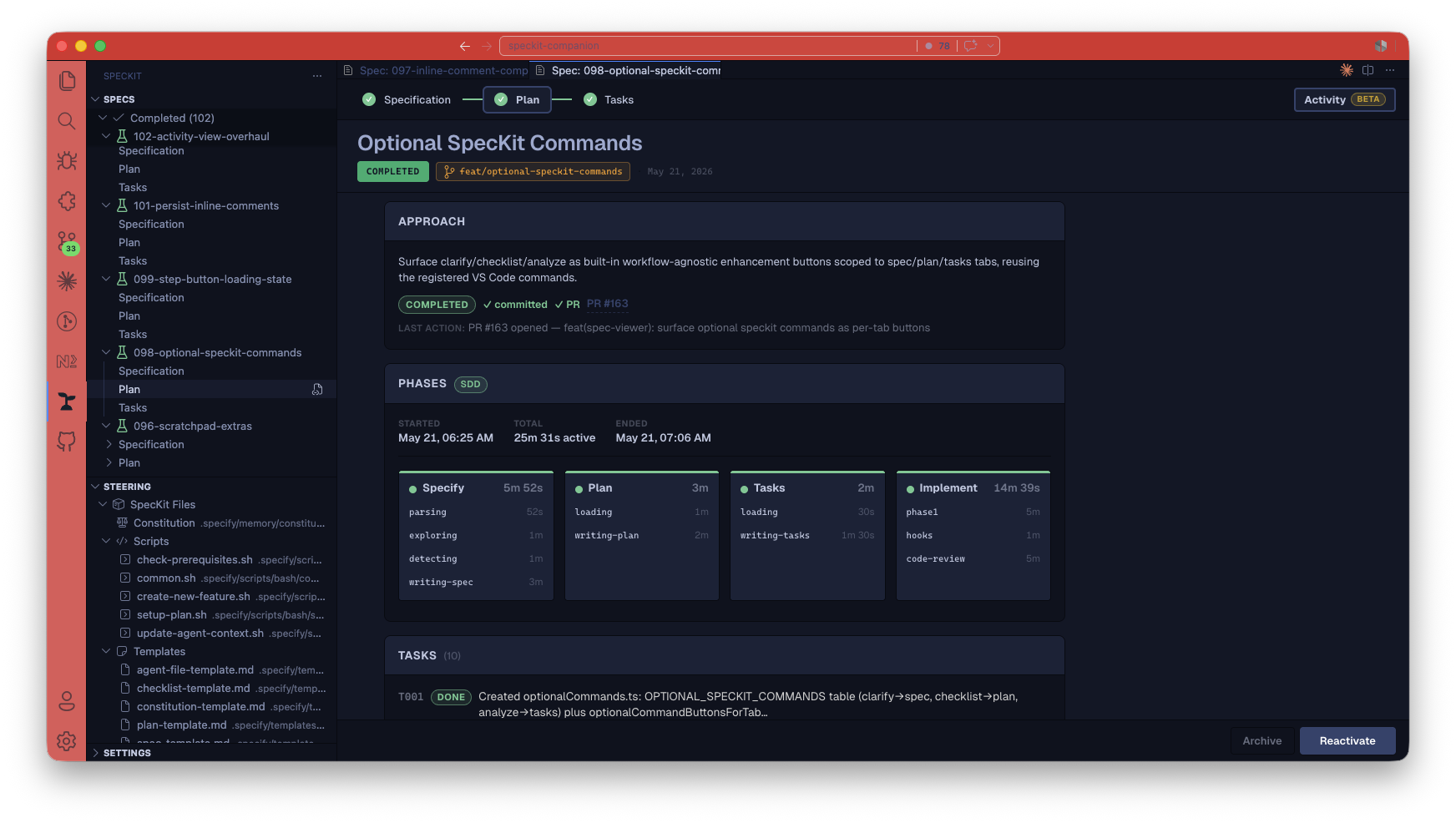 Activity panel. The hero answers "how did the run stand" at a glance — status, honest active time, tasks, coverage, checks — and the Plan states the intent, the context the run worked from, and what was explicitly out of scope.
Custom Workflows & Commands
SpecKit Companion isn't tied to a single methodology. Swap out the default phases for any SDD workflow such as Agent Teams Lite, your own team's process, or anything that uses commands and produces markdown files. Define custom steps, labels, output files, and sub-documents. Add custom commands that appear as action buttons in specific phases (e.g., Verify, Archive, Commit, Create PR).
The sidebar, progress tracking, and workflow editor all adapt automatically to your custom workflow. See Configuration below.
Sidebar at a Glance
The sidebar is one coherent, native VS Code surface — four views, one icon language, and a toolbar you can read at a glance: Specs for feature development, Living Specs for the durable capability documents, Steering for AI guidance documents, and Settings & Feedback.
Specs are grouped into three collapsible sections, each with a count in the header: Active, Completed, Archived. Active is expanded, Completed and Archived are collapsed, and individual spec rows start collapsed — a workspace with hundreds of finished specs opens to a short, readable list instead of a flood. Each spec carries a color-tinted beaker for its lifecycle: plain when specified, blue while in progress, yellow once implemented and awaiting your confirmation, and green once confirmed-completed. Expanding a spec shows each document's own status — a green check for a completed step, a blue dot for the current one, a hollow circle for the rest — and it stays coherent even under a completed or archived spec.
Click a spec's name to open it — the viewer opens on that spec's Overview, the dossier of why it exists, what constrained it, what was verified, and how its requirements map to tests. A spec with no recorded run has no Overview, so it opens on its first document instead. The click expands the row too; to browse a spec's documents without opening the viewer, click the chevron.
The Specs title bar shows at most four actions: Filter…, Sort…, More Actions…, and New Spec (rightmost). Filter opens prefilled with your current query and clears when you submit an empty one. Sort offers five compact options with a check on the current order. Everything occasional — Collapse/Expand All, Install Companion Extension, Upgrade… — lives behind More Actions, a native menu that drops open under the … button, and all of it stays in the Command Palette.
When the SpecKit Companion spec-kit extension isn't installed, the sidebar makes the upgrade path obvious instead of hiding it: a dot lands on the SpecKit activity-bar icon, a pinned Get Companion row (yellow rocket) sits atop the Specs tree, an empty Specs view offers a big Install SpecKit Companion button you can dismiss, and Create New Spec always lists SpecKit Companion — picking it shows the benefits and a one-click install first, then falls back to standard SpecKit if you decline. And whatever AI provider you use, opening a project that already has spec-kit set up but not the Companion extension surfaces the same reminder once per session: a single quiet Install prompt, with a Don't show again that shares one dismissal with the in-editor nudges — dismiss it anywhere and it stops everywhere. It's provider-agnostic on purpose — installing the extension is a terminal command that runs the same no matter which AI provider dispatches your commands, so it reaches terminal-CLI and in-editor-chat users alike — and it never blocks or delays activation. Every one of these disappears the moment the extension is installed, with no reload.
Hover a spec for Resume (when eligible) and More Actions; right-click gives you the same items in the same order — Set Status…, the lifecycle action, Copy Spec Name / Path, both Reveal actions, and Delete alone in its own danger group at the bottom. Multi-select with shift-click or cmd/ctrl-click to bulk-archive, complete, or reactivate, and right-click a group header to apply a lifecycle action to every spec in it, each behind a confirmation. If a mis-click ever strands a spec, Set Status… forces it to any chosen lifecycle status after a confirm — a recovery escape hatch that writes through the sanctioned writer instead of a hand-edited .spec-context.json.
Each active spec row shows its active task and how long ago it moved (e.g. T004 · 22h ago), and the tooltip adds a friendly status and last-activity line — never a raw lifecycle key. Clicking Resume dispatches /speckit.companion.resume for that spec: the pipeline continues from the recorded step, with prior decisions in scope, and the next /speckit.* command is sent to your AI provider — continuing at the next unchecked task when mid-implementation. When a step command is running, the spec shows a spinner and a live elapsed timer; a step-complete notification fires when it finishes (toggle via speckit.notifications.stepComplete).
Living Specs is how Companion moves a team from spec-first to spec-anchored, with a road to spec-as-source:
- spec-first: the spec exists before the code, then dies at ship. Feature specs pile up as history. This is stock spec-kit.
- spec-anchored: a durable spec per capability that stays true over time. Feature deltas fold back into it on completion, and drift between spec and code is detected. This is what Living Specs delivers: the living spec is the artifact, spec-anchored is the practice.
- spec-as-source: the spec is machine-validated and authoritative, and code conforms to it continuously. The drift check already points here.
The Living Specs view is a project-wide index of those capability documents. It groups capabilities into a directory tree that mirrors where their specs live, so the shape matches your codebase, with each capability's architecture/coverage tiers underneath and any orphan spec files no capability claims listed below. Click any of them to open it. It's also actionable: right-click a capability to run a drift or coverage check through your AI assistant, copy its name/path or reveal and delete the file (the same actions the Specs tree offers), start the adopt wizard from the view's title bar, and read each capability's health at a glance — a 3/5 covered requirement count and a drift note when code has moved ahead of the spec. When a spec has drifted, an Update to Match Code action (in the row menu and next to the viewer's drift marker) tells your AI assistant to fold the changed code back in — update, not regenerate, so your clarifications survive. And when you've been coding directly — no pipeline — a Sync living specs from my changes title action runs the one-pass /speckit.companion.living-sync: it groups your current changes (uncommitted and untracked included) by capability and updates every affected living spec at once, leaving the spec edits uncommitted so they ship with the code. It appears only when the companion spec-kit extension is installed, and it never renders blank: turned off or empty, it shows one informative row instead. See docs/sidebar.md for the full reference.
The Steering view is built in one explicit order — Companion, your provider, Steering Docs, SpecKit Project Files, References. The Companion node (moss icon, first) shows whether the companion spec-kit extension is installed and, once it is, expands into Configuration (click it to open .specify/companion.yml; expand it to browse its setting groups), Commands (the full /speckit.companion.* set, read live from the installed extension — click one to open the prompt it runs), and Templates. Your provider's node shows its brand logo, and its label and mark always name the same product: an unrecognized host editor gets a neutral chat icon rather than someone else's branding. Missing rule files surface a create action inside the Project or User group it belongs to, naming your provider's real filename. Every file-backed row offers both Reveal actions; only generated steering documents offer Refine and Delete. See docs/sidebar.md for the full reference.
Everything in the sidebar uses VS Code's own themed icons, so it stays legible in light, dark, and high-contrast themes; the only custom artwork is the product mark and the official provider logos. No status depends on color alone.
For the full reference (icon meanings, the toolbar and its More Actions menu, hover and right-click menus, the provider-icon table, the Steering hierarchy, and the lifecycle button matrix), see docs/sidebar.md.
Offline-First UI
Fonts (Geist Variable) and icons (codicons) ship bundled inside the extension .vsix. The spec viewer, spec editor, and workflow editor all render identically on a plane with no internet connection. No runtime requests to CDNs for fonts or icon glyphs.
Safety Affordances for Destructive Actions
Actions that change the spec's lifecycle are protected so a misfired click is easy to walk back:
- Regenerate queues behind a 5-second undo toast. Clicking Undo or pressing Esc cancels the regeneration; otherwise the backend fires when the timer elapses.
- Archive, Complete, and Reactivate each require two clicks. The first click swaps the button label to "Confirm?" for 3 seconds; a second click within that window confirms. Otherwise the label reverts silently and nothing happens.
- Locked future steps: while a step is running, downstream step tabs lock and surface a tooltip explaining why, so dispatched work cannot be interrupted by an out-of-order click.
- The OS-level Reduce Motion preference is honored globally. In-flight step pulses and other infinite animations stop when it's enabled.
Getting Started
- Install the extension from a
.vsixfile or the VS Code marketplace - Open the sidebar: the SpecKit icon is always visible in the activity bar; with no folder open, clicking it shows an empty-state panel with an Open Folder action
- Create a spec: once a folder is open, click the
+button in the Specs view to start your first feature
Install the spec-kit Extension
There are two installs, and they're independent:
- The VS Code extension (this product) — the Visual Spec Viewer, inline review comments, the sidebar, and command dispatch. Install it from the VS Code Marketplace (or a
.vsix). This works on its own. - The companion spec-kit CLI extension — adds the lean
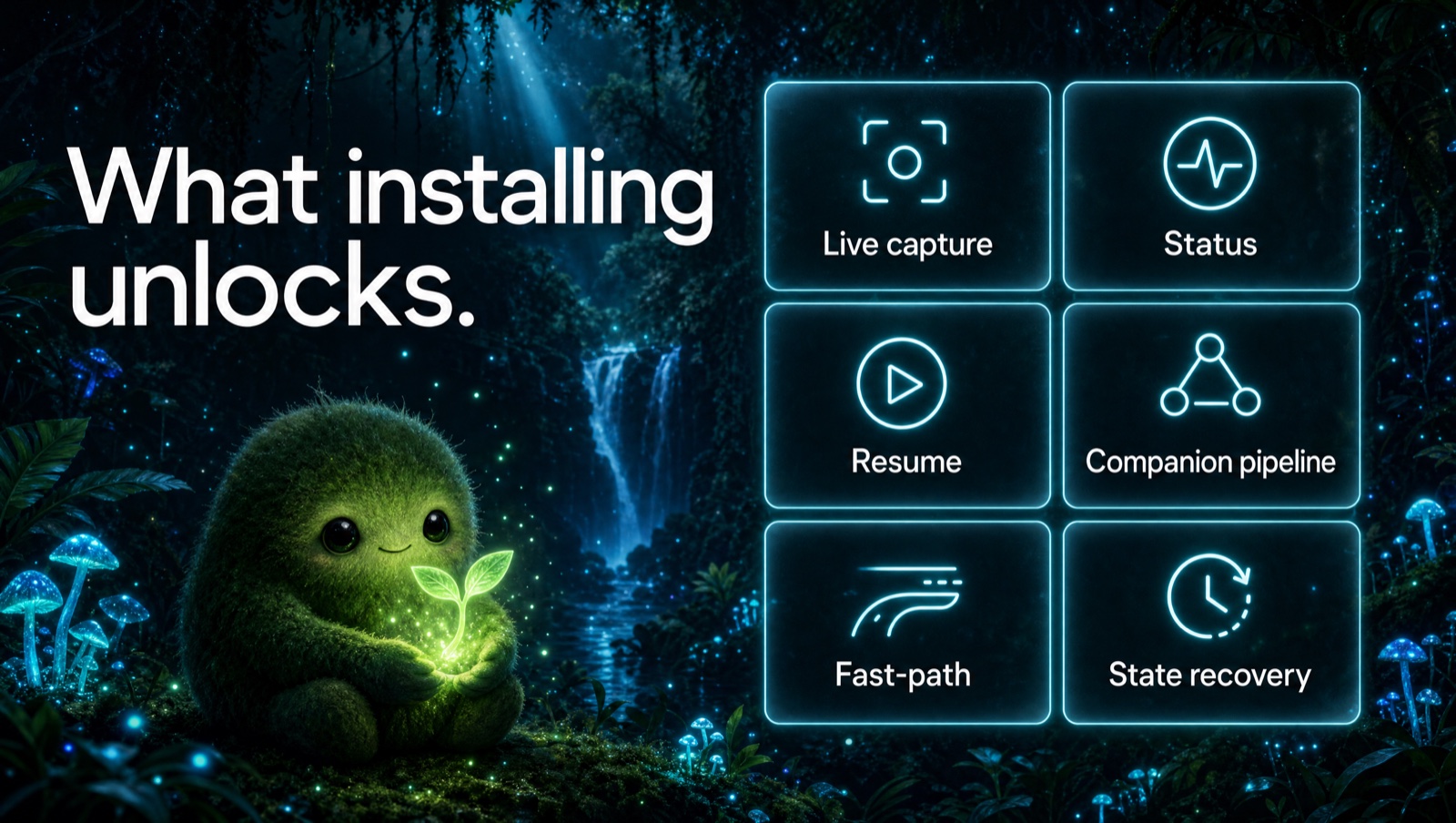
/speckit.companion.*pipeline and the lifecycle capture hooks that drive the Activity timeline. This is a spec-kit CLI extension, not a VS Code Marketplace extension, so it installs through thespecifyCLI.
One-click from inside the editor. When the spec-kit extension is missing, a slim single-line Install spec-kit extension banner appears in the Create-Spec and Activity panels, and an install icon appears in the Specs sidebar. Click Install and the extension runs the install in an integrated terminal — no copy-paste. The banner has an × to dismiss it for good — once dismissed it stays hidden in every project and after a reload. (Already have it installed? You'll never see the banner.)
Manual install. You need a github-source spec-kit CLI first — the stock PyPI specify-cli does not ship the extension subcommand:
# 1. github-source spec-kit CLI (required: stock PyPI specify-cli lacks `extension`)
uv tool install specify-cli --from git+https://github.com/github/spec-kit.git --force

# 2. the companion spec-kit extension (installs/updates)
specify extension add companion --from https://github.com/alfredoperez/speckit-companion/releases/download/companion-latest/companion.zip
The
companion-latest/companion.zipURL is a stable rolling asset — it always serves the newest build, so the same command installs and updates. Once the extension is listed in the spec-kit catalog, it shortens tospecify extension add companion.
Update it later from the Specs view Upgrade… menu → Update spec-kit Extension (runs the same install command).
Setup & Components
SpecKit Companion is one extension that sits on top of a spec-driven workflow — it does not replace the command-line spec-kit process, and most of its pieces are optional. Here's what's actually required:
| Component | Required? | What it's for |
|---|---|---|
| SpecKit Companion extension | Required | Everything in this README — the Visual Spec Viewer, inline review comments, the sidebar, and command dispatch. Install it and the spec-review workflow works. |
spec-kit CLI (specify) |
Optional | Only needed to run the /speckit.* phase commands (specify / plan / tasks / implement) that the extension dispatches. Install it via specify init (the upstream spec-kit project). The viewer and review comments work without it. |
.specify/ scaffolding |
Optional | Generated by specify init in your workspace; holds spec-kit's templates and the /speckit.* command definitions your host AI resolves. Present only if you use spec-kit phase commands. |
companion hook in .specify/extensions.yml |
Optional | Wires the extension's git steps (branch, commit) into spec-kit runs. A convenience for spec-kit users — not required for the extension itself. |
What the extension does on its own. The extension's only runtime coupling to an AI provider is dispatching command text: it assembles a prompt and hands it to a terminal CLI, the host editor's built-in chat, or the Claude Code panel. It never installs the spec-kit CLI for you and never reads a provider's response back. The Visual Spec Viewer and inline review comments read and write the spec markdown and .spec-context.json files directly, so they work with no CLI installed at all.
Extension dispatch vs. running spec-kit in a terminal. Whether a phase is driven by clicking a footer button in the viewer or by typing /speckit.specify yourself in a terminal, the work lands in the same place: the spec markdown under .claude/specs/<spec>/ plus the .spec-context.json that tracks state. There is no separate extension-owned database — the on-disk spec files are the single source of truth. That makes the two surfaces interchangeable and never competing: drive a step from the terminal and the viewer reflects it on the next file change; drive it from the viewer and your terminal sees the same files. Neither "owns" the workflow — they're two front-ends over one set of files.
For the dispatch styles (terminal CLI vs. the editor's built-in chat vs. the Claude Code panel), see Supported AI Providers — IDE Chat and Claude in VS Code route the prompt to an in-editor surface instead of a terminal, but the file-ownership model above is identical. For a deeper architecture walkthrough, see docs/how-it-works.md.
Sample Specs
Looking for "what does good look like?" The repo's own specs/ directory is the answer. Every feature ships with the spec that drove it. A few worth opening:
specs/008-spec-viewer-ux/: full SpecKit flow: spec, plan, research, data model, quickstart, tasks, plus checklists and contracts.specs/065-multi-select-specs/: minimal SDD flow: justspec.md+plan.md+tasks.mdfor a small UX change.specs/051-explorer-viewer-fixes/: minimal SDD flow: same minimal shape, applied to a focused bug-fix bundle.
Compare the file lists side by side to see the contrast between the full and minimal flows.
Supported AI Providers
| Feature | Claude Code | GitHub Copilot CLI | Gemini CLI | Codex CLI | Qwen Code | OpenCode | IDE Chat | Claude in VS Code | Wibey CLI | Wibey (VS Code) | Antigravity |
|---|---|---|---|---|---|---|---|---|---|---|---|
| Steering File | CLAUDE.md | .github/copilot-instructions.md | GEMINI.md | AGENTS.md | QWEN.md | AGENTS.md | Not supported | CLAUDE.md | AGENTS.md | AGENTS.md | AGENTS.md |
| Steering Path | .claude/steering/ | .github/instructions/*.instructions.md | Hierarchical GEMINI.md | Hierarchical AGENTS.md | .qwen/steering/ | Hierarchical AGENTS.md | Not supported | .claude/steering/ | Project root | Project root | Project root |
| Agents | .claude/agents/*.md | .github/agents/*.agent.md | Limited support | Hierarchical AGENTS.md | Not supported | .opencode/agent/*.md | Not supported | .claude/agents/*.md | .wibey/agents/*.md | .wibey/agents/*.md | Not supported |
| Hooks | .claude/settings.json | Not supported | Not supported | Not supported | Not supported | Not supported | Not supported | .claude/settings.json | .wibey/hooks/hooks.json | .wibey/hooks/hooks.json | Not supported |
| MCP Servers | .claude/settings.json | ~/.copilot/mcp-config.json | ~/.gemini/settings.json | ~/.codex/config.toml | ~/.qwen/settings.json | ~/.opencode/opencode.jsonc | Not supported | .claude/settings.json | .wibey/.mcp.json | .wibey/.mcp.json | Not supported |
| CLI Command | claude |
ghcs / gh copilot |
gemini |
codex |
qwen |
opencode |
Built-in editor chat (Copilot / Composer / Cascade) | Claude Code GUI panel (no terminal) | wibey |
Wibey chat panel (no terminal) | agy |
Configure your preferred provider: Settings > speckit.aiProvider
IDE Chat
IDE Chat is not a CLI — instead of spawning a terminal, it routes the assembled
prompt to your editor's built-in AI chat (GitHub Copilot in VS Code, Composer in
Cursor, Cascade in Windsurf), detected automatically. Because the chat must
recognize the /speckit.* commands, spec-kit must be initialized for the host
editor (run SpecKit: Initialize Workspace, i.e. specify init). When the
workspace is initialized, IDE Chat auto-submits the prompt; when it isn't, it
prefills the chat and shows a warning instead of sending a command the chat can't
run. This is one-way dispatch — it does not read responses back or sync status.
Claude in VS Code
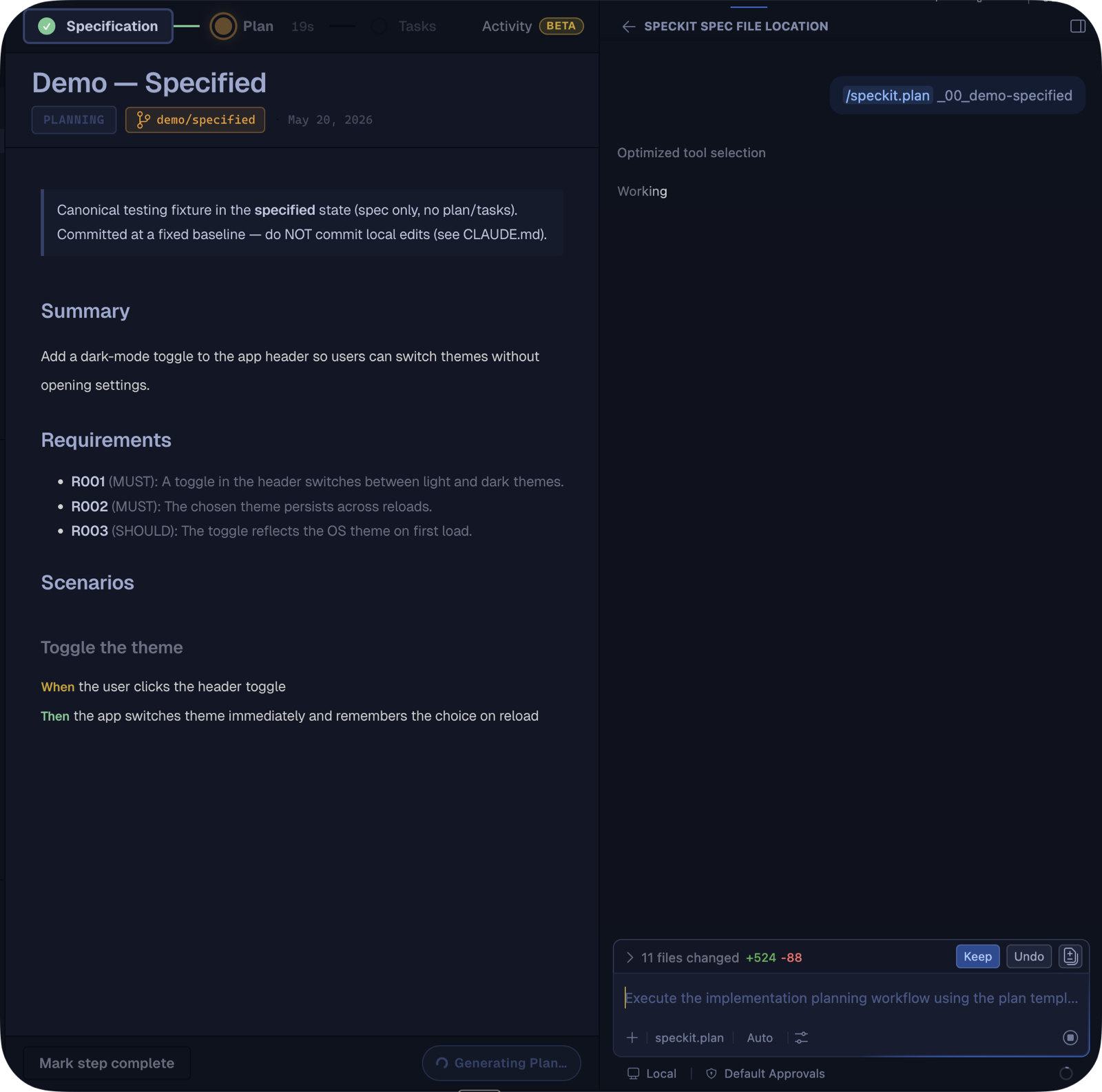
Claude in VS Code dispatches to the Claude Code GUI panel instead of
spawning the claude CLI in a terminal — for users who live in the panel rather
than a terminal. It shares the same .claude/ setup as the terminal claude
provider (steering, agents, hooks, MCP). The extension opens the panel via Claude
Code's URI handler and prefills the command; the Claude Code panel exposes no
programmatic submit, so you press Enter to run it.
Requires the Claude Code extension;
if it isn't installed, the provider suggests switching to terminal claude.

Sign in to join the discussion.
No comments yet
Be the first to share your take.