
drawio-aws-reference
A Claude skill for AWS architecture diagrams in diagrams.net (aka draw.io) with verified stencil names, group container styles, and a validator.
The problem, and you already know it
You ask an AI for a draw.io architecture diagram and what comes back is a grid of rounded rectangles with service names typed inside them. Technically a diagram. Visually a wireframe.
So you ask it to use the AWS shapes, and things get worse. It writes stencil names from memory. Some exist, some do not, and the ones that do not come out as empty space. Then you try to drag an arrow to the left side of a box and it will not go, because the node is missing a connection anchor array. So you delete the node generated by AI, search, find and pull a fresh one from the palette, reconnect everything... and by then you are just drawing it yourself.
"Thanks for nothing, Claude", you mutter.
This skill wants to fixes that. Not with magic, with a list of names that turned out to be very hard to find, and a set of rules learned the slow way: draw, export, look at it, notice what is ugly, write down why.
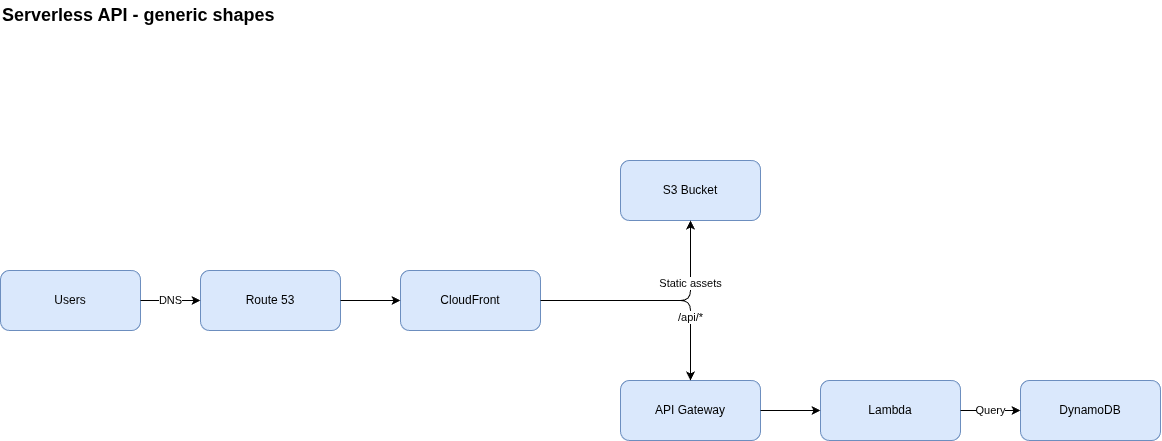
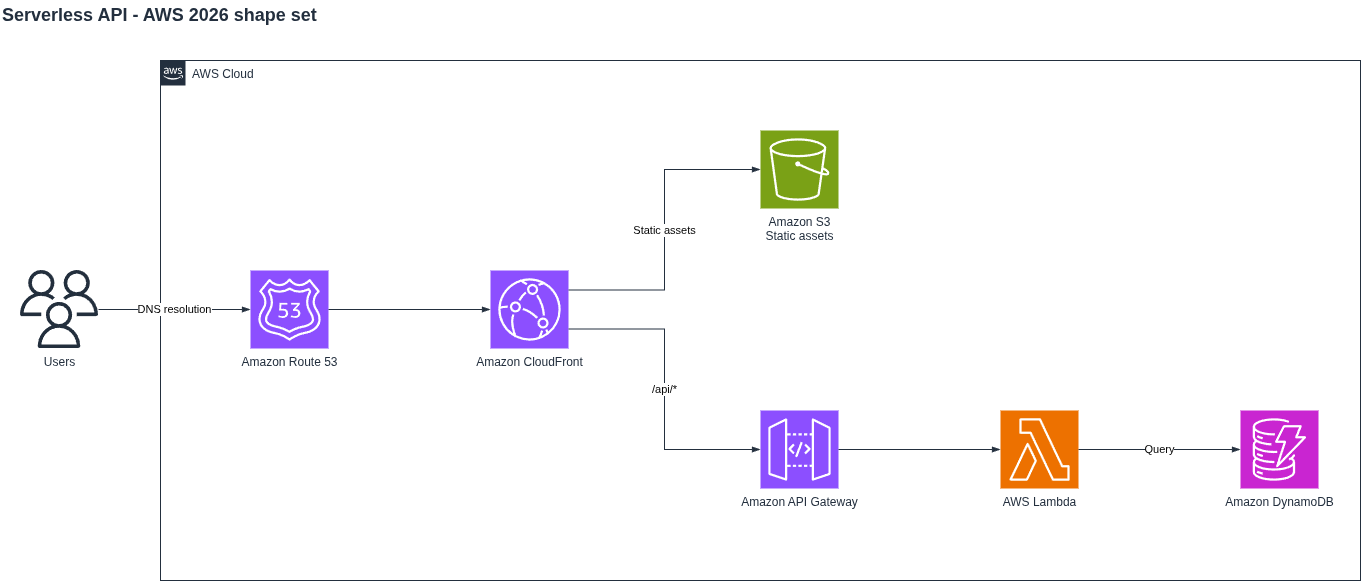
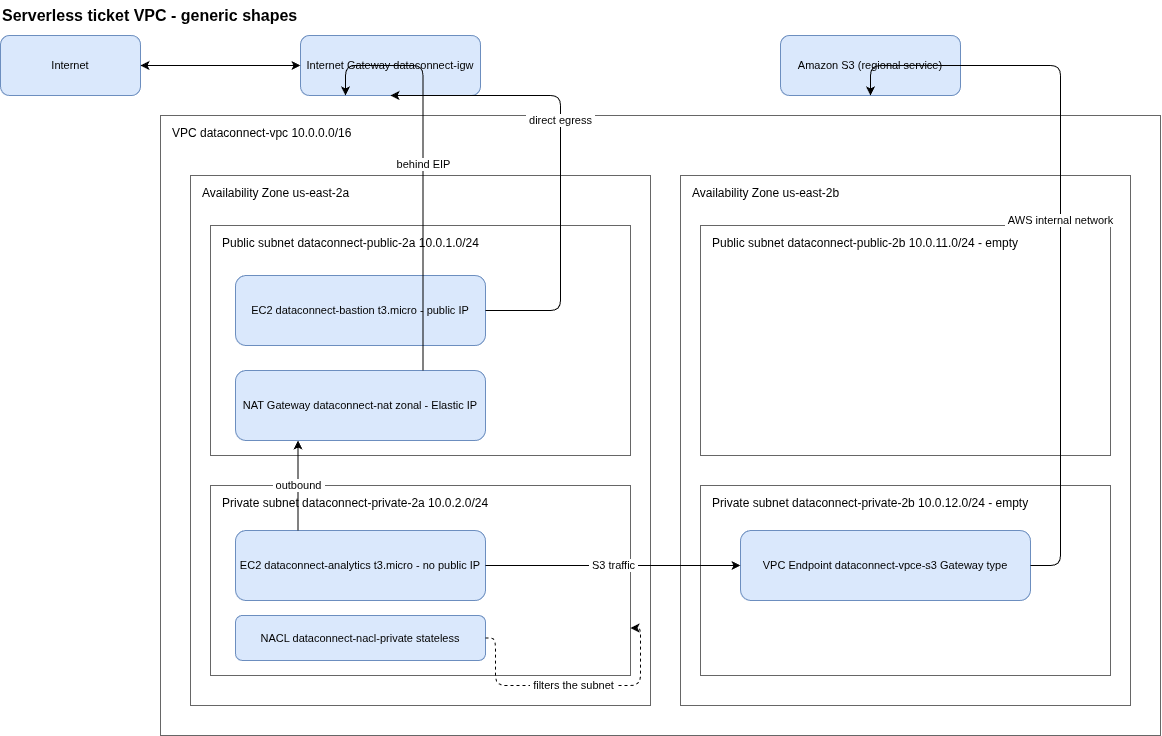
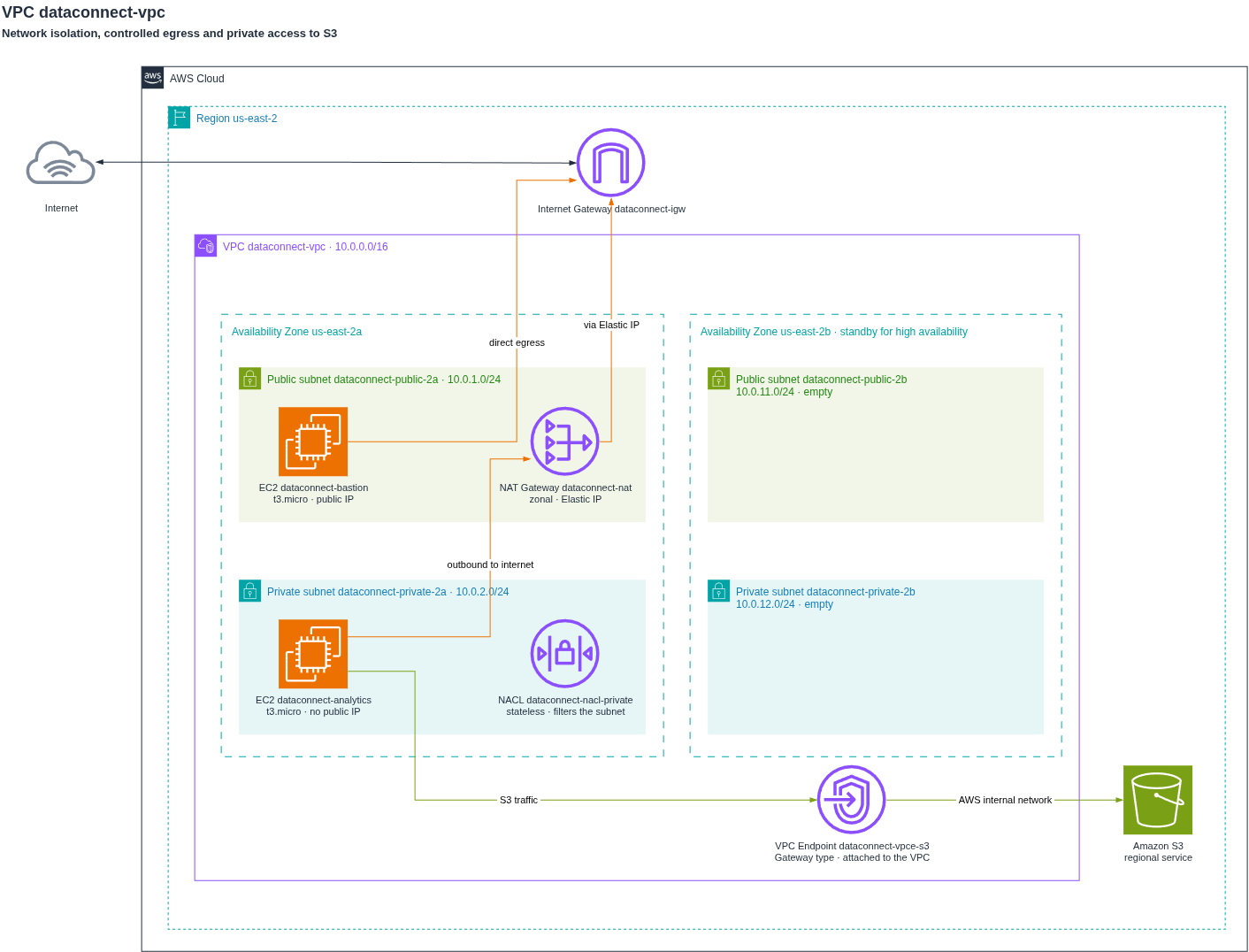
Here is what the difference looks like. Three architectures, each one drawn twice from the exact same request, the second time using this skill:
A serverless API
A VPC across two availability zones
An internal ticketing platform, 19 nodes and 20 flows
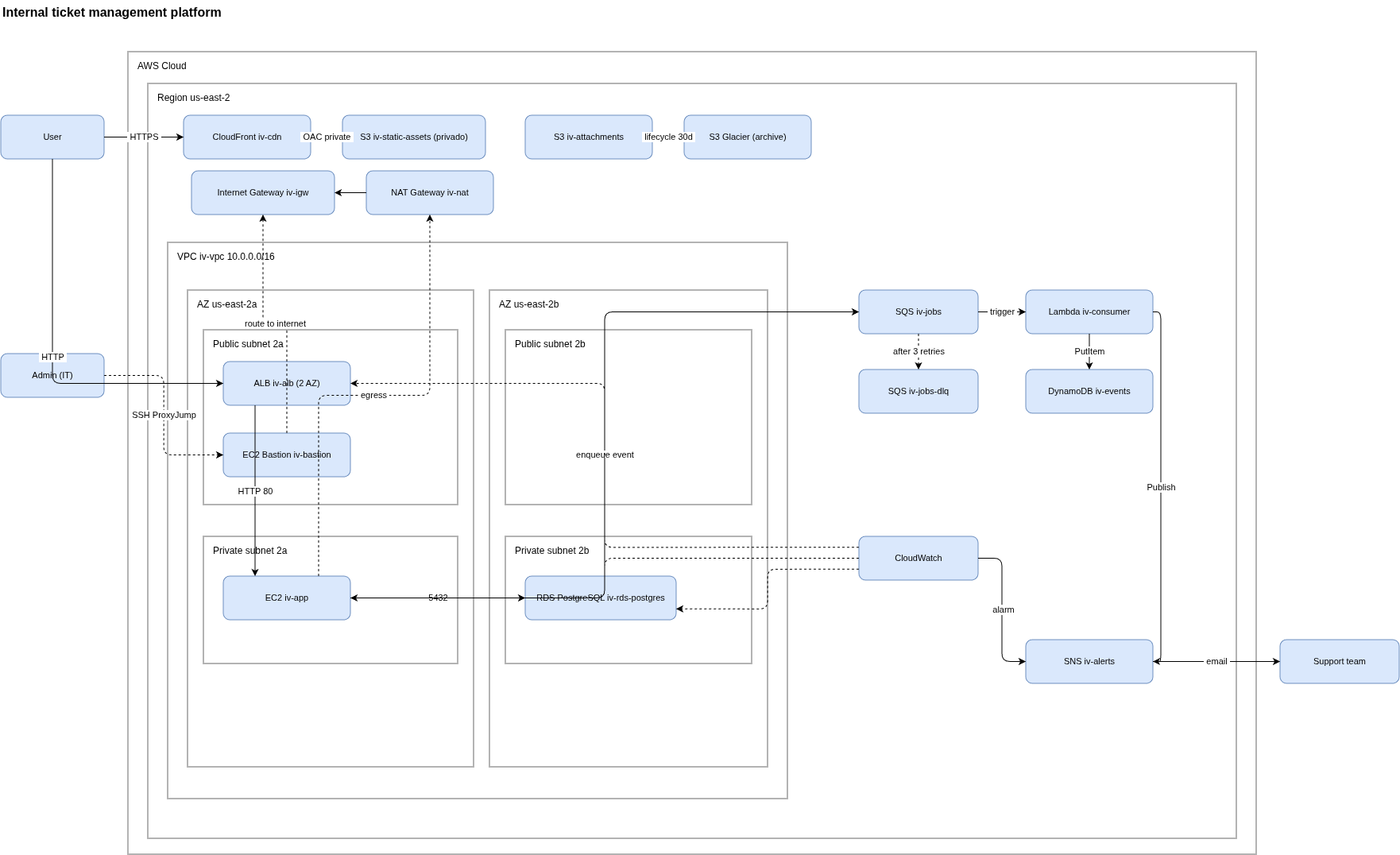
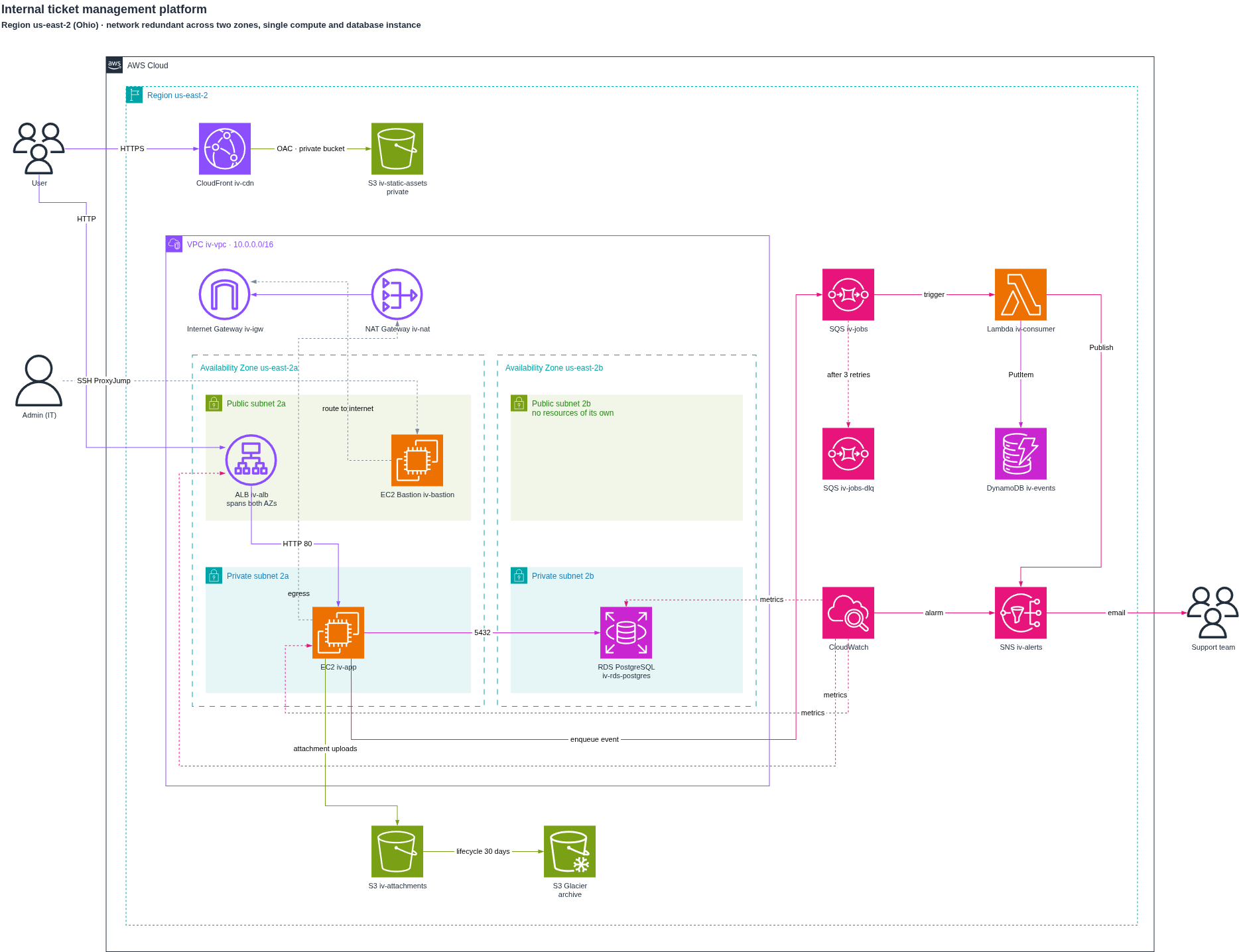
The second one of each pair is not smarter about architecture. It just knows what the stencils are called, how the XML has to be written, and where the empty channels are before it draws a single arrow.
What you actually do with it
Talk through an architecture, or paste a Mermaid sketch, and then ask:
/drawio-aws-reference draw the architecture we just discussed
You get back a .drawio file. Open it and the real AWS shapes are already
there, colored by service family, containers nested the way AWS nests them,
arrows attached where they belong. From there you are adjusting for a few
minutes instead of building for an afternoon.
That is the point, and it is worth being concrete about it. Laying out twenty nodes by hand in draw.io is slow, patient work. Every icon has to be hunted down in a palette of hundreds, given the right color, placed, labeled. Then every single arrow has to be dragged into a path that does not cut through something else. The skill does the mechanical part and leaves you with the minor adjustments that require judgment.
The validator, and what it honestly does
scripts/validate.py runs on every diagram before you ever see it. It catches
the things that are invisible in the XML and painfully obvious once you open the
file:
- stencil names that do not exist, so the icon renders as nothing
- missing anchor arrays, so you cannot drag the arrows
- unescaped line breaks, which make the whole file unopenable
- an icon sitting on top of a container's own label
- labels wider than their icons, bumping into each other
- an arrow routed straight through a third node
- two lines running parallel closer than 40px, which read as one thick line
- a resource with no arrows at all, which usually means the description had a hole in it
Now the honest part: it validates, it does not fix. It prints what is wrong and where, and then the diagram gets corrected and checked again before you get it. It also has no eyes. Spacing that passes every rule can still look wrong, because "wrong" here is a thing you see, not a thing you measure. That is why every handover says the diagram may need a touch-up and asks for a light mode PNG if it does.
It is a plain Python script with no dependencies, so you can run it yourself on
any .drawio file, whether it came from here or not.
Installing it, even if this is your first skill ever
A skill is just a folder with instructions inside it. The AI reads those instructions when the task matches, and behaves accordingly. Nothing gets installed on your computer, nothing runs in the background.
First, get the folder:
git clone https://github.com/patvillarroel/drawio-aws-reference.git
Or click the green Code button at the top of this page, choose Download ZIP, and unzip it. Same thing.
Claude
This is the one it was built for, and the only one where everything works end to end, validator included.
- Go to claude.ai and open Settings, then Capabilities, then Skills.
- Click to upload a skill and pick the
drawio-aws-referencefolder you just downloaded, or the ZIP. - That is it. Start a chat and describe an architecture, or type
/drawio-aws-referenceand ask for a diagram.
Claude reads SKILL.md on its own when your request looks like a diagram
request, so you do not have to invoke it by name every time.
ChatGPT
ChatGPT has no skills, but it has two things that get you most of the way there. Pick one.
A Project, which is a workspace where instructions and files stick around across every chat inside it:
- Click Projects in the sidebar and create a new one. Call it something like "AWS diagrams".
- Open the project settings and paste the contents of
SKILL.mdinto the project instructions. - Upload
reference/resicons.txt,reference/shapes.txtandreference/groups.mdso it can look names up instead of guessing. - Start a chat inside the project and describe your architecture.
A Custom GPT, if you want to reuse it outside that one workspace or share it with your team. This needs a paid plan:
- Go to chatgpt.com/gpts and click Create, then switch to the Configure tab.
- Paste
SKILL.mdinto Instructions, attach the three reference files under Knowledge, and turn on Code Interpreter so it can run the validator. - Save, and pick who can see it.
One caveat worth knowing up front: reading a knowledge file and running Python
on that same file are two different mechanisms in ChatGPT, and they do not
always cooperate. If the validator does not run, upload validate.py and your
generated .drawio directly into the chat and ask it to run the check there.
Gemini
Gemini calls these Gems, and they are free on every plan, including the free tier. You can only create them on a computer, not in the mobile app.
- Open gemini.google.com, click Explore Gems, then New Gem.
- Name it, then paste
SKILL.mdinto the instructions box. - Under Knowledge, click Add files and upload
reference/resicons.txt,reference/shapes.txtandreference/groups.md. - Preview it, then click Save. The preview window does not save on its own, which catches everyone the first time.
Same caveat as above, a bit stronger: Gemini will follow the rules and use the right stencil names, but do not count on it running the validator against the file it just wrote. Run it yourself. That is one command and it takes a second.
If you use none of the above
You can ignore the skill entirely and still get the useful part. Open
reference/resicons.txt, keep it in a tab, and copy names from it while you
build diagrams by hand. That file is the reason this repository exists.
What is in here
reference/resicons.txt is 373 verified resIcon names, pulled straight
out of draw.io's own source. This is the file that does not exist anywhere else,
and the one you want whether or not you care about the rest.
reference/shapes.txt is 586 more names for everything that is not a
service icon: Internet Gateway, NAT Gateway, VPC Endpoint, NACL, routers, users,
on-premise servers. Different style prefix, same need to verify.
reference/groups.md has the 15 valid group containers with their exact
styles. Including the one that trips absolutely everybody: there is no
group_subnet. A subnet is a recolored group_security_group.
scripts/validate.py is the checker described above.
scripts/update_icons.py regenerates the name lists from upstream, so this
does not rot as AWS ships new services.
SKILL.md is the whole thing packaged as instructions, so the model looks
names up instead of guessing and checks its work before handing you a file.
examples/ has the six diagrams from the screenshots, plus the generator
that produced them.
Running the validator yourself
python3 scripts/validate.py path/to/your-diagram.drawio
ERRORS (2)
  x [glacier] resIcon is not in the current palette: mxgraph.aws4.s3_glacier.
  x [s3source] resourceIcon node without the points array. Arrows cannot be repositioned by hand.

WARNINGS (1)
  ! [waf] and [shield] are 121px apart horizontally. If a labeled edge runs between them, raise it to 180px.
Errors break the file or force you to redo work. Warnings are judgment calls that need you to actually look at the thing.
One thing to know: the validator needs uncompressed XML. If draw.io saved your file compressed, reopen it and turn compression off under Extras.
Does the XML work in other tools?
Short answer, not really. Longer answer, it is worth understanding why.
The format is mxGraphModel, from the mxGraph library, and several tools can
parse it. But mxgraph.aws4.* is a draw.io shape library, not part of the
format. A parser reads resIcon=mxgraph.aws4.s3 and has no idea what to draw.
The file travels, the pictures do not.
Where it does work with no friction is anything running the same engine: draw.io on the web, the desktop app, the VS Code extension, the Confluence and Jira plugins.
And for sharing, there is a nice trick: draw.io tucks the editable XML inside the PNG or SVG it exports. So you send someone an image, they see it anywhere, and if they have draw.io they can reopen that same image and keep editing.
Keeping it fresh
The stencil list is a snapshot of a moving target. AWS ships services, draw.io ships stencils. When a name that should be there is missing:
python3 scripts/update_icons.py
It tells you what was added and removed, and prints the current group container
list so you can check it against reference/groups.md and the validator.
License
Apache 2.0. See LICENSE and NOTICE.
The stencil identifiers are derived from jgraph/drawio, also Apache 2.0. No AWS icon files are distributed here, only the text identifiers draw.io uses to reference its own shapes. Not affiliated with Amazon Web Services or JGraph Ltd.
Español
/drawio-aws-reference es una skill de Claude para diagramas de arquitectura AWS en diagrams.net (conocida también como draw.io) que incluye nombres de stencil verificados, estilos de contenedores y un validador.
El problema que ya lo conoces
Le pides a una IA un diagrama de arquitectura en draw.io y lo que vuelve es una grilla de rectángulos redondeados con el nombre del servicio escrito adentro. Técnicamente es un diagrama. Visualmente es un wireframe.
Entonces le pides que use las formas de AWS y la cosa empeora. Escribe los nombres de los stencils de memoria. Algunos existen, otros no, y los que no salen como espacio en blanco. Después intentas arrastrar una flecha al costado izquierdo de una caja y no se deja, porque al nodo le faltan puntos de anclaje. Así que borras el nodo que te generó la IA, buscas y arrastras uno nuevo de la paleta, reconectas todo... y a esa altura ya lo estás dibujando tú.
"Gracias por nada, Claude", dices entre dientes.
Esta skill busca arreglar eso. No con magia, con una lista de nombres que resultó ser dificilísima de encontrar y un conjunto de reglas aprendidas por la vía lenta: dibujar, exportar, mirarlo, notar qué se ve feo, anotar por qué.
Así se ve la diferencia. Tres arquitecturas, cada una dibujada dos veces a partir del mismo pedido exacto, la segunda vez usando esta skill:
Una API serverless
Una VPC en dos zonas de disponibilidad
Una plataforma de tickets de 19 nodos y 20 flujos
El segundo de cada par no sabe más de arquitectura. Solo sabe cómo se llaman los stencils, cómo hay que escribir el XML, y por dónde pasan los canales vacíos antes de dibujar la primera flecha.
Qué haces con esto en la práctica
Conversas una arquitectura, o pegas un esquema en Mermaid, y después pides:
/drawio-aws-reference dibuja la arquitectura que acabamos de conversar
Recibes un .drawio. Lo abres y las formas reales de AWS ya están puestas,
coloreadas por familia de servicio, los contenedores anidados como los anida
AWS, las flechas ancladas donde corresponde. De ahí en adelante estás ajustando
unos minutos, no construyendo una tarde.
Ese es el punto y vale la pena ser concreto. Armar veinte nodos a mano en draw.io es trabajo lento y paciente. Cada ícono hay que cazarlo en una paleta de cientos, darle el color correcto, ubicarlo, etiquetarlo. Y después arrastrar cada flecha hasta un trazado que no atraviese otra cosa. La skill hace la parte mecánica y te deja los ajustes menores que necesitan criterio.
El validador, y qué hace de verdad
scripts/validate.py corre sobre cada diagrama antes de que tú lo veas. Atrapa
lo que es invisible en el XML y dolorosamente obvio al abrir el archivo:
- nombres de stencil inexistentes, que dejan el ícono en nada
- arrays de anclaje faltantes, que impiden mover las flechas
- saltos de línea sin escapar, que dejan el archivo imposible de abrir
- un ícono encima de la etiqueta del propio contenedor
- etiquetas más anchas que su ícono, chocando entre ellas
- una flecha ruteada derecho a través de un tercer nodo
- dos líneas paralelas a menos de 40px, que se leen como una sola línea gruesa
- un recurso sin ninguna flecha, que casi siempre significa que la descripción tenía un hueco
Ahora la parte honesta: valida, no corrige. Reporta qué está mal y dónde, y después el diagrama se arregla y se vuelve a revisar antes de llegarte. Tampoco tiene ojos. Un espaciado que pasa todas las reglas igual puede verse mal, porque "mal" aquí es algo que se ve, no algo que se mide. Por eso cada entrega dice que el diagrama puede necesitar un retoque y te pide un PNG en modo claro si es así.
Es un script de Python sin dependencias, así que puedes correrlo tú sobre
cualquier .drawio, venga de aquí o no.
Cómo instalarlo, aunque sea la primera skill de tu vida
Una skill es simplemente una carpeta con instrucciones adentro. La IA lee esas instrucciones cuando la tarea calza y se comporta en consecuencia. No se instala nada en tu computador ni queda nada corriendo de fondo.
Primero, consigue la carpeta:
git clone https://github.com/patvillarroel/drawio-aws-reference.git
O haz clic en el botón verde Code arriba en esta página, elige Download ZIP, y descomprímelo. Es lo mismo.
Claude
Es para el que fue construida, y el único donde funciona todo de punta a punta, validador incluido.
- Entra a claude.ai y abre Settings, después Capabilities, después Skills.
- Haz clic para subir una skill y elige la carpeta
drawio-aws-referenceque acabas de descargar, o el ZIP. - Listo. Abre un chat, describe una arquitectura, o escribe
/drawio-aws-referencey pide el diagrama.
Claude lee SKILL.md por su cuenta cuando tu pedido se parece a un pedido de
diagrama, así que no tienes que invocarla por nombre cada vez.
ChatGPT
ChatGPT no tiene skills, pero tiene dos cosas que te dejan bastante cerca. Elige una.
Un Proyecto, que es un espacio donde las instrucciones y los archivos quedan puestos para todos los chats que abras adentro:
- Haz clic en Projects en la barra lateral y crea uno nuevo. Ponle algo como "Diagramas AWS".
- Abre la configuración del proyecto y pega el contenido de
SKILL.mden las instrucciones del proyecto. - Sube
reference/resicons.txt,reference/shapes.txtyreference/groups.mdpara que pueda consultar los nombres en vez de adivinarlos. - Abre un chat dentro del proyecto y describe tu arquitectura.
Un GPT personalizado, si quieres reutilizarlo fuera de ese espacio o compartirlo con tu equipo. Esto necesita plan de pago:
- Entra a chatgpt.com/gpts y haz clic en Create, después pásate a la pestaña Configure.
- Pega
SKILL.mden Instructions, adjunta los tres archivos de referencia en Knowledge, y activa Code Interpreter para que pueda correr el validador. - Guarda y elige quién puede verlo.
Una advertencia que conviene saber de entrada: leer un archivo de conocimiento y
correr Python sobre ese mismo archivo son dos mecanismos distintos en ChatGPT, y
no siempre se llevan bien. Si el validador no corre, sube validate.py y tu
.drawio generado directamente al chat y pídele que haga la revisión ahí.
Gemini
Gemini les dice Gems, y son gratis en todos los planes, incluido el gratuito. Solo puedes crearlas desde un computador, no desde la aplicación móvil.
- Abre gemini.google.com, haz clic en Explore Gems, después New Gem.
- Ponle nombre y pega
SKILL.mden la caja de instrucciones. - En Knowledge, haz clic en Add files y sube
reference/resicons.txt,reference/shapes.txtyreference/groups.md. - Pruébala en la vista previa y después haz clic en Save. La vista previa no guarda sola, y eso pilla a todo el mundo la primera vez.
La misma advertencia de arriba, un poco más fuerte: Gemini va a seguir las reglas y usar los nombres correctos, pero no cuentes con que corra el validador sobre el archivo que acaba de escribir. Córrelo tú. Es un comando y demora un segundo.
Si no usas ninguna de las tres
Puedes ignorar la skill por completo y quedarte igual con la parte útil. Abre
reference/resicons.txt, déjalo en una pestaña, y copia nombres de ahí mientras
armas tus diagramas a mano. Ese archivo es la razón por la que existe este
repositorio.
Qué contiene
reference/resicons.txt son 373 nombres verificados de resIcon, sacados
directamente del código fuente de draw.io. Este es el archivo que no existe en
ninguna otra parte, y el que quieres tengas o no interés en el resto.
reference/shapes.txt son 586 nombres más para todo lo que no es un ícono
de servicio: Internet Gateway, NAT Gateway, VPC Endpoint, NACL, routers,
usuarios, servidores on-premise. Otro prefijo de estilo, la misma necesidad de
verificar.
reference/groups.md tiene los 15 contenedores de grupo válidos con sus
estilos exactos. Incluido el que hace tropezar absolutamente a todos: no existe
group_subnet. Una subred es un group_security_group recoloreado.
scripts/validate.py es el revisor descrito más arriba.
scripts/update_icons.py regenera las listas de nombres desde el origen,
para que esto no envejezca a medida que AWS publica servicios nuevos.
SKILL.md es todo lo anterior empaquetado como instrucciones, para que el
modelo consulte los nombres en vez de adivinarlos y revise su trabajo antes de
entregarte el archivo.
examples/ tiene los seis diagramas de las capturas, más el generador que
los produjo.
Correr el validador tú mismo
python3 scripts/validate.py ruta/a/tu-diagrama.drawio
ERRORS (2)
  x [glacier] resIcon is not in the current palette: mxgraph.aws4.s3_glacier.
  x [s3source] resourceIcon node without the points array. Arrows cannot be repositioned by hand.

WARNINGS (1)
  ! [waf] and [shield] are 121px apart horizontally. If a labeled edge runs between them, raise it to 180px.
Los errores rompen el archivo o te obligan a rehacer trabajo. Las advertencias son juicios que necesitan que mires la cosa de verdad.
Un detalle: el validador necesita el XML sin comprimir. Si draw.io guardó tu archivo comprimido, ábrelo y desactiva la compresión en el menú Extras.
¿El XML sirve en otras herramientas?
Respuesta corta, no realmente. Respuesta larga, vale la pena entender por qué.
El formato se llama mxGraphModel, viene de la librería mxGraph, y varias
herramientas pueden leerlo. Pero mxgraph.aws4.* es una librería de formas
propia de draw.io, no parte del formato. Un lector encuentra
resIcon=mxgraph.aws4.s3 y no tiene idea de qué dibujar. El archivo viaja, los
dibujos no.
Donde sí funciona sin fricción es en todo lo que corre el mismo motor: draw.io web, la aplicación de escritorio, la extensión de VS Code, los plugins de Confluence y Jira.
Y para compartir hay un truco lindo: draw.io mete el XML editable dentro del PNG o el SVG que exporta. Le mandas una imagen a alguien, la ve en cualquier parte, y si tiene draw.io puede reabrir esa misma imagen y seguir editando.
Mantenerlo al día
La lista de stencils es una foto de un blanco móvil. AWS publica servicios, draw.io publica stencils. Cuando falte un nombre que debería estar:
python3 scripts/update_icons.py
Te dice qué se agregó y qué se quitó, e imprime la lista actual de contenedores
para que la contrastes con reference/groups.md y con el validador.
Licencia
Apache 2.0. Ver LICENSE y NOTICE.
Los identificadores de stencil son datos derivados de jgraph/drawio, también Apache 2.0. Aquí no se distribuye ningún archivo de íconos de AWS, solo las cadenas de texto que draw.io usa para referenciar sus propias formas. Sin afiliación con Amazon Web Services ni con JGraph Ltd.
No comments yet
Be the first to share your take.