
CC Switch
The All-in-One Manager for Claude Code, Claude Desktop, Codex, Gemini CLI, Grok Build, OpenCode, OpenClaw & Hermes Agent




🌐 The Only Official Website: ccswitch.io
English | 中文 | 日本語 | Deutsch | Changelog
❤️Sponsor
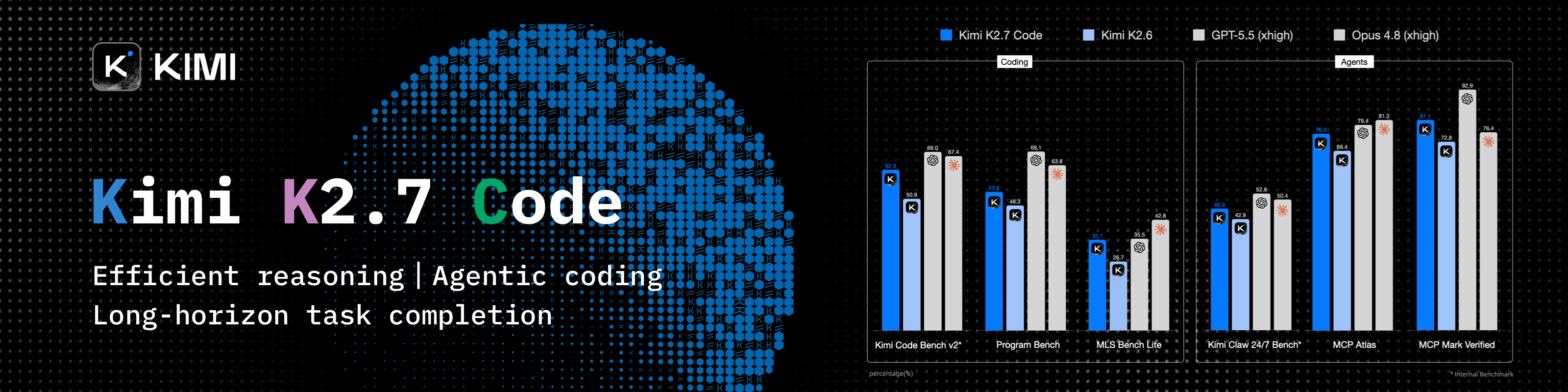
Kimi K3 is Moonshot AI's most capable model and the world's first open 3T-class model. With 2.8 trillion parameters, native vision, and a 1-million-token context window, K3 delivers frontier performance across long-horizon coding, knowledge work, and reasoning. CC Switch makes it easy to configure and switch to Kimi across agentic tools. Click here to start using Kimi
New user top-up bonus: register via this link and complete your first top-up to receive 10% of the amount as bonus API credit, up to CNY ¥1,000.
Doing mostly coding work? Try the Kimi Code subscription.
Why CC Switch?
Modern AI-powered coding relies on tools like Claude Code, Claude Desktop, Codex, Gemini CLI, Grok Build, OpenCode, OpenClaw, and Hermes — but each has its own configuration format. Switching API providers means manually editing JSON, TOML, or .env files, and there is no unified way to manage MCP and Skills across multiple tools.
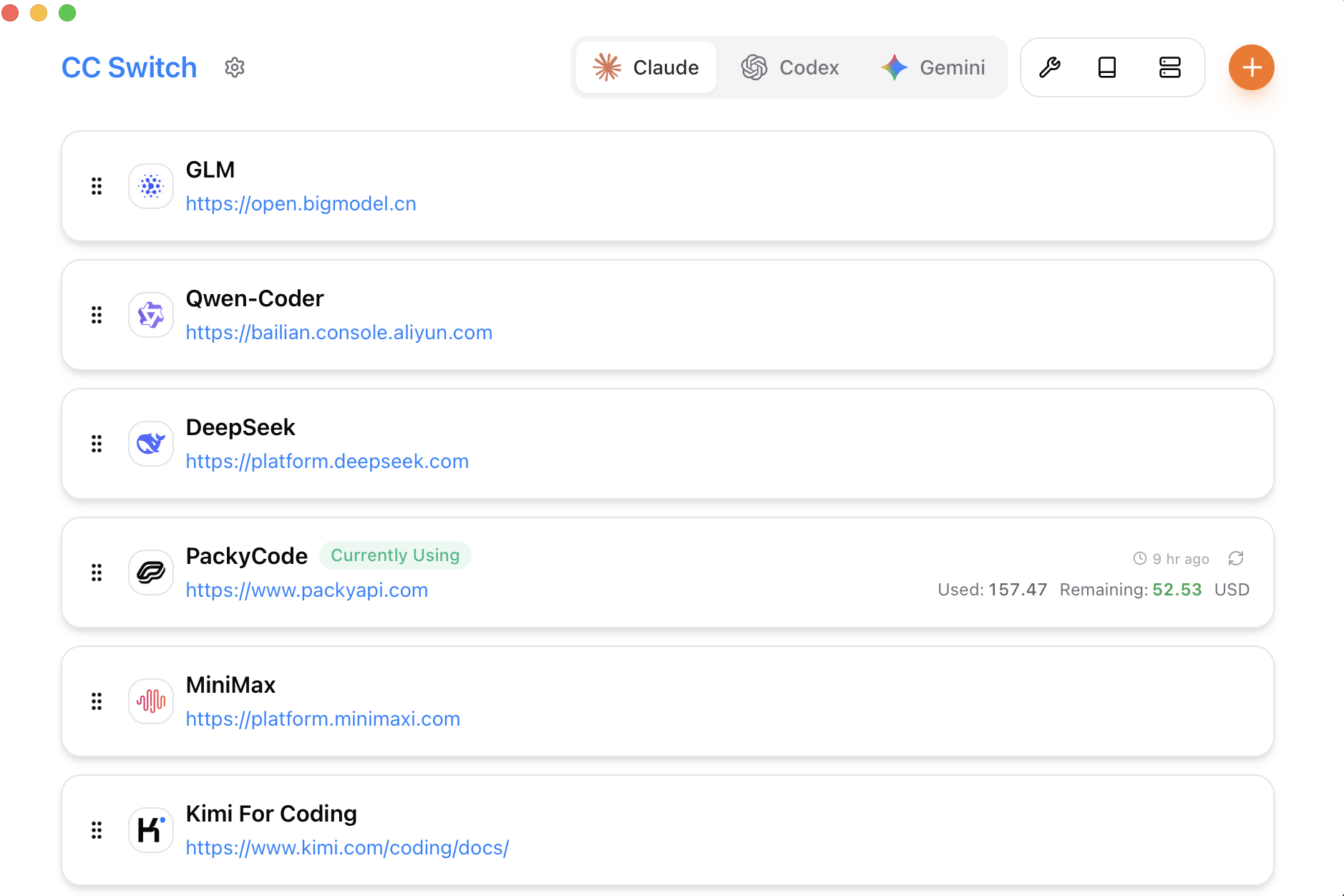
CC Switch gives you a single desktop app to manage all supported AI tools. Instead of editing config files by hand, you get a visual interface to import providers with one click, switch between them instantly, with 50+ built-in provider presets, unified MCP and Skills management, and system tray quick switching — all backed by a reliable SQLite database with atomic writes that protect your configs from corruption.
- One App, Eight Tools — Manage Claude Code, Claude Desktop, Codex, Gemini CLI, Grok Build, OpenCode, OpenClaw, and Hermes from a single interface
- No More Manual Editing — 50+ provider presets including AWS Bedrock, NVIDIA NIM, and community relays; just pick and switch
- Unified MCP & Skills Management — One panel to manage MCP servers and Skills across Claude, Codex, Gemini, Grok Build, OpenCode, and Hermes with bidirectional sync
- System Tray Quick Switch — Switch providers instantly from the tray menu, no need to open the full app
- Cloud Sync — Sync provider data across devices via Dropbox, OneDrive, iCloud, or WebDAV servers
- Cross-Platform — Native desktop app for Windows, macOS, and Linux, built with Tauri 2
- Built-in Utilities — Includes various utilities for first-launch login confirmation, signature bypass, plugin extension sync, and more
Screenshots
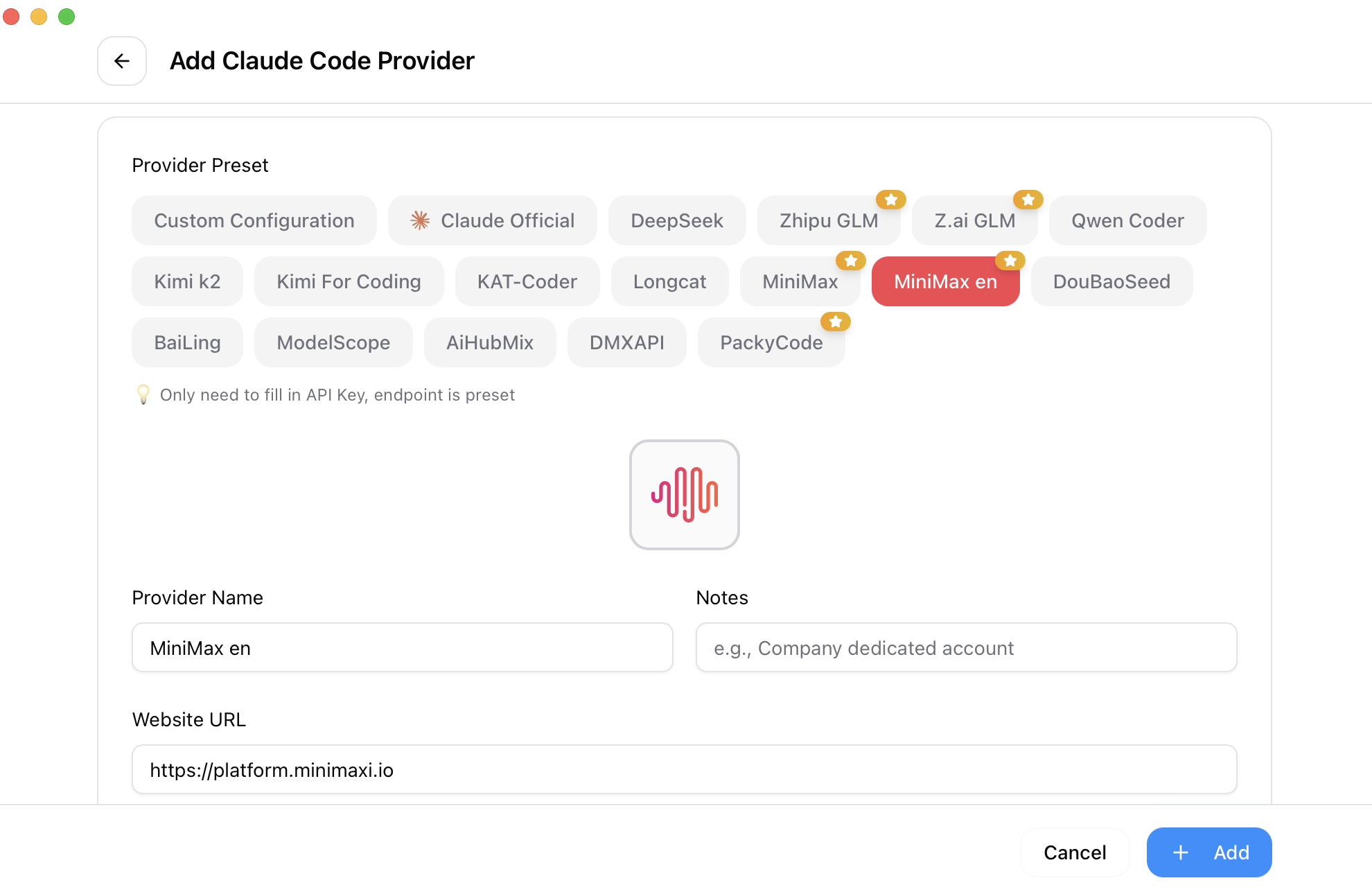
| Main Interface | Add Provider |
|---|---|
 |
 |
Features
Full Changelog | Release Notes
Provider Management
- 8 supported tools, 50+ presets — Claude Code, Claude Desktop, Codex, Gemini CLI, Grok Build, OpenCode, OpenClaw, Hermes; copy your key and import with one click
- Universal providers — One config syncs to Claude Code, Codex, and Gemini CLI
- One-click switching, system tray quick access, drag-and-drop sorting, import/export
Proxy & Failover
- Local proxy with hot-switching — Format conversion, auto-failover, circuit breaker, provider health monitoring, and request rectifier
- App-level takeover — Independently proxy Claude, Codex, Gemini, or Grok Build, down to individual providers
MCP, Prompts & Skills
- Unified MCP panel — Manage MCP servers across Claude, Codex, Gemini, Grok Build, OpenCode, and Hermes with bidirectional sync and Deep Link import
- Prompts — Markdown editor with cross-app sync (CLAUDE.md / AGENTS.md / GEMINI.md) and backfill protection
- Skills — One-click install from GitHub repos or ZIP files, custom repository management, with symlink and file copy support
Usage & Cost Tracking
- Usage dashboard — Track spending, requests, and tokens with trend charts, detailed request logs, and custom per-model pricing
Session Manager & Workspace
- Browse, search, and restore conversation history across supported session sources
- Workspace editor (OpenClaw) — Edit agent files (AGENTS.md, SOUL.md, etc.) with Markdown preview
System & Platform
- Cloud sync — Custom config directory (Dropbox, OneDrive, iCloud, NAS) and WebDAV server sync
- Deep Link (
ccswitch://) — Import providers, MCP servers, prompts, and skills via URL - Dark / Light / System theme, auto-launch, auto-updater, atomic writes, auto-backups, i18n (zh/zh-TW/en/ja)
FAQ
CC Switch supports eight tools: Claude Code, Claude Desktop, Codex, Gemini CLI, Grok Build, OpenCode, OpenClaw, and Hermes. Each tool has dedicated provider presets and configuration management.
For most tools, yes — restart your terminal or the CLI tool for changes to take effect. The exception is Claude Code, which currently supports hot-switching of provider data without a restart.
CC Switch provides a "Shared Config Snippet" feature to pass common data (beyond API keys and endpoints) between providers. Go to "Edit Provider" → "Shared Config Panel" → click "Extract from Current Provider" to save all common data. When creating a new provider, check "Write Shared Config" (enabled by default) to include plugin data in the new provider. All your configuration items are preserved in the default provider imported when you first launched the app.
CC Switch for macOS is code-signed and notarized by Apple. You can download and install it directly — no extra steps needed. We recommend using the .dmg installer.
CC Switch follows a "minimal intrusion" design principle — even if you uninstall the app, your CLI tools will continue to work normally. The system always keeps one active configuration, because deleting all configurations would make the corresponding CLI tool unusable. If you rarely use a specific CLI tool, you can hide it in Settings. To switch back to official login, see the next question.
Add an official provider from the preset list. After switching to it, run the Log out / Log in flow, and then you can freely switch between the official provider and third-party providers. Codex supports switching between different official providers, making it easy to switch between multiple Plus or Team accounts.
- Database:
~/.cc-switch/cc-switch.db(SQLite — providers, MCP, prompts, skills) - Local settings:
~/.cc-switch/settings.json(device-level UI preferences) - Backups:
~/.cc-switch/backups/(auto-rotated, keeps 10 most recent) - Skills:
~/.cc-switch/skills/(symlinked to corresponding apps by default) - Skill Backups:
~/.cc-switch/skill-backups/(created automatically before uninstall, keeps 20 most recent)
The AppImage forces GDK_BACKEND=x11 (XWayland) to avoid a historical native-Wayland crash. On newer Wayland + NVIDIA setups this can leave the web content area unclickable (the title-bar buttons still work) and black-screen on resize. Launch with the opt-in escape hatch to switch back to native Wayland:
CC_SWITCH_GDK_BACKEND=wayland ./CC-Switch-*.AppImage
If you launch from a desktop icon, add it to the .desktop Exec= line (e.g. env CC_SWITCH_GDK_BACKEND=wayland /path/to/AppImage) or set it in your session environment. The variable is generic: on tiling Wayland compositors (sway/Hyprland) where clicks don't register, try CC_SWITCH_GDK_BACKEND=x11 instead. Leaving it unset keeps the default behavior.
Documentation
For detailed guides on every feature, check out the User Manual — covering provider management, MCP/Prompts/Skills, proxy & failover, and more.
Quick Start
Basic Usage
- Add Provider: Click "Add Provider" → Choose a preset or create custom configuration
- Switch Provider:
- Main UI: Select provider → Click "Enable"
- System Tray: Click provider name directly (instant effect)
- Takes Effect: Restart your terminal or the corresponding CLI tool to apply changes (Claude Code does not require a restart)
- Back to Official: Add an "Official Login" preset, restart the CLI tool, then follow its login/OAuth flow
MCP, Prompts, Skills & Sessions
- MCP: Click the "MCP" button → Add servers via templates or custom config → Toggle per-app sync
- Prompts: Click "Prompts" → Create presets with Markdown editor → Activate to sync to live files
- Skills: Click "Skills" → Browse GitHub repos → One-click install to supported apps
- Sessions: Click "Sessions" → Browse, search, and restore conversation history across supported session sources
Note: On first launch, you can manually import existing CLI tool configs as the default provider.
Download & Installation
System Requirements
- Windows: Windows 10 and above
- macOS: macOS 12 (Monterey) and above
- Linux: Ubuntu 22.04+ / Debian 11+ / Fedora 34+ and other mainstream distributions
Windows Users
Download the latest CC-Switch-v{version}-Windows.msi installer or CC-Switch-v{version}-Windows-Portable.zip portable version from the Releases page.
macOS Users
Method 1: Install via Homebrew (Recommended)
brew install --cask cc-switch
Update:
brew upgrade --cask cc-switch
Method 2: Manual Download
Download CC-Switch-v{version}-macOS.dmg (recommended) or .zip from the Releases page.
Note: CC Switch for macOS is code-signed and notarized by Apple. You can install and open it directly.
Arch Linux Users
Install via paru (Recommended)
paru -S cc-switch-bin
Linux Users
Download the latest Linux build from the Releases page:
CC-Switch-v{version}-Linux.deb(Debian/Ubuntu)CC-Switch-v{version}-Linux.rpm(Fedora/RHEL/openSUSE)- `CC-Switch
No comments yet
Be the first to share your take.