
C64 Bridge

Your AI Command Bridge for the Commodore 64.









C64 Bridge is an MCP server for controlling and working with a Commodore 64 from an AI client.
It lets you run programs, read and write memory, render graphics, and play sound on a C64 Ultimate, Ultimate 64, or U2-family cartridge. You can also switch to a VICE emulator session, so one MCP conversation can span hardware and emulation.
It is built on the official TypeScript @modelcontextprotocol/sdk and supports both stdio for local AI integration and an optional HTTP bridge for manual inspection.
C64 Bridge is listed in the Official MCP Registry.
Contents
- C64 Bridge
Overview
C64 Bridge gives an AI agent one place to drive program execution, memory access, graphics, sound, storage, printer workflows, and knowledge retrieval for a Commodore 64 environment.
The core workflow is simple:
- Start the MCP server.
- Point it at C64U/U64 hardware, a U2-family cartridge, VICE, or any configured combination.
- Let the client call grouped MCP tools such as
c64_program,c64_memory,c64_graphics, andc64_sound. - Switch backends at runtime with
c64_select_backendwhen both are configured.
Features
- Program runners for BASIC, 6510 assembly, and PRG or CRT execution
- Full memory access, including raw reads and writes plus screen polling
- System integration for drives, files, printers, and task orchestration
- SID music tools for playback, composition, generation, and verification
- Built-in knowledge resources and prompts for safer LLM workflows
- Mixed runtime support for
c64u(C64U/U64),u2(U2/U2+/U2+L), andvice
Quick Start
If you want the shortest path, do these four things:
- Install Node.js 24+ and npm.
- Start the server.
- Add backend configuration for C64U/U64, U2-family, VICE, or any combination.
- Connect from VS Code or another MCP client.
1. Install Node.js 24+ and npm
Linux (Ubuntu or Debian):
Recommended:
sudo apt update
sudo apt install -y curl ca-certificates
curl -fsSL https://deb.nodesource.com/setup_24.x | sudo -E bash -
sudo apt install -y nodejs
Fallback:
sudo apt install -y nodejs npm
macOS:
brew install node@24
brew link --overwrite node@24
Windows:
# winget
winget install OpenJS.NodeJS.LTS
# or Chocolatey
choco install nodejs-lts -y
Verify the installation:
node --version
Expected result: v24.x
2. Start the Server
Use one of the following entry points.
Run from npx with zero setup:
npx -y c64bridge@latest
Run from a local npm install:
mkdir -p ~/c64bridge && cd ~/c64bridge
npm init -y
npm install c64bridge
node ./node_modules/c64bridge/dist/index.js
Run from source for development or testing:
git clone https://github.com/chrisgleissner/c64bridge.git
cd c64bridge
./build install
npm start
On startup, the server probes the selected target, performs connectivity checks, and then announces that it is running on stdio.
3. Add Backend Configuration
The server can run against one or more of:
- C64U/U64 hardware (
c64u) - U2, U2+, or U2+L (
u2) - VICE (
vice)
The detailed lookup order, merge rules, backend examples, and override model are in the Configuration section below.
4. Connect from an MCP Client
C64 Bridge ships a single canonical stdio entry point that every MCP client uses:
- VS Code (GitHub Copilot) — see VS Code MCP Setup.
- Claude Code (CLI and VS Code plugin) — see Claude Code.
- Cursor, Visual Studio, VS Code Insiders — use the install badges at the top of this README.
- Any other MCP client — point it at the same
stdioserver, with the environment variables documented in Runtime Environment Variable Reference and the registry manifest in mcp.json.
The startup command is the same across clients: npx -y c64bridge@latest for the published package, or node scripts/start.mjs from a local checkout. Select c64u, u2, or vice in the shared Configuration; clients only need the command.
Configuration
Configuration File Order
The server reads configuration in this order:
C64BRIDGE_CONFIG, if it points to a config file.c64bridge.jsonin the project root~/.c64bridge.jsonin the home directory
Configuration Merge Rules
Configuration is merged per backend section while scanning those files in order.
- The first file that contains each backend section (
c64u,u2, orvice) supplies that backend's configuration. - This allows a project-local
.c64bridge.jsonto definec64uwhile~/.c64bridge.jsondefinesu2orvice.
Backend Configuration: C64 Ultimate
Use this for a C64 Ultimate or Ultimate 64:
{
  "c64u": {
    "host": "c64u",
    "port": 80,
    "networkPassword": "secret"
  }
}
- If no file is found, the default target is
c64u:80with no network password. networkPasswordis only needed when you enabled a password in the C64 Ultimate network settings.C64U_HOST,C64U_PORT, andC64U_PASSWORDoverride the configured host, port, and network password.
Firmware Requirements for Native Input and Menu Screens
The following operations require recently added Ultimate REST endpoints. C64 Bridge detects or explains unavailable endpoints without exposing a raw firmware error.
Before choosing an endpoint-dependent operation, read c64://platform/status. It probes machine:input safely and reports whether it is available. When native input is unavailable, use key or write_text for ordinary C64 input instead of physical matrix events. machine:menu_screen can only be confirmed after an Ultimate menu is visible; its tool returns fallback guidance rather than a transport error when no matrix can be read.
c64_inputkeyboard,release_all, andstate, plus hardwarejoystick, usemachine:input. They require a C64U firmware version that provides this endpoint, or U64 firmware 3.15 or later.machine:inputis not available on U2-family cartridges.c64_systemread_menu_screenusesmachine:menu_screen; it requires a C64U firmware version that provides this endpoint, or U64/U2 firmware 3.15 or later.- On C64U/U64,
c64_systempower_cycleverifies Tool Menu navigation withmachine:menu_screen, so it has the same firmware requirement. U2-familypower_cycleuses REST reboot instead.
Backend Configuration: U2-family
Use this profile for U2, U2+, and U2+L cartridges:
{
  "u2": {
    "host": "u2",
    "port": 80,
    "networkPassword": "secret"
  }
}
Set C64_MODE=u2 to make this the initial backend. U2_HOST, U2_PORT, and U2_PASSWORD override this profile. U2-family firmware exposes the shared REST subset; it does not provide machine input, debug-register access, power-off, or streaming. read_menu_screen requires U2 firmware 3.15 or later.
Backend Configuration: VICE
C64 Bridge can either connect to an already running VICE Binary Monitor or manage a local VICE process for you. The usual managed setup only needs the emulator binary and, when auto-detection cannot find it, the VICE resource directory:
{
  "vice": {
    "exe": "/usr/bin/x64sc",
    "directory": "/usr/local/share/vice"
  }
}
exeis optional whenx64scorx64is onPATH. If no explicit binary is configured, the runtime prefers/usr/local/bin/x64scwhen present, then falls back tox64scorx64onPATH.directoryis optional. When omitted, C64 Bridge auto-detects a VICE resource directory by looking for the standard C64 ROM set near the emulator binary and in common system locations.hostandportare optional and default to127.0.0.1:6502, the Binary Monitor endpoint C64 Bridge starts for managed local sessions. On local endpoints, C64 Bridge first tries to reuse an already running monitor before starting its own process.visible,warp, andargsare optional runtime controls. They can live in JSON config, but most users set their environment-variable equivalents from the MCP client because they are per-session preferences.- By default, VICE is started lazily on first access. When setting the environment variable
VICE_PREWARM=1, C64 Bridge starts or connects VICE in the background during MCP startup. VICE_BINARY,VICE_DIRECTORY,VICE_HOST,VICE_PORT,VICE_VISIBLE,VICE_WARP,VICE_ARGS, andVICE_PREWARMoverride the JSON values without editing config files.
VICE Window Modes
Choose the window mode based on where the MCP server runs:
| Mode | Configuration | What happens | Use when |
|---|---|---|---|
| Visible | VICE_VISIBLE=true |
VICE opens a normal desktop window. Warp defaults to off. | You are developing locally and want to watch or interact with the emulator. |
| Minimized | VICE_VISIBLE=true, VICE_ARGS="-minimized" |
VICE still runs as a normal desktop app, but its window starts iconified. Binary Monitor operations, screen reads, frame capture, and keyboard input continue to work. | You are using an agent locally and do not want the emulator stealing focus, but still want the option to restore the window. |
| Headless/Xvfb | VICE_VISIBLE=false |
C64 Bridge launches VICE without a user-facing desktop window, using Xvfb unless disabled. Warp defaults to on. | CI, unattended tests, servers, or any session where no one needs to inspect the emulator window. |
Minimized and headless are not the same thing. Minimized is still a visible desktop session with a real VICE window; it is simply hidden by the window manager at startup. Headless/Xvfb has no user-facing window, so it is better for automation but less convenient when you need to debug by looking at the emulator.
For normal local MCP use, prefer minimized VICE. It avoids focus stealing while preserving the ability to restore the window for visual inspection. Prefer headless/Xvfb for CI and remote or display-less environments.
FORCE_XVFB=1 forces the Xvfb path even if a graphical session is available. DISABLE_XVFB=1 disables that fallback and uses the current display, which is mainly useful for troubleshooting display detection.
Recommended VICE Configurations
Local agent session, VICE starts minimized:
{
  "servers": {
    "c64bridge": {
      "command": "npx",
      "args": ["-y", "c64bridge@latest"],
      "env": {
        "C64_MODE": "vice",
        "VICE_VISIBLE": "true",
        "VICE_ARGS": "-minimized",
        "VICE_WARP": "false"
      }
    }
  }
}
Headless automation, VICE runs without a visible desktop window:
{
  "servers": {
    "c64bridge": {
      "command": "npx",
      "args": ["-y", "c64bridge@latest"],
      "env": {
        "C64_MODE": "vice",
        "VICE_VISIBLE": "false",
        "VICE_WARP": "true"
      }
    }
  }
}
If VICE is installed outside the usual search paths, add VICE_BINARY and, if ROM/resource auto-detection fails, VICE_DIRECTORY to either example.
[!NOTE] VICE supports only the operations marked with a VICE checkmark in the MCP API Reference. Unsupported operations return
unsupported_platform.
Runtime Backend Switching
Configure any combination of c64u, u2, and vice. C64 Bridge starts on C64_MODE (default c64u) and keeps every configured backend ready for c64_select_backend.
| Profile | Targets | Key limits |
|---|---|---|
c64u |
C64 Ultimate, Ultimate 64 | Full Ultimate REST surface, including machine input and streaming. |
u2 |
U2, U2+, U2+L | Shared REST subset; no machine input, debug registers, power-off, or streaming. |
vice |
VICE emulator | Binary Monitor-backed emulator controls; no Ultimate REST API. |
Use c64://platform/status to inspect the active backend and available tools. State the target in the same prompt, for example u2: list drives, c64u: run this PRG, or vice: write HELLO. On U2-family cartridges, c64_system power_cycle uses REST reboot; C64U/U64 uses verified Tool Menu navigation, and VICE starts fresh.
Prompt illustration (issued via Copilot in VS Code, using GPT 5.4 Medium):
c64u: write a small BASIC program that clears the screen and prints HELLO C64U
vice: write a small BASIC program that clears the screen and prints HELLO VICE
The screenshots below are available for the two backends that provide frame capture. C64U uses streamed video frames; VICE captures and normalizes its display. U2-family cartridges do not provide firmware streaming, so they intentionally have no screenshot row.
| Backend | Screenshot |
|---|---|
| C64 Ultimate |  |
| U2-family | Frame capture unavailable (no firmware streaming). |
| VICE |  |
VS Code MCP Setup
This section covers the GitHub Copilot integration that ships with VS Code. For the Claude Code VS Code plugin, see Claude Code — it reads .mcp.json, not .vscode/mcp.json.
If this repository is checked out locally, open the prepared .vscode/mcp.json.
Otherwise, put the following into your own .vscode/mcp.json:
{
  "servers": {
    "c64bridge": {
      "command": "npx",
      "args": [
        "-y",
        "c64bridge@latest"
      ]
    }
  }
}
Then click the start button shown above the c64bridge entry.
Your MCP server should now be running:
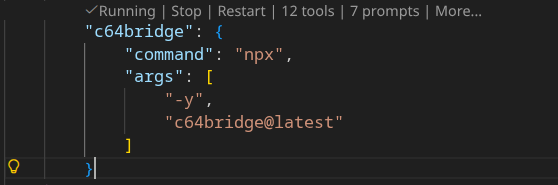
For more details, see the official VS Code MCP Server documentation.
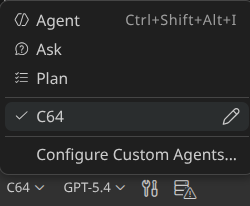
Enable the C64 Agent
After the server is running, switch to the C64 agent in VS Code.
This agent is preconfigured for Commodore 64 work. It steers Copilot toward c64bridge workflows for BASIC, 6502 assembly, SID audio, VIC-II graphics, memory inspection, disk operations, printing, streaming, and device control.
Optional Overrides
You can add env entries in .vscode/mcp.json to select a config file, override C64 Ultimate connection details, or force an initial backend:
{
  "servers": {
    "c64bridge": {
      "command": "npx",
      "args": [
        "-y",
        "c64bridge@latest"
      ],
      "env": {
        "C64BRIDGE_CONFIG": "/home/you/.c64bridge.json",
        "C64U_HOST": "192.168.1.99",
        "C64U_PORT": "80",
        "C64U_PASSWORD": "secret",
        "C64_MODE": "c64u",
        "LOG_LEVEL": "debug"
      }
    }
  }
}
C64BRIDGE_CONFIGpoints to a specific config fileC64U_HOST,C64U_PORT, andC64U_PASSWORDoverride the C64 Ultimate connection without editing config filesC64_MODEforces the initial backend toc64u,u2, orvice;U2_HOST,U2_PORT, andU2_PASSWORDoverride the selected U2 profile.LOG_LEVEL=debugenables verbose logging
For VICE-specific overrides such as VICE_ARGS=-minimized, VICE_VISIBLE=false, or custom VICE paths, use the patterns in Backend Configuration: VICE.
Environment Variables in MCP Client Configs
Every runtime environment variable documented in the root mcp.json can be supplied by your MCP client configuration, including .vscode/mcp.json under servers.c64bridge.env.
When an environment variable maps to a JSON config field, the override order is always:
- the explicit environment variable from your MCP client config or shell
- the merged JSON config section loaded from
C64BRIDGE_CONFIG, the repo.c64bridge.json, then~/.c64bridge.json - the built-in default compiled into the server
When an environment variable has no JSON config equivalent, the order is:
- the explicit environment variable from your MCP client config or shell
- the built-in default
That rule applies uniformly across the documented runtime environment variables below.
Example: start on minimized VICE with a specific ROM or resource directory, plus a hardware fallback that can still be selected instantly at runtime:
{
  "servers": {
    "c64bridge": {
      "command": "node",
      "args": ["${workspaceFolder}/scripts/start.mjs"],
      "type": "stdio",
      "env": {
        "C64_MODE": "vice",
        "C64U_HOST": "c64u",
        "C64U_PORT": "80",
        "VICE_BINARY": "/usr/local/bin/x64sc",
        "VICE_DIRECTORY": "/usr/local/share/vice",
        "VICE_VISIBLE": "true",
        "VICE_ARGS": "-minimized",
        "VICE_WARP": "false"
      }
    }
  }
}
Example: keep JSON config files for backend endpoints, but override diagnostics, polling, and RAG behavior from VS Code:
{
  "servers": {
    "c64bridge": {
      "command": "node",
      "args": ["${workspaceFolder}/scripts/start.mjs"],
      "type": "stdio",
      "env": {
        "C64BRIDGE_CONFIG": "/home/you/.c64bridge.json",
        "LOG_LEVEL": "debug",
        "C64BRIDGE_POLL_MAX_MS": "8000",
        "C64BRIDGE_POLL_INTERVAL_MS": "200",
        "RAG_BUILD_ON_START": "1",
        "RAG_EMBEDDINGS_DIR": "/home/you/c64bridge-data"
      }
    }
  }
}
Runtime Environment Variable Reference
Every runtime environment variable documented in mcp.json can be set in your MCP client configuration, including .vscode/mcp.json under servers.c64bridge.env.
Server Runtime
| Variable | Default | JSON Config Key | Description |
|---|---|---|---|
C64_MODE |
c64u | — | Select active backend (c64u/U64 hardware, u2/U2-family cartridge, or vice emulator) |
C64_TASK_STATE_FILE |
auto | — | Override the path used to persist MCP background-task state |
C64BRIDGE_CONFIG |
~/.c64bridge.json | config path | Path to configuration JSON |
C64BRIDGE_DIAGNOSTICS_DIR |
~/.c64bridge/diagnostics | — | Override the directory where persistent MCP diagnostics files are written |
C64BRIDGE_DISABLE_DIAGNOSTICS |
0 | — | Set to 1 to disable persistent diagnostics logging |
C64BRIDGE_POLL_INTERVAL_MS |
200 | — | Interval between screen polls during program-output validation in normal runtime mode |
C64BRIDGE_POLL_MAX_MS |
2000 | — | Maximum time to poll for program-output validation before timing out in normal runtime mode |
C64BRIDGE_POLL_STABILIZE_MS |
100 | — | Extra settle time after a successful poll match before considering output stable |
LOG_LEVEL |
info | — | Logger verbosity (debug, info, warn, error) |
C64 Ultimate
| Variable | Default | JSON Config Key | Description |
|---|---|---|---|
C64U_HOST |
c64u | c64u.host | Override the C64 Ultimate host name or IP address |
C64U_PASSWORD |
c64u.networkPassword | Override the C64 Ultimate network password sent as X-Password | |
C64U_PORT |
80 | c64u.port | Override the C64 Ultimate REST port |
U2-family
| Variable | Default | JSON Config Key | Description |
|---|---|---|---|
U2_HOST |
u2.host | Override the U2/U2+/U2+L host name or IP address when C64_MODE=u2 | |
U2_PASSWORD |
u2.networkPassword | Override the U2-family network password sent as X-Password when C64_MODE=u2 | |
U2_PORT |
u2.port | Override the U2-family REST port when C64_MODE=u2 |
VICE Runtime
| Variable | Default | JSON Config Key | Description |
|---|---|---|---|
DISABLE_XVFB |
0 | — | Set to 1 to disable Xvfb fallback and use the current display only |
FORCE_XVFB |
0 | — | Set to 1 to force managed VICE launches to use Xvfb even when a graphical session is detected |
VICE_ARGS |
vice.args | Extra command-line arguments forwarded to managed VICE launches, such as -minimized for a visible window that starts iconified | |
VICE_BINARY |
x64sc | vice.exe | VICE binary to launch for managed emulator sessions and audio capture; automatic search is used only when this override is missing or invalid |
VICE_DIRECTORY |
auto-detect | vice.directory | Override the VICE resource directory used for ROM and UI asset discovery; automatic search is used only when this override is missing or invalid |
VICE_HOST |
127.0.0.1 | vice.host | Override the VICE Binary Monitor host |
VICE_PORT |
6502 | vice.port | Override the VICE Binary Monitor port |
VICE_PREWARM |
0 | vice.prewarm | Set to 1 to start/connect VICE in the background during MCP startup; disabled by default so VICE starts lazily on first use |
VICE_VISIBLE |
true | vice.visible | Launch VICE as a desktop window when true; use headless/Xvfb managed launch when false |
VICE_WARP |
false when visible, true when headless | vice.warp | Enable warp mode for managed VICE sessions |
VICE_XVFB_DISPLAY |
:99 | — | Display number to use when managed VICE launches under Xvfb |
VICE Audio Capture
| Variable | Default | JSON Config Key | Description |
|---|---|---|---|
VICE_LIMIT_CYCLES |
120000000 | — | Maximum CPU cycles to render when VICE generates audio |
VICE_MODE |
ntsc | — | Default video standard for VICE audio capture (ntsc|pal) |
VICE_RUN_TIMEOUT_MS |
10000 | — | Timeout for headless VICE runs in milliseconds |
SID Playback
| Variable | Default | JSON Config Key | Description |
|---|---|---|---|
SIDPLAY_BINARY |
sidplayfp | — | sidplayfp binary to launch when generating audio |
SIDPLAY_LIMIT_CYCLES |
120000000 | — | Maximum CPU cycles to render when sidplayfp generates audio |
SIDPLAY_MODE |
ntsc | — | Default SID playback mode (ntsc|pal) |
SIDPLAYFP_BINARY |
— | Legacy alias for SIDPLAY_BINARY (sidplayfp executable name) |
RAG
| Variable | Default | JSON Config Key | Description |
|---|---|---|---|
GITHUB_TOKEN |
— | Personal access token used for optional RAG discovery against GitHub | |
RAG_BUILD_ON_START |
0 | — | Set to 1 to rebuild embeddings on server start |
RAG_DISCOVER_FORCE_REFRESH |
0 | — | Set to 1 to ignore cached discovery results when fetching external docs |
RAG_DOC_FILES |
— | Comma-separated extra docs to include in RAG | |
RAG_EMBEDDINGS_DIR |
data | — | Directory containing RAG embedding JSON files |
RAG_REINDEX_INTERVAL_MS |
0 | — | Periodic reindex interval in ms (0 disables) |
Testing
| Variable | Default | JSON Config Key | Description |
|---|---|---|---|
C64_TEST_TARGET |
— | Overrides integration tests to hit mock or real hardware (mock|real) |
Claude Code
Claude Code is supported as a first-class MCP client. It uses the same canonical start command and the same backend Configuration files and environment variables as every other client — only the discovery file differs.
Claude Code CLI — register the published server in one command:
claude mcp add c64bridge -- npx -y c64bridge@latest
Use --scope user to make it available across all your projects, or --scope project to write a .mcp.json next to the current repo. Backend selection (c64u, u2, or vice), host, port, and password come from the same files documented in Configuration; per-shell overrides come from the variables in Runtime Environment Variable Reference.
Project-scoped discovery — this repository ships a checked-in .mcp.json that points Claude Code at the local source via node scripts/start.mjs. When you open the repo with claude (CLI or VS Code plugin), Claude Code prompts to enable the project-scoped server on first run. Approve it once and the c64_* tools become discoverable in that workspace.
Claude Code VS Code plugin — the plugin reads the same .mcp.json and the same user-scope claude mcp add registrations as the CLI. No extra setup is required beyond installing the plugin and approving the project server prompt. The existing .vscode/mcp.json is read by GitHub Copilot, not by Claude Code; the two files coexist without conflict because they target different clients with different config schemas.
Verify it works — after registration, run claude mcp list (CLI) or open the MCP panel (plugin) and look for c64bridge. Then ask Claude Code something like “use vice: write a small BASIC program that clears the screen and prints HELLO CLAUDE” — it should call c64_select_backend and c64_program directly. If tools do not appear, confirm Node 24+ is on PATH, that the server was approved at the requested scope, and that the backend is reachable per the Configuration section.
Example Workflow
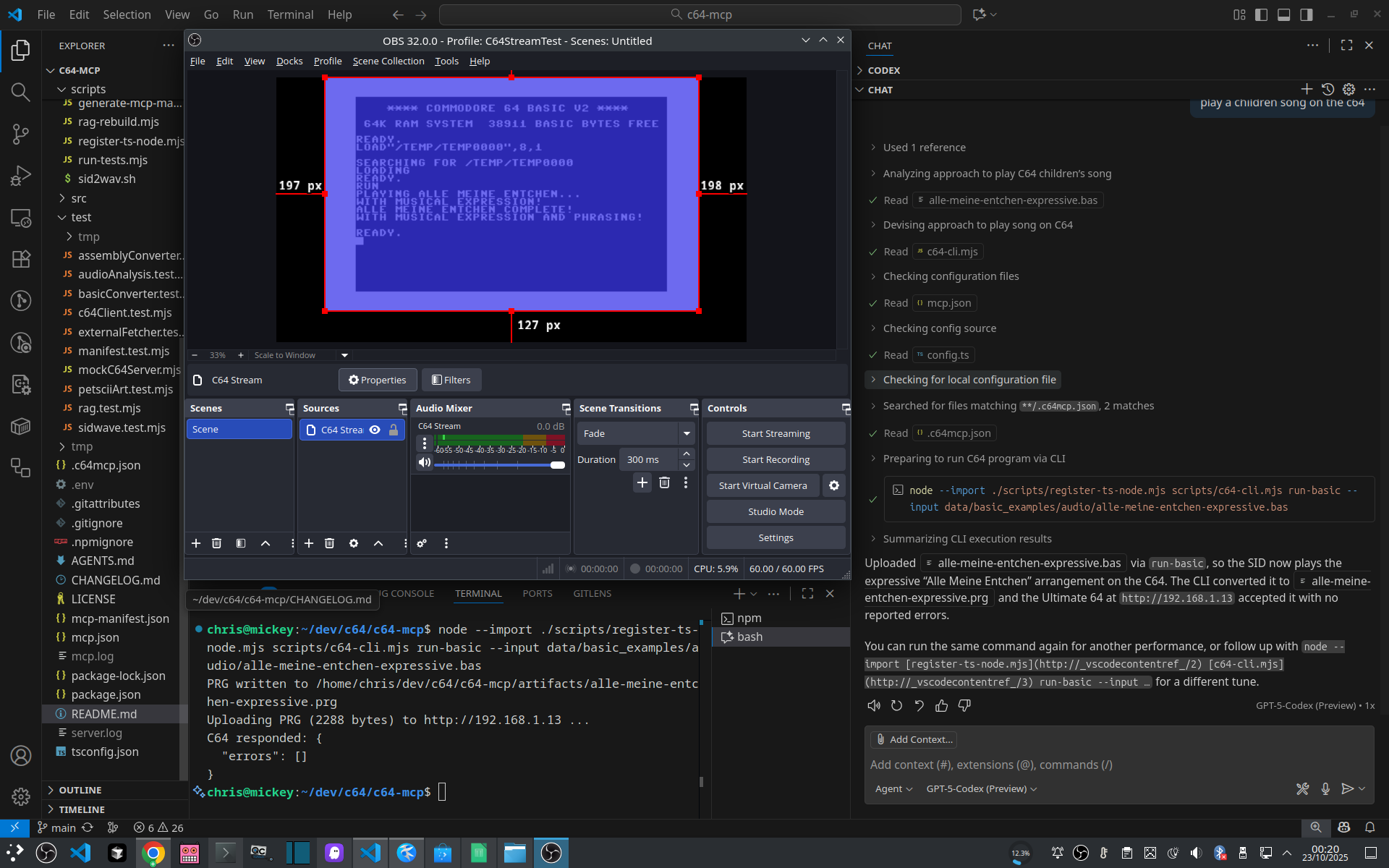
Compose a children’s song with ChatGPT and VS Code:
Then render PETSCII art for it:
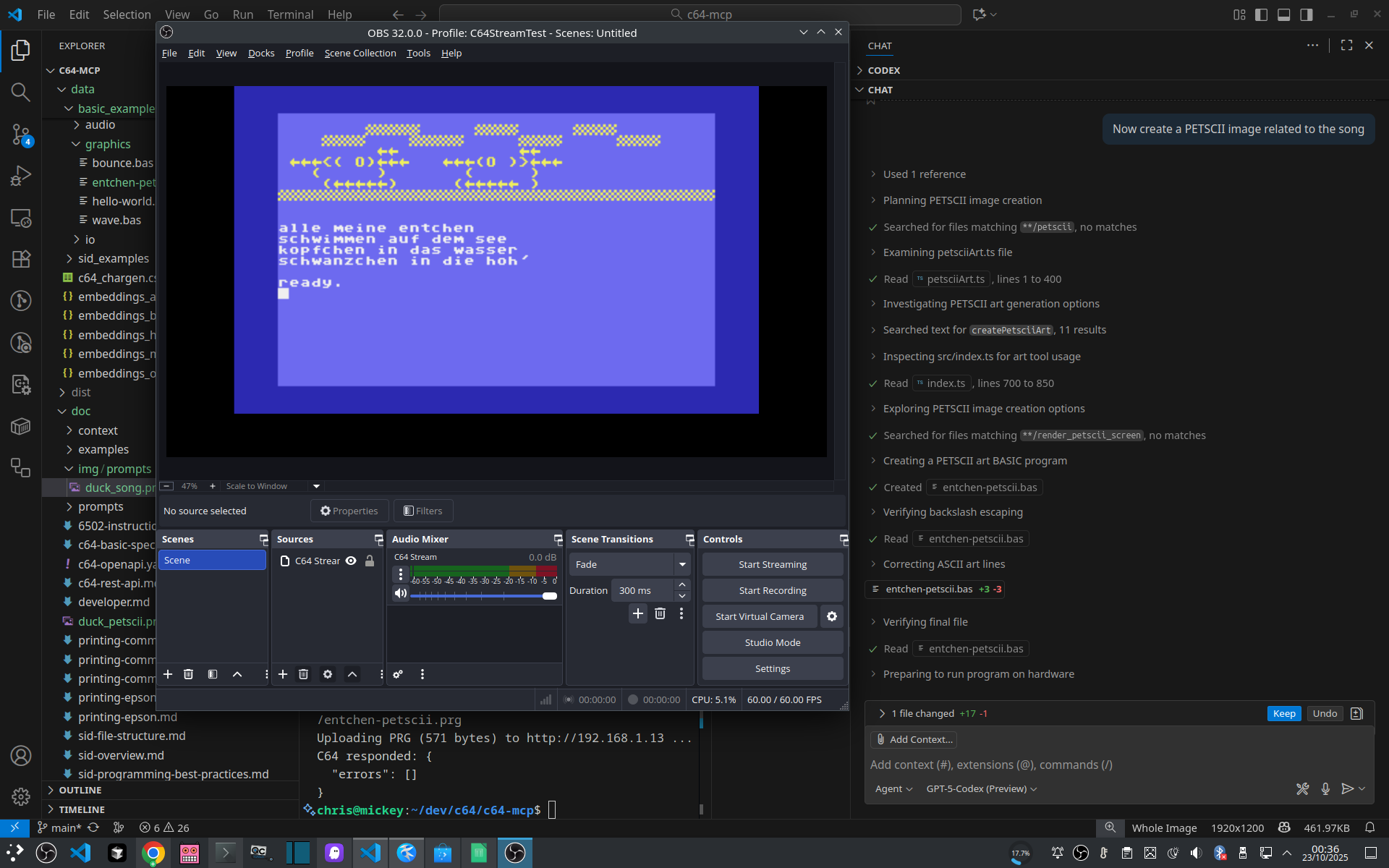
This is representative of the intended workflow:
- Ask the MCP client to generate or refine C64-oriented content.
- Use grouped tools such as
c64_program,c64_graphics, andc64_soundto execute it. - Verify the result via screen reads, frame capture, memory inspection, or audio analysis.
HTTP Invocation
- Preferred transport is
stdio. - The HTTP bridge is disabled by default and is intended only for manual testing.
- The following curl commands are illustrative so you can see what grouped MCP calls look like over HTTP.
# Upload and run BASIC
curl -s -X POST -H 'Content-Type: application/json' \
  -d '{"op":"upload_run_basic","program":"10 PRINT \"HELLO\"\n20 GOTO 10"}' \
  http://localhost:8000/tools/c64_program | jq

# Read current screen (PETSCII→ASCII)
curl -s -X POST -H 'Content-Type: application/json' \
  -d '{"op":"read_screen"}' \
  http://localhost:8000/tools/c64_memory | jq

# Reset the machine
curl -s -X POST -H 'Content-Type: application/json' \
  -d '{"op":"reset"}' \
  http://localhost:8000/tools/c64_system
Build and Test
The ./build script at the project root wraps all development tasks behind a single, self-documented interface:
./build --help                                       # full command reference
./build                                              # install + build + test matrix (full CI run)
./build --skip-tests                                 # install + build only
./build build                                        # TypeScript compile + doc generation
./build test                                         # integration tests (mock backend)
./build test --real                                  # test against real hardware
./build test --platform vice --target mock           # single test leg
./build test:matrix                                  # full matrix (c64u/mock · vice/mock · vice/device)
./build coverage                                     # merged coverage report
./build coverage:single --platform c64u --target mock
./build check                                        # build + test matrix (no install)
./build rag:rebuild                                  # rebuild RAG embeddings
./build release --version 1.2.3                      # prepare a release
Starting the MCP server is not managed by
./build. Usenpm start(from source) ornpx -y c64bridge@latest(published package) as shown in the Quick Start section above.
Documentation
- DeepWiki - architecture and implementation overview
- doc/developer.md - development workflow and RAG details
- data/context/bootstrap.md - primer injected ahead of prompts
- doc/c64u/c64-openapi.yaml - REST surface (OpenAPI 3.1)
- AGENTS.md - LLM-facing quick setup, usage, and personas
Static MCP Interface
The repository contains an auto-generated static mirror of the MCP server interface in the ./mcp folder.
This allows agents to inspect the available tools, resources, prompts, and schemas without connecting to the server.
MCP API Reference
This MCP server exposes 17 tools, 27 resources, and 10 prompts for controlling your Commodore 64.
Tools
Address range convention: address + length means start address plus byte count; startAddress + endAddress means inclusive bounds.
c64_batch
Execute multiple c64bridge tool calls in a single request. Reduces latency for multi-step workflows.
No operations defined.
c64_config
Grouped entry point for configuration reads/writes, diagnostics, and snapshots.
| Operation | Description | Required Inputs | Optional Inputs | C64U | U2 | VICE |
|---|---|---|---|---|---|---|
batch_update |
Apply multiple configuration updates in a single request. | — | — | ✅ | ✅ | ✅ |
diff |
Compare the current configuration with a snapshot. | path |
— | ✅ | ✅ | ✅ |
get |
Read a configuration category or specific item. | category |
item |
✅ | ✅ | ✅ |
info |
Retrieve Ultimate hardware information and status. | — | — | ✅ | ✅ | ✅ |
list |
List configuration categories reported by the firmware. | — | — | ✅ | ✅ | ✅ |
load_flash |
Load configuration from flash storage. | — | — | ✅ | ✅ | |
read_debugreg |
Read the Ultimate debug register ($D7FF). | — | — | ✅ | ||
reset_defaults |
Reset firmware configuration to factory defaults. | — | — | ✅ | ✅ | |
restore |
Restore configuration from a snapshot file. | path |
applyToFlash=false |
✅ | ✅ | ✅ |
save_flash |
Persist the current configuration to flash storage. | — | — | ✅ | ✅ | |
set |
Write a configuration value in the selected category. | category, item, value |
— | ✅ | ✅ | ✅ |
shuffle |
Discover PRG/CRT files and run each with optional screen capture. | — | root="/", extensions=["prg","crt"], durationMs=5000, captureScreen=true, maxPrograms=10, outputPath, resetDelayMs=100 |
✅ | ✅ | |
snapshot |
Snapshot configuration to disk for later restore or diff. | path |
— | ✅ | ✅ | ✅ |
version |
Fetch firmware version details. | — | — | ✅ | ✅ | ✅ |
write_debugreg |
Write a hex value to the Ultimate debug register ($D7FF). | value |
— | ✅ |
c64_debug
Grouped entry point for VICE debugger operations (breakpoints, registers, stepping).
| Operation | Description | Required Inputs | Optional Inputs | C64U | U2 | VICE |
|---|---|---|---|---|---|---|
continue_execution |
Exit the Binary Monitor and resume CPU execution (BM 0xAA Exit). | — | — | ✅ | ||
create_checkpoint |
Create a new checkpoint (breakpoint) in VICE. | address |
endAddress, stopOnHit=true, enabled=true, temporary=false, label, operations, memspace |
✅ | ||
delete_checkpoint |
Remove a checkpoint by id. | id |
— | ✅ | ||
get_checkpoint |
Fetch a single checkpoint by id. | id |
— | ✅ | ||
get_monitor_state |
Read CPU registers and return the current monitor state. | — | memspace |
✅ | ||
get_registers |
Read register values, optionally filtered by name or id. | — | memspace, registers |
✅ | ||
list_checkpoints |
List all active VICE checkpoints (breakpoints). | — | — | ✅ | ||
list_registers |
List available registers (metadata). | — | memspace |
✅ | ||
nuclear_reset |
Kill and restart the VICE process (managed instances only). | — | — | ✅ | ||
set_condition |
Attach a conditional expression to a checkpoint. | id, expression |
— | ✅ | ||
set_registers |
Write register values. | writes |
memspace |
✅ | ||
step |
Single-step CPU execution. | — | count=1, mode |
✅ | ||
step_return |
Continue execution until the current routine returns. | — | — | ✅ | ||
toggle_checkpoint |
Enable or disable a checkpoint by id. | id, enabled |
— | ✅ | ||
wait_for_state |
Poll CPU registers until PC equals expectedPC or timeout elapses. | — | expectedPC, timeoutMs=5000, pollMs=100 |
✅ |
c64_disk
Grouped entry point for disk mounts, listings, image creation, and program discovery.
| Operation | Description | Required Inputs | Optional Inputs | C64U | U2 | VICE |
|---|---|---|---|---|---|---|
create_image |
Create a blank disk image of the specified format. | format, path |
diskname, tracks |
✅ | ✅ | |
file_info |
Inspect metadata for a file on the Ultimate filesystem. | path |
— | ✅ | ✅ | |
find_and_run |
Search for a PRG/CRT by name substring and run the first match. | nameContains |
root="/", extensions, caseInsensitive=true, sort="discovered", waitMs=0, captureCandidates=10 |
✅ | ✅ | |
list_drives |
List Ultimate drive slots and their mounted images. | — | — | ✅ | ✅ | ✅ |
mount |
Mount a disk image with optional verification and retries. Supports verification. | drive, image |
type, attachmentMode, driveMode, |
No comments yet
Be the first to share your take.