
AT.field — AI Terminal Field
Expand your AT.field. Visualize the Future of AI.
What is AT.field?
It's not a traditional terminal. It's not another Electron IDE.
AT.field is a native macOS AI terminal cockpit for Claude Code, Codex CLI, Gemini CLI, aider, SSH, Serial ports, Git diffs, localhost preview, and AI Agent workflows.
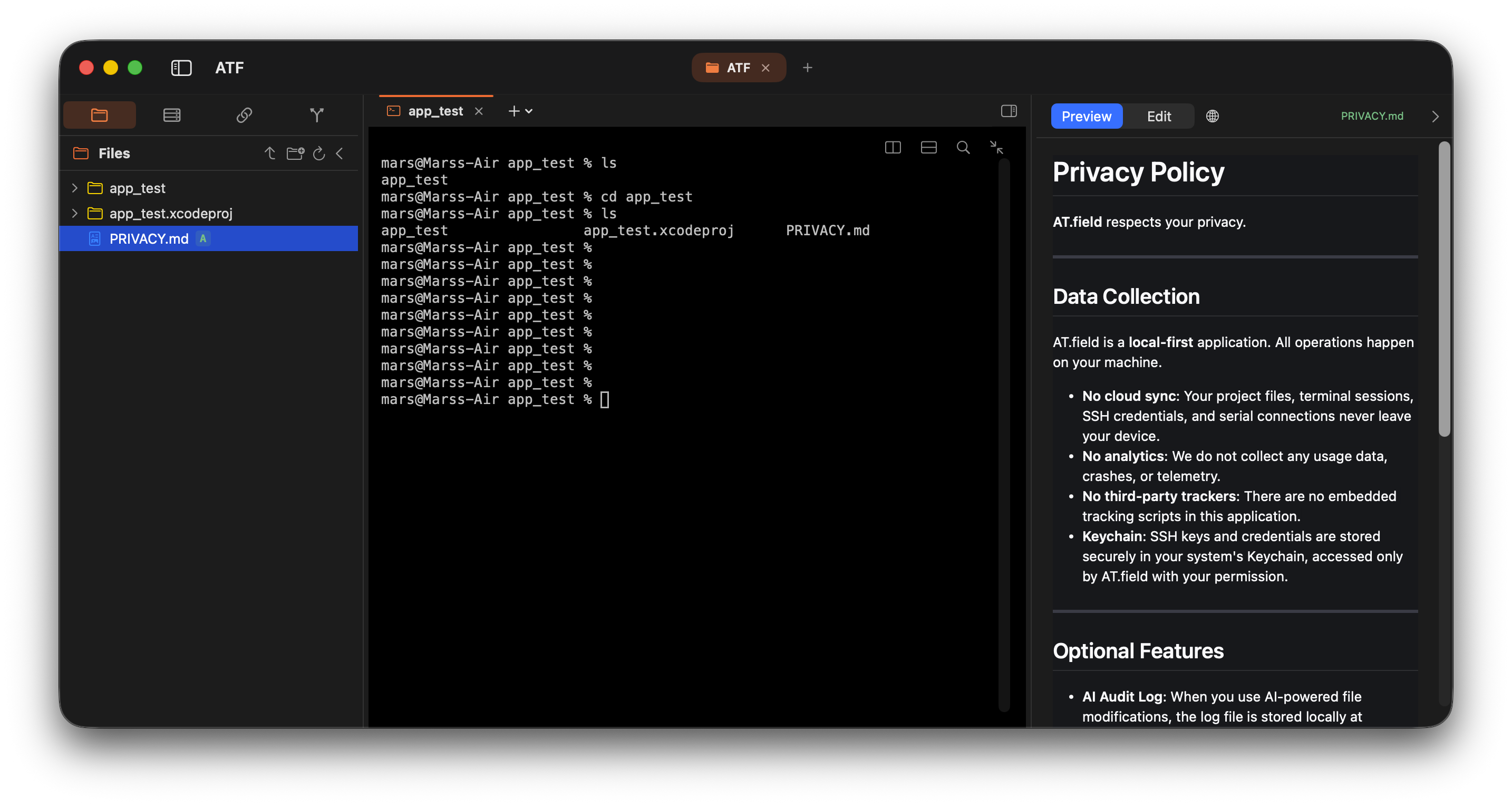
Screenshot
AI CLI tools such as Claude Code, Codex CLI, aider, OpenHands, Antigravity, and Gemini CLI are becoming part of everyday development. They can edit files, run commands, generate reports, start local servers, and produce diffs directly from the terminal.
The problem is what happens after they do the work: in a normal CLI, you still have to leave the terminal to inspect the result.
AT.field keeps the AI CLI workflow in the terminal, but adds a visual review layer next to it:
- Center: run your shell, AI CLI, SSH, or Serial session
- Left: browse files, projects, connections, and sessions
- Right Sidecar: preview files, diffs, Markdown, images, PDFs, and localhost pages
The core idea is simple: AI executes in the terminal; humans review the result visually.
That addresses the biggest pain point in AI CLI tools today: the CLI is too "blind." AI is powerful, but you're often stuck watching scrolling text. You can't quickly:
- See diffs
- Render Markdown
- Open localhost web pages
- View images or PDFs
- Check git changes
- Monitor remote device status
AT.field's take: keep the terminal-first workflow, but make the results visible in the same window.
Why pure CLI workflows fall short
AI CLI tools are great at running commands, editing files, launching services, and executing tests. Their one real limitation: they're mostly text interfaces.
When Claude Code, Codex CLI, or another agent tells you it updated a file, generated a report, started a localhost service, or produced a diff, you usually can't review the result comfortably inside the CLI.
For example:
- The agent updates
src/App.swift - The agent creates
report.md - The agent starts
http://localhost:3000 - The agent outputs a diff
- The agent creates an image or PDF
- The agent asks you to review git changes
In a pure terminal setup, that means extra steps:
- Open files with
cat,less,vim, ornano - Call external tools with
!or shell commands - Switch to Finder to find files
- Switch to a browser for localhost
- Switch to VS Code or Cursor for diffs
- Switch to Preview for images or PDFs
- Switch back to the terminal to continue the AI conversation
None of these are hard on their own. But together they break your flow, over and over.
The real problem isn't that AI CLI tools can't do the work. It's that after the AI does the work, you don't have a good place to inspect, verify, and correct the result.
AT.field adds that place. When the terminal outputs file paths, localhost URLs, Markdown, images, PDFs, HTML, or diffs, AT.field opens them directly in the right-side Sidecar. No jumping between Finder, browser, Preview, and VS Code. You stay in one window.
This turns AI CLI from a text-only black box into a workflow you can observe and steer in real time.
One place for all your terminal work
AT.field isn't just for AI CLI tools. It brings everything engineers do around the terminal into a single workspace:
- Local shell
- AI CLI and coding agents
- SSH remote hosts
- Serial port and UART devices
- Localhost web preview
- Markdown, PDF, image, and HTML preview
- Git diff and file change review
- Long-running scripts, servers, and log tails
- MCP and automation integration
Usually these are scattered across half a dozen apps: iTerm2, Finder, VS Code, Safari, Preview, SSH config files, serial console tools, git GUIs.
AT.field pulls them all into one three-pane interface:
- Left — projects, files, connections, and sessions
- Center — terminal, AI CLI, SSH, and Serial
- Right — output previews, file contents, diffs, localhost pages, and media files
Run commands, connect to remote machines, inspect AI changes, check localhost, review diffs, open Markdown reports, and monitor serial logs — all in the same window.
SSH and Serial as first-class workflows
Most terminal apps make SSH a core feature. Serial ports are usually an afterthought. For embedded, robotics, homelab, and infrastructure engineers, that doesn't cut it.
Real work often means juggling:
- SSH into a remote Linux server
- Connecting to a Raspberry Pi, Jetson, router, NAS, or dev board
- Watching UART or serial console output via
/dev/tty.* - Tailing logs while running a local build
- Letting an AI CLI modify code while you test on a remote machine
- Dragging files into local, SSH, or Serial sessions
AT.field treats SSH and Serial as equal citizens — both are first-class sessions managed in the same connection hub. Switch tabs freely; background connections stay alive. Need to keep an eye on a long-running deploy or hardware console? Detach any session into a floating window and pin it above all Spaces.
That's what makes AT.field more than an AI coding tool: it's a terminal cockpit for day-to-day engineering ops.
How it differs from Cursor and VS Code
| AT.field | Cursor / VS Code | |
|---|---|---|
| Architecture | SwiftUI + AppKit (macOS native) | Electron (Chromium) |
| UI Engine | macOS native | Chromium |
| Launch Speed | < 0.1s (cold) | 1.5s ~ 4.0s |
| Memory | ~80-100 MB baseline | 200-500+ MB baseline |
| Core Positioning | AI Terminal Cockpit | IDE |
| AI Role | External Agent orchestration | Built-in IDE features |
| Primary Workflow | Terminal-first | GUI-first |
This is not an IDE replacement.
Think of it more like:
iTerm2 + tmux + Preview + SSH Manager + MCP Gateway + AI Agent Inspector — fused into one macOS-native product.
The real core: Sidecar design
This is the smartest part of the whole product.
When your terminal outputs ./report.md or http://localhost:3000, AT.field recognizes file paths, localhost URLs, images, PDFs, HTML, and diffs — then previews them instantly in the right-side Sidecar.
No more:
Cmd+Tabto browser- Opening Finder
- Launching VS Code
The terminal becomes your command layer and orchestration layer. The Sidecar becomes your visualization layer.
This fits the AI Agent era perfectly: the AI executes in the terminal, and you supervise, authorize, and correct through the visual layer. The real risk is AI changing things without an observation layer — AT.field gives you that layer.
Features
| Feature | What it does |
|---|---|
| Three-pane cockpit | Navigator, terminal, and Sidecar in one window. |
| Sidecar preview / edit | Preview Markdown, images, video, HTML, JSON, PDF. Edit source files with syntax highlighting. |
| Terminal output detection | Detect file paths, localhost URLs, images, PDFs, HTML, and diffs from terminal output and open them in Sidecar. |
| SSH & Serial hub | Manage SSH hosts and Serial devices (/dev/tty.*) as first-class sessions. Switching tabs won't drop connections. |
| Split / detach / pin | Split terminal panes, detach tabs, and pin floating windows above all Spaces. |
| Git integration | View project files and git diffs directly in Sidecar. |
| MCP Server | Built-in Unix Domain Socket JSON-RPC server for AI clients and automation. |
| Finder Services | Open AT.field tabs or windows from Finder context menus. |
System Requirements
- macOS 14.0 (Sonoma) or later
- Apple Silicon or Intel
Installation
- Download the latest
.dmgfrom Releases - Open the
.dmgand dragATF.appintoApplications - On first launch, right-click → Open (to bypass Gatekeeper once)
Build from Source
This repository contains only the release binaries. Source code is maintained in a private repository.
Keywords
macOS AI terminal, Claude Code terminal, Codex CLI GUI, AI CLI cockpit, terminal with file preview, SSH manager, Serial port terminal, UART console, localhost preview, Git diff viewer, MCP server, AI agent workflow.
License
See LICENSE.txt for details.
No comments yet
Be the first to share your take.