
AppSignal MCP Server
This is the official AppSignal MCP server. Everything necessary to debug using AppSignal's monitoring data, metrics, and tools is now accessible from your favorite AI editor.
AppSignal MCP is a public HTTP endpoint at https://appsignal.com/api/mcp. Most agents connect to it directly — you don't need this repository to use AppSignal MCP. It holds the optional Docker image that proxies the endpoint over stdio, for environments that restrict outbound traffic or agents that can't speak HTTP MCP.
This feature is in preview. Read the full MCP reference on AppSignal official documentation.
Join our Discord community to help shape this MCP implementation. Feature requests are welcome!
Prerequisites
- Docker
- An AppSignal account and an AppSignal MCP token.
Installation
Pull the Docker image:
docker pull appsignal/mcp:latest
The image reads two environment variables: APPSIGNAL_API_KEY (required, your MCP token) and APPSIGNAL_ENDPOINT (optional, defaults to https://appsignal.com/api/mcp).
Configuration
Each editor below shows two options: the HTTP endpoint, which authenticates with OAuth, and the Docker image, which authenticates with your MCP token. To use a token over HTTP instead of OAuth, add an Authorization: Bearer <YOUR_MCP_TOKEN> header — see the setup guide for the exact form per editor.
Claude Code
claude mcp add --transport http appsignal https://appsignal.com/api/mcp
Claude Code starts the browser sign-in the first time an AppSignal tool is used. Run claude mcp list to confirm it shows as connected.
With Docker:
claude mcp add appsignal -e APPSIGNAL_API_KEY=your-mcp-token -- docker run -i --rm -e APPSIGNAL_API_KEY appsignal/mcp
Claude app
Claude.ai, and the desktop and mobile apps, connect over OAuth as a custom connector. There's no Bearer token option here.
- Open Settings, then Connectors.
- Select Browse, search for
appsignal, and open the AppSignal connector. If it isn't listed, select Add custom connector and enterhttps://appsignal.com/api/mcp. - Select Connect and complete the AppSignal sign-in.
To run the Docker proxy locally instead, open Settings → Developer → Local MCP servers and select Edit Config.
Then add this configuration to the file that opens:
{
  "mcpServers": {
    "appsignal": {
      "command": "docker",
      "args": ["run", "-i", "--rm", "-e", "APPSIGNAL_API_KEY", "appsignal/mcp"],
      "env": {
        "APPSIGNAL_API_KEY": "your-mcp-token"
      }
    }
  }
}
Cursor and Windsurf
To enable AppSignal MCP in Cursor or Windsurf, edit your configuration file.
For Cursor use ~/.cursor/mcp.json
For Windsurf use ~/.codeium/windsurf/mcp_config.json
Add the following configuration:
{
  "mcpServers": {
    "appsignal": {
      "command": "docker",
      "args": ["run", "-i", "--rm", "-e", "APPSIGNAL_API_KEY", "appsignal/mcp"],
      "env": {
        "APPSIGNAL_API_KEY": "your-mcp-token"
      }
    }
  }
}
Zed
Open your Zed settings file and add the context_servers section:
{
  "context_servers": {
    "appsignal": {
      "source": "custom",
      "command": "docker",
      "args": ["run", "-i", "--rm", "-e", "APPSIGNAL_API_KEY", "appsignal/mcp"],
      "env": {
        "APPSIGNAL_API_KEY": "your-mcp-token"
      }
    }
  }
}
VS Code
If you use GitHub Copilot under a company account, set MCP servers in Copilot to Enabled in your organization settings (Settings → Copilot → Policies → Features).
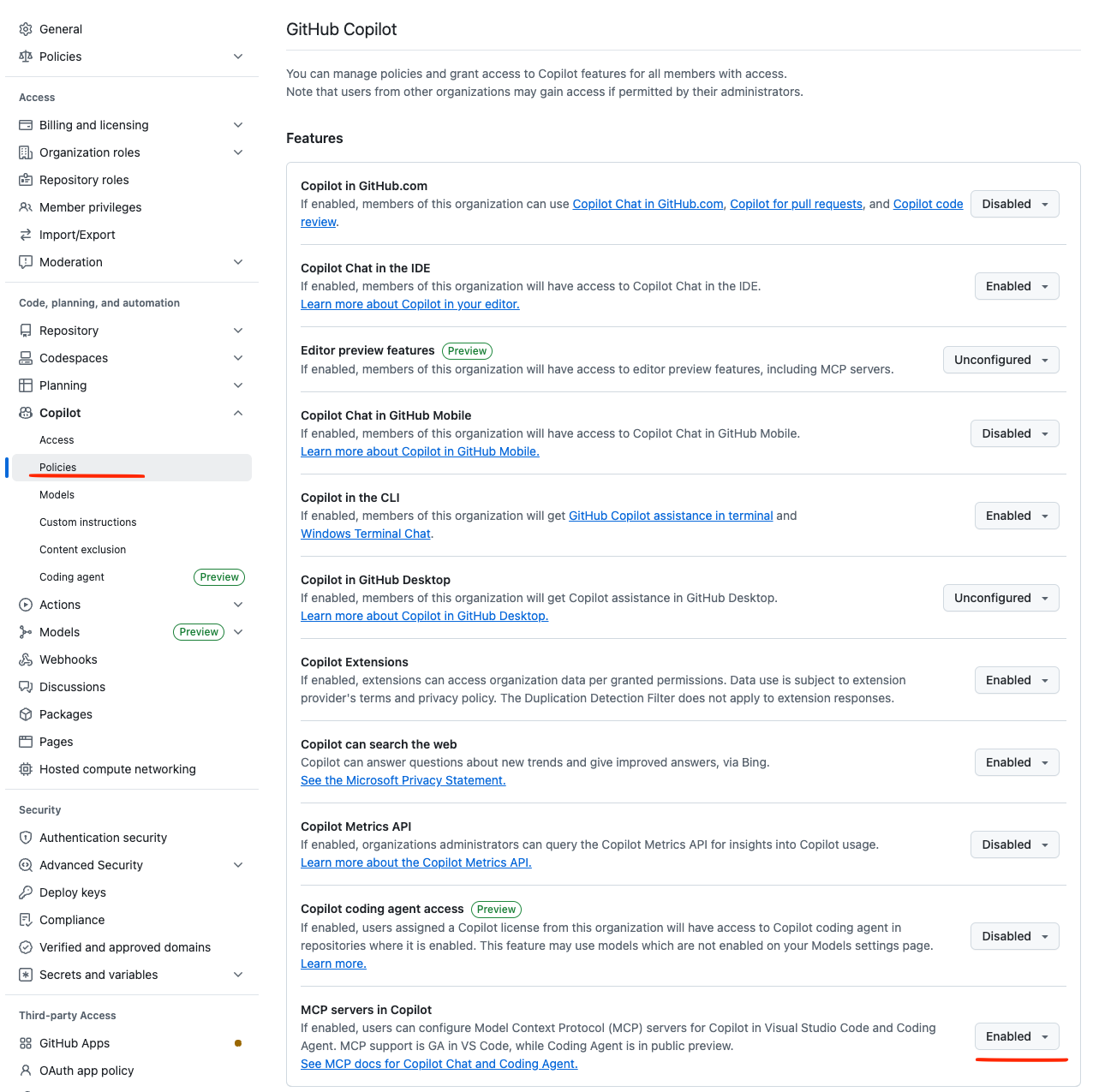
Then add this config to your .vscode/mcp.json settings:
{
  "inputs": [
    {
      "type": "promptString",
      "id": "appsignal_mcp_token",
      "description": "AppSignal MCP Token",
      "password": true
    }
  ],
  "servers": {
    "appsignal": {
      "command": "docker",
      "args": [
        "run",
        "-i",
        "--rm",
        "-e",
        "APPSIGNAL_API_KEY",
        "appsignal/mcp"
      ],
      "env": {
        "APPSIGNAL_API_KEY": "${input:appsignal_mcp_token}"
      }
    }
  }
}
Other agents
GitHub Copilot CLI, Gemini CLI, and OpenAI Codex are covered in the setup guide.
What you can access
The endpoint exposes read and write tools across seven areas: error incidents, performance, anomaly detection, logging, metrics, dashboards, and app discovery. With an MCP token, each area can be set to read, write, or disabled. With OAuth, all read and write tools are exposed at once.
For the full list of tools, parameters, and example prompts, see the MCP tool reference.
Development
To work on the MCP server:
-
Start the TypeScript compiler in watch mode:
npm run watch -
Run tests:
npm test -
Use the MCP inspector for debugging:
npm run inspector
Change management
Every change that will results in a new version to be released, requires a changeset. Changesets are small Markdown file that describe the change for the end-user. The changeset's frontmatter describes the type of change (new feature, bug fix, etc.) and the version bump (major, minor, or patch).
Use Mono's changeset CLI to generate a new changeset file. Commit the changeset file and include it in your Pull Requests.
mono changeset add
Publishing
Install Mono, the tool used for release management.
git pull # Ensure you have the latest version

mono publish # Publish a new version
Contributing
Thinking of contributing to our project? Awesome! 🚀
Please follow our Contributing guide in our documentation and follow our Code of Conduct.
Also, we would be very happy to send you Stroopwafles. Have look at everyone we send a package to so far on our Stroopwafles page.
Support
- Join our Discord community to chat with other developers and the AppSignal team
- Contact us to speak directly with the engineers working on AppSignal. They will help you get set up, tweak your code and make sure you get the most out of using AppSignal.
License
This project is licensed under the MIT License - see the LICENSE file for details.
About AppSignal
AppSignal provides real-time performance monitoring for your web applications. Track errors, monitor performance, measure client-side metrics, and receive alerts when things go wrong.
No comments yet
Be the first to share your take.